- Ability to transfer data at extreme speeds of up to 80 Gbps in its latest version.
- Integration of multiple protocols such as DisplayPort and PCI Express into a single USB-C cable.
- Ultra-fast charging support via Power Delivery with power levels up to 240W.
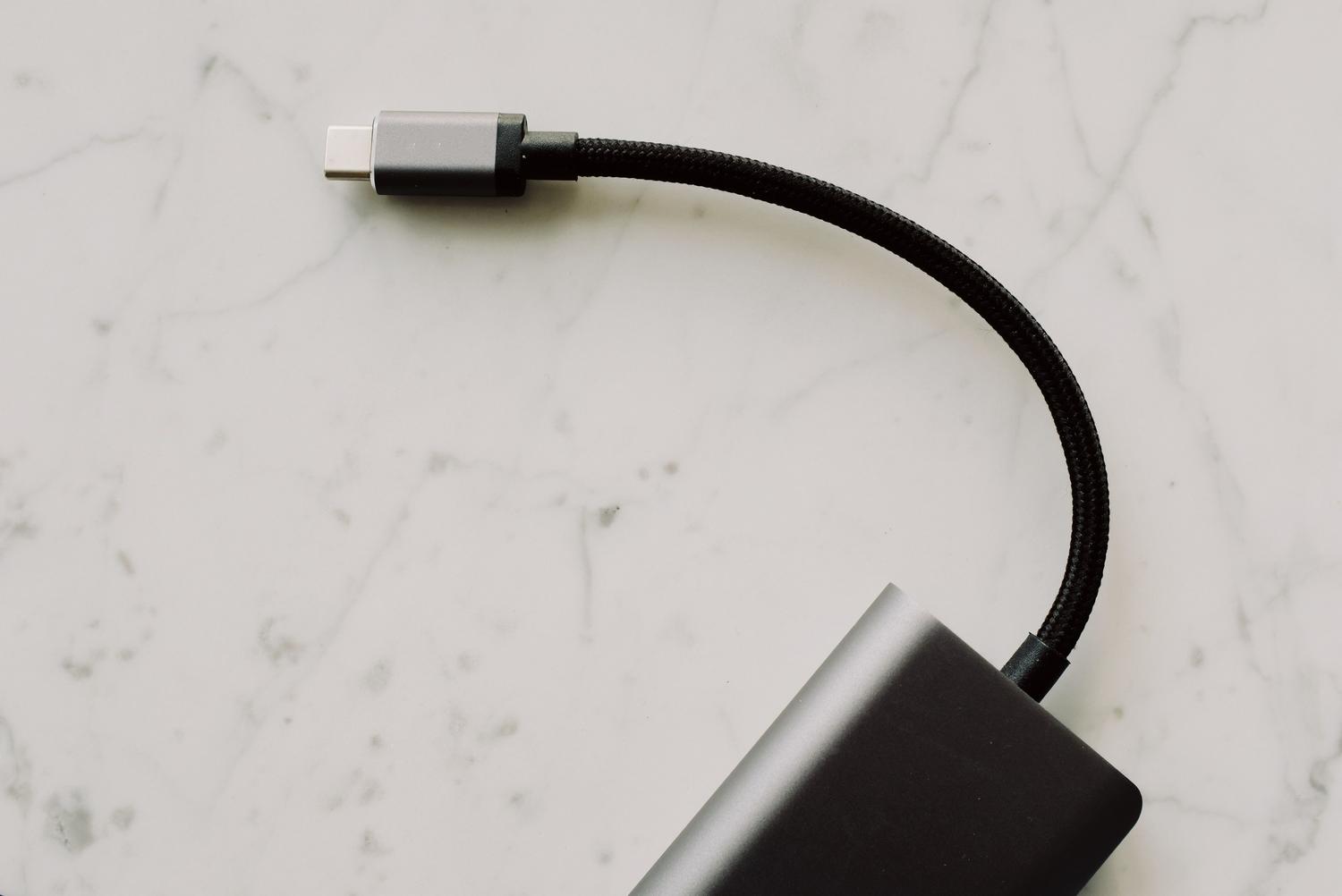
If you've ever felt lost amidst all the acronyms like Gen 1, Gen 2, or 3.2, you're not alone. The world of connectors has been a real mess for years, but the arrival of USB4 is here to bring order to this chaos, simplifying the user's life and promising that we'll no longer have to read endless manuals to figure out if a cable is for charging a phone or connecting an 8K monitor.
We're talking about a complete paradigm shift, where the USB-C connector reigns supreme . It's no longer just about the cable fitting on both ends, but about a revolutionary data architecture that inherits the best of Thunderbolt technology to democratize high performance, allowing non-ultra-high-end devices to take advantage of speeds that until recently seemed like science fiction.

What exactly is USB4 and how does it differ from the previous version?
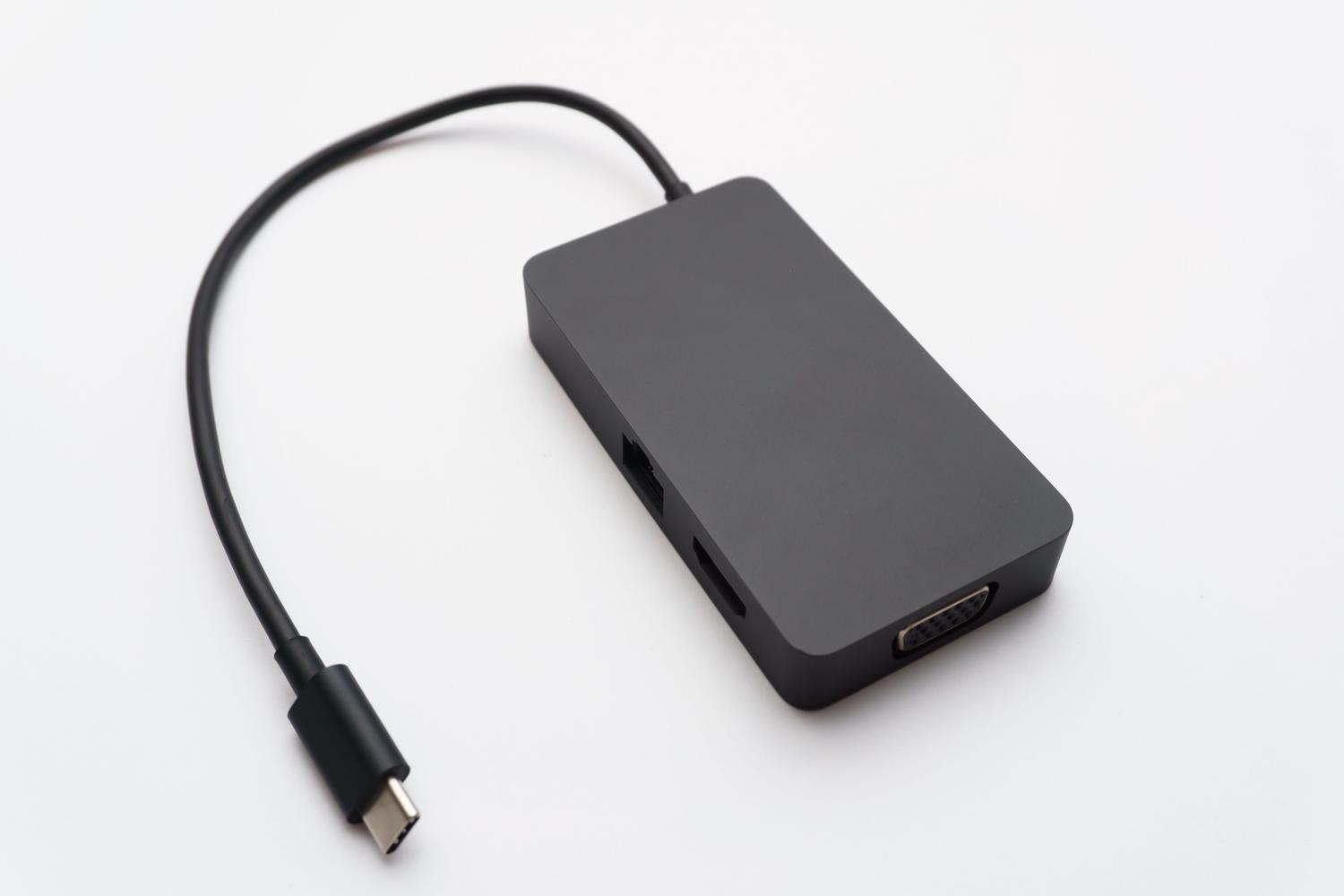
To understand USB4, you first need to know that it's not just a simple incremental improvement, but a quantum leap. While USB 3.x focused primarily on moving data, USB4 is a protocol based on Thunderbolt 3. This means it can handle different types of signals simultaneously through a process called "tunneling." Instead of dedicating the cable to a single task, it creates separate tunnels for data, video, and power.
In terms of speed, the base standard starts with a minimum of 20 Gbps, although most devices aim for 40 Gbps of bandwidth . To give you an idea, this is double the speed of the fastest USB 3.2 (Gen 2x2). This is vital for those who work with very large files, such as 4K videos or 3D models, which now transfer in a matter of seconds.
The evolution towards USB4 Version 2.0
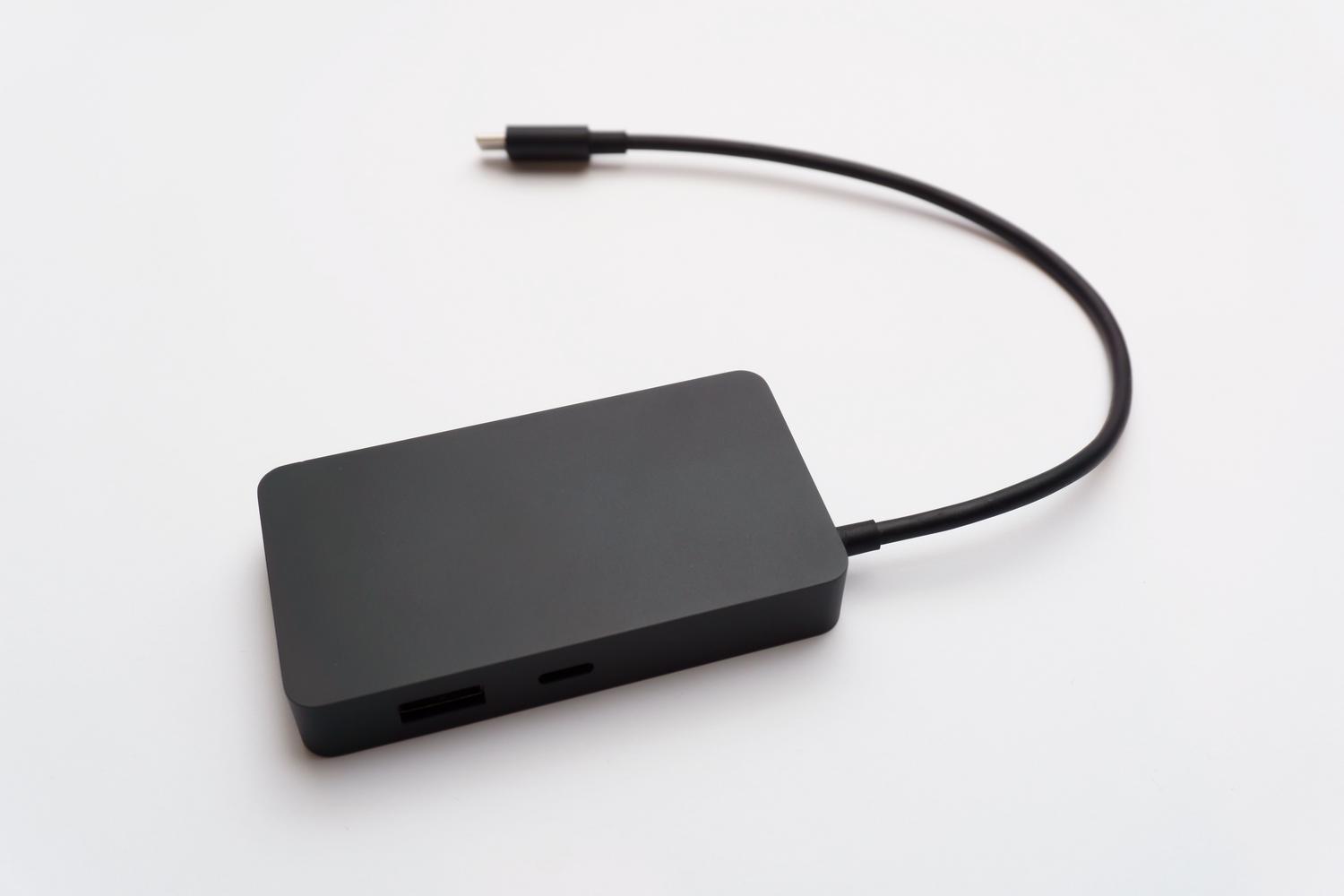
Just when we thought 40 Gbps was enough, version 2.0 arrived to shatter all expectations. This update doubles the bar, reaching transfer rates of up to 80 Gbps . To achieve such a feat, active cables with a signal encoding called PAM3 are used, allowing much more data to be transmitted in the same amount of time.
This level of power is a paradise for high-end peripherals , such as external graphics cards (eGPUs) or the latest generation of NVMe SSDs. Furthermore, it allows full compatibility with DisplayPort 2.1, facilitating the connection of 8K displays with astonishing fluidity, something that would be impossible with older standards.

Intelligent bandwidth and energy management
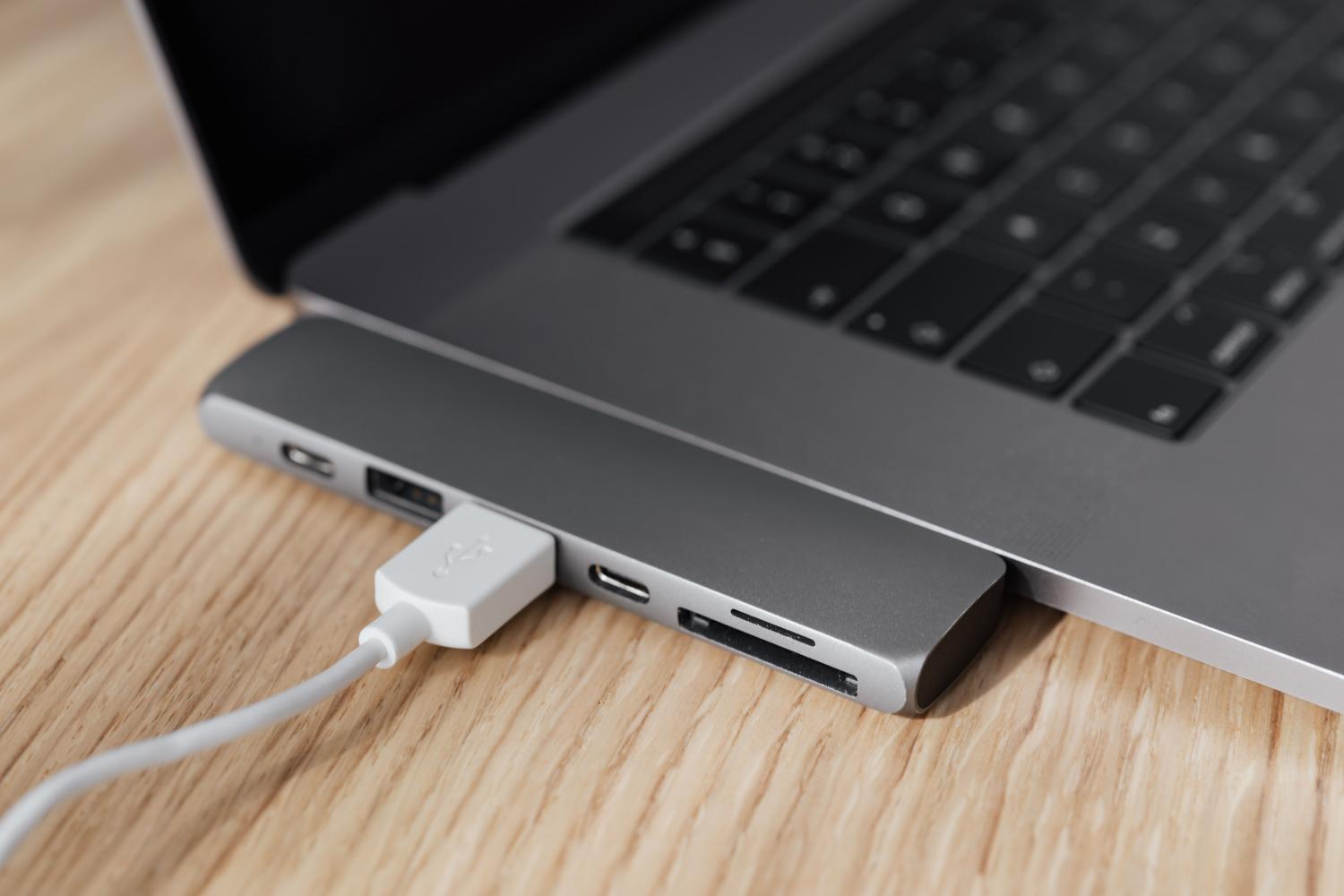
One of the crown jewels is dynamic bandwidth allocation . In the past, if you connected a hard drive and a monitor, the system would divide the bandwidth equally between them, even if the hard drive didn't need as much as the monitor did. USB4 is smarter: it analyzes which device requires more bandwidth at any given time and prioritizes transfers where they are most urgent, avoiding bottlenecks.
In terms of power, USB Power Delivery (PD) support is mandatory. The standard guarantees a minimum of 7,5W, but can scale up to 100W in the initial version. However, USB4 v2 raises the bar to 240W of charging power . This means you could charge a super-powerful gaming laptop with the same cable you use for your headphones, eliminating the need to carry a bulky, heavy charger in your backpack.
USB4 vs Thunderbolt 4: Which one to choose?
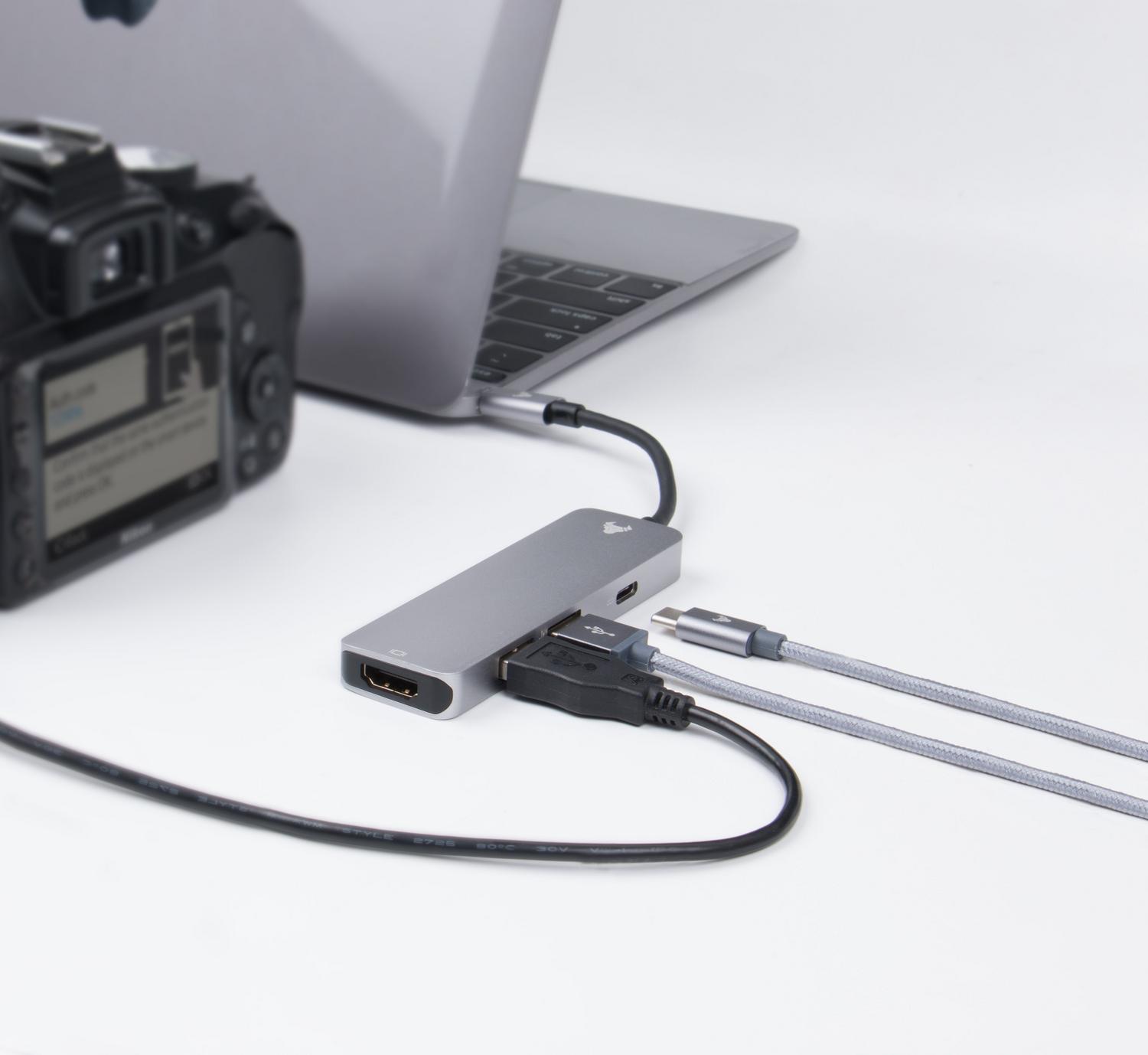
It's easy to confuse them because they share the same DNA and the same USB-C connector, but there are important differences. Thunderbolt 4 is more demanding ; it requires all its devices to support 40 Gbps and have support for two 4K displays. USB4, being a more open standard, allows for variable implementations , making it more affordable but less predictable in terms of minimum performance.
- Go for Thunderbolt 4 If you need full guarantees of maximum performance, mandatory PCIe support for external GPUs, and budget is not an issue.
- Choose USB4 If you're looking for a more economical option that more than meets office tasks, a lightweight design, or if you just need to connect a 4K screen.
How to avoid wasting money when buying cables
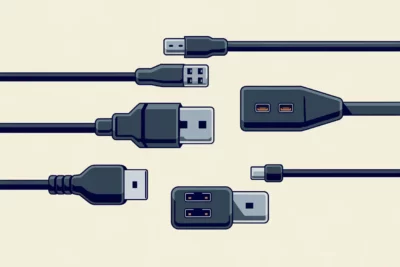
This is where many people make a mistake. Since all cables look the same (they're USB-C), it's easy to buy a cheap one that only charges your phone and expect it to transfer data at 40 Gbps. To avoid this trap, you need to look for certification logos . Genuine USB4 cables have a small "40" or "80" next to the USB symbol or the Thunderbolt lightning bolt.
Another key detail is length. Standard copper cables lose signal strength over distance. That's why USB4 cables longer than two meters are usually hybrid or fiber optic , as they include internal chips to maintain the signal. If you see an extremely long and suspiciously cheap cable, it's most likely a basic charging cable and not a high-speed data cable.
Identifying ports on your computer
If you don't know what your computer has, there are two easy ways to find out. The first is visual: look for the lightning bolt symbol or the number 4 next to the oval port. The second is more technical but foolproof: open the Windows Device Manager and expand the "Universal Serial Bus controllers" section. If you see "USB4 Host Controller ," you're equipped with the latest technology.
The integration of protocols like PCI Express and DisplayPort makes this standard a versatile tool that reduces the number of cables on your desktop. By combining data, video, and power into a single cable, USB4 not only improves speed but also declutters your workspace and prepares your devices for the technological demands of the coming years.
