- M.2 SSDs connect directly to the motherboard and require checking size, slot type, and mounting system before installation.
- Proper fastening with a screw or specific mechanism and, where appropriate, the proper use of heat sinks, prevents physical damage and temperature problems.
- The installation of M.2 is similar in modern desktops, laptops and consoles, only changing the difficulty of accessing the socket.
- Upgrading to an M.2 SSD or, failing that, a SATA SSD, represents a huge performance leap compared to traditional mechanical hard drives.
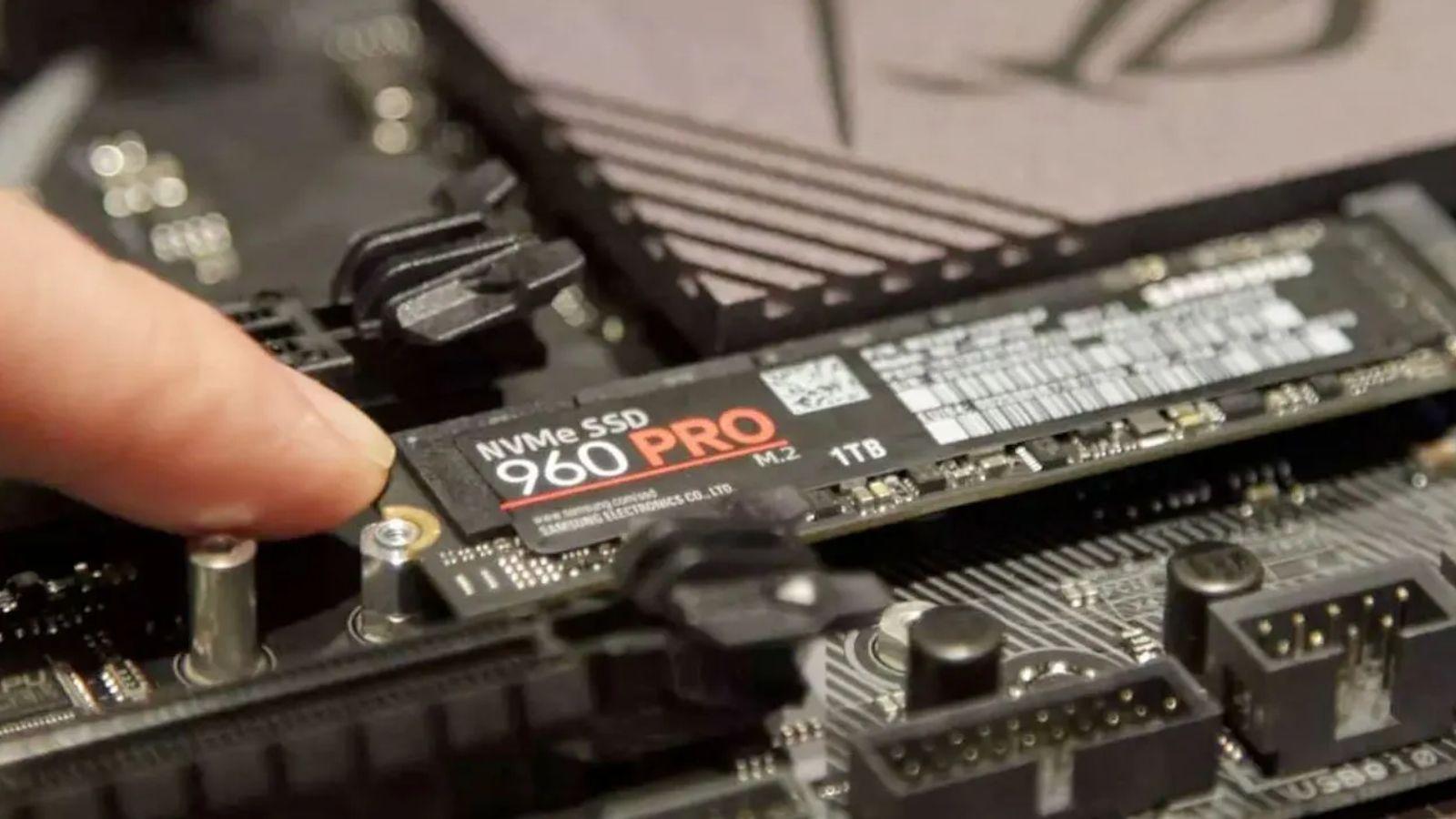
If you're looking to give your computer a performance boost, installing an M.2 SSD is one of the most significant upgrades you can make today. Windows loads in seconds, games launch in a flash, and file copies are much faster—all with a small module that looks like a simple memory chip.
Now, while the process isn't complicated, there are several important details to know to avoid problems : slot types, drive sizes, mounting screws, heat sinks, compatibility with laptops, and even consoles like the PS5. Throughout this guide, you'll see step-by-step everything you need to know to safely install an M.2 hard drive in a desktop PC, laptop, or console.
What is an M.2 SSD and where is it installed on the motherboard?
An M.2 SSD is a compact solid-state drive that connects directly to the motherboard via a dedicated socket , eliminating the need for separate power and data cables. This connector can work with both SATA and NVMe PCI Express drives, depending on the motherboard and SSD model.
On most modern motherboards , the M.2 slot is usually located between the PCIe slots , either between the graphics card and the processor, or below the main chipset. It's not uncommon to find several M.2 slots scattered across the motherboard, especially on mid-range and high-end models.
You'll recognize the connector because just after the socket you'll see a row of small threaded holes where the SSD's tip is screwed in to secure it. Each of these holes corresponds to a different length of M.2 drive, as the width is always the same but the length can vary.
The most common sizes are indicated with four digits, where the first two are the width (22 mm) and the last two are the length in millimeters. For example, 2230, 2242, 2260, or 2280 are standard sizes , with 2280 being the most common in current desktop and laptop computers.
Measurements and size compatibility in M.2
On almost all motherboards, the threaded hole that comes pre-fitted with a factory screw is usually size 2280 , which is the most common length for M.2 SSDs. However, you'll see other holes in the same row that allow the use of 2260 or 2242 drives, depending on the motherboard design.
Although all M.2 drives share that 22mm width, the length is key to aligning the mounting notch with the screw hole . In theory, you could fit a shorter SSD (for example, a 2242) in a space designed for a 2280 if there were a suitable mounting point on the motherboard.
The problem is that if you try to install a shorter SSD in a slot designed for a longer one, the rear notch is likely to not align with any threads . This means the SSD will be improperly secured, poorly supported, and at risk of moving, vibrating, or even damaging the connector over time.
Some motherboard and laptop manufacturers anticipate this problem by drilling multiple mounting points for different cable lengths . This way, even if they officially recommend one size (for example, 2280), they can also screw in 2242 or 2260 models. However, these cases are still relatively rare, and it's advisable to check when opening the device.
If your motherboard only has one mounting point and it doesn't match the size of your SSD, it's not a good idea to leave the drive dangling or held in place by pressure without a screw . Improper mounting can not only void the warranty, but also increase the risk of physical damage or even intermittent contact problems.
The clamping screw and screwless systems
Before installing the SSD, you'll need to remove the screw that's threaded into the motherboard in the corresponding hole. It's a very small screw, usually a Phillips head, so use a suitable screwdriver to avoid stripping the head.
If the screw is installed in a hole that doesn't match the length of your SSD, you'll need to unscrew the small metal bracket and screw it into the correct hole . This can be done with your fingers or carefully using a screwdriver, and it allows you to adjust the mounting point to the size of the drive.
There are situations where the device arrives without a mounting screw or where the motherboard design makes it difficult to use. In these cases, small plastic pieces or adapters can be used to convert, for example, a 2230 SSD into a 2242 or 2280, adding an extra support point. These types of accessories are inexpensive and easy to find in online stores.
At the same time, some manufacturers have implemented screwless mounting systems. A well-known example is the M.2 Q-Latch used by brands like ASUS : a tiny plastic piece with a rotating protrusion that secures the SSD in place without the need for screws. Even so, the motherboard usually retains the standard threaded hole in case a conventional screw is preferred.
On mid-range and high-end motherboards, it's not uncommon for M.2 slots to be covered by metal heatsinks to reduce the temperature of the fastest drives (especially those using PCIe 4.0 or 5.0). In these cases, removing the cover screw will also release the heatsink, which is removed before installing the SSD and reinstalled afterward.
When do you need a heatsink for your M.2 SSD?
Many current motherboard models include passive heatsinks for the main M.2 slots as standard . Their function is simple: to help the SSD maintain reasonable temperatures, preventing performance reduction due to overheating (thermal throttling).
In general, PCIe 3.0 or 4.0 based M.2 SSDs usually work well with a passive heatsink , whether integrated into the motherboard or a simple one added by the user. They don't typically require active cooling systems, except under very intensive and prolonged use.
With M.2 Gen 5 SSDs things change: they reach such high speeds that they generate considerably more heat , and here it may be advisable, or even necessary, to use more advanced heatsinks, even with small fans depending on the model.
If you decide to buy an additional heatsink instead of using the one on the motherboard, you need to make sure it's the exact size of your SSD . If the heatsink is slightly longer, it's usually not a problem as long as it doesn't interfere with other components, but if it's shorter or misaligned, cooling will be poor and it might be a nuisance when assembling the whole system.
While these accessories help, they aren't always essential: if your SSD is PCIe 3.0 or 4.0 and your motherboard already has a good passive heatsink , you won't have temperature problems in most home and gaming use. The important thing is to always ensure compatibility between the heatsink, the drive length, and the socket position.
How to physically insert the M.2 SSD into the motherboard
Once you've located the M.2 slot and prepared the screw or mounting hardware, the crucial moment arrives: connecting the drive to the motherboard connector . First, make sure the computer is completely powered off and disconnected from the power supply.
The M.2 connector has a small notch that aligns with the one on the edge of the SSD, so there's no way to insert it upside down if you look closely . Insert the tip of the SSD into the socket at a slight angle, approximately 30 degrees above the horizontal plane of the motherboard.
Gently push until you feel the connector fully engage, without forcing or bending the SSD's mounting plate . Once properly inserted, the drive will be raised at the end opposite the connector, forming a small "ramp." Don't worry, this is completely normal for this type of installation.
To secure it, gently press down on the back of the SSD, aligning the hole in the notch with the threaded bracket . The connector pins are somewhat flexible and designed to withstand moderate pressure, but proceed with caution to avoid damaging either the module or the socket.
Once everything is aligned, place the screw in the hole and tighten it with the screwdriver, being careful not to overtighten it to avoid damaging the threads or scoring the screw head. If the motherboard uses a Q-Latch mechanism or another screwless system, you'll only need to rotate the plastic piece until it locks the SSD into place.
Care and precautions when handling the M.2 SSD
As with any component that connects directly to the motherboard, it's important to handle the M.2 SSD with care . The module is essentially a small printed circuit board (PCB) with memory and controller chips, and it's not designed to withstand sharp bends or twists.
One of the biggest risks during installation is applying force at the wrong angle and damaging the connector pins or even cracking part of the PCB. If this happens, the unit may become completely unusable and, in many cases, won't even be covered under warranty for misuse.
Whenever handling the SSD, try to hold it by the edges and avoid directly touching the chips or gold contacts. It's not mandatory, but discharging static electricity by touching the metal PC case or another grounded object before starting is a good practice.
It's also important to pay attention to your surroundings: avoid working on surfaces that generate static electricity , such as thick carpets or synthetic fabrics, and never force the SSD into place. If it doesn't go in, check the orientation of the notch and the position of the slot.
In short, while the M.2 connector has some flexibility to allow for movement when screwing it in, it's still a delicate area that must be handled with care . A rushed or careless installation can end up being very expensive.
Use of integrated or third-party heatsink on the SSD
If your motherboard has a heatsink above the M.2 slot, the assembly order changes slightly: first, place the SSD in the slot, then cover it with the heatsink before screwing it in. The same screw will usually hold both components in place.
These heatsinks usually come with an adhesive thermal sheet or pad that makes direct contact with the SSD body . Before installing anything, remove the protective plastic from this sheet so that it can properly transfer heat to the metal block.
If you purchased a third-party heatsink, make sure it doesn't interfere with other nearby components , such as the graphics card or tall RAM modules. Also, check that it respects the maximum height allowed by the socket, especially if the SSD is installed beneath a large graphics card.
If the system is in a case with adequate airflow and you're using a moderately power-hungry M.2 SSD, a well-installed passive heatsink is usually more than sufficient . Only in cases of very fast Gen 5 drives or extremely hot environments might it make sense to consider options with active cooling.
Whatever your configuration, the priority is ensuring the heatsink is properly seated on the SSD, without leaving any air gaps or being so tight that it bends the drive's circuit board . A clean installation guarantees stable temperatures and extends the SSD's lifespan.
System startup and BIOS configuration
Once the SSD is physically installed, close the PC case, reconnect all the cables, and turn on the computer so the motherboard can detect the new drive . If everything is installed correctly, the SSD should appear in the system's BIOS/UEFI.
If you plan to use the new M.2 SSD as your primary operating system drive, you must enter the BIOS and configure the boot order to prioritize it. Otherwise, the computer will attempt to boot from the old drive or another device.
If you're using the M.2 SSD as secondary storage, simply check that it's recognized by both the BIOS and the operating system . In Windows, for example, it will appear in Disk Management, where you can initialize it, create partitions , and format it.
Once the drive is recognized and configured, you can install games, demanding programs, or the operating system itself on the M.2 SSD to take advantage of its read and write speeds. You'll notice significant improvements compared to a traditional mechanical hard drive.
From that moment on, your PC will enjoy significantly reduced loading times, faster installations, and much quicker data searches . Furthermore, modern games and applications are increasingly being designed with this type of storage in mind, making it practically indispensable in today's gaming rigs.
Install more M.2 drives with expansion cards
If you've already filled all the M.2 slots on your motherboard and still need more storage, you can use PCIe expansion cards with additional M.2 connectors . These cards are installed just like a graphics card in a free PCIe slot.
Before buying one, make sure your motherboard has at least one free PCIe slot and also check how many PCIe lanes it shares with other devices, as this detail can affect the performance of the graphics card or other cards.
There are expansion cards that allow you to add anywhere from a single M.2 drive to four or more , and naturally, the price increases with the expansion capacity. There are also differences between models that only support NVMe SSDs and others that support both NVMe and SATA in the M.2 format.
When choosing, it's advisable to opt for well-known brands that offer good reliability and decent support should you need to process a warranty claim . While you can find very cheap cards from unknown manufacturers, in the long run it's usually worth investing a little more in something with a better guarantee.
Installation is very simple: just insert the card into the corresponding PCIe slot, screw it into the case as you would a graphics card, and mount the M.2 SSDs in their sockets using the same screw or equivalent fastening method. The system will then detect them as additional drives, provided the BIOS and operating system support them correctly.
How to install an M.2 SSD in a laptop
Many modern laptops include an M.2 slot as standard, intended for expanding or replacing the storage drive . In some models, this slot is accessible via a small cover secured by a couple of screws on the underside.
In other cases, the cover that provides access to the M.2 slot also allows access to the RAM modules , which usually makes upgrades much easier. However, some laptops require disassembling almost the entire casing to reach the socket, which demands more patience and care.
Once you have access to the inside, the installation process is identical to that of a desktop PC: identify the M.2 slot, remove the retaining screw, insert the SSD at an angle, and secure it . The difference lies in the space, which is usually much more limited and requires greater care.
On some laptops, the M.2 slot is covered by a small metal plate or protector, which is removed by loosening one or two screws . On others, the drive is completely exposed. In either case, the method for connecting and securing the SSD is the same.
If your laptop is very old and doesn't have an M.2 slot, you can always use a 2,5-inch SSD connected via SATA . Often, you can even use the optical drive (DVD) bay by removing it and using its connection to install an SSD with a specific adapter.
Options when the laptop is too old
Some laptops are so old that they lack M.2 slots and internal space for additional drives beyond the main hard drive. In these cases, the most practical solution is usually to replace the mechanical hard drive with a 2,5" SATA SSD.
If your laptop also has a DVD drive that you haven't used in years, it's quite common to remove the drive and replace it with an SSD adapter , reusing the SATA port that the optical drive used. This way, you can have the operating system on an SSD and use the old hard drive for data storage, or vice versa.
While you won't benefit from the maximum speeds of a modern NVMe drive, the leap from a mechanical hard drive to a SATA SSD is already enormous in terms of performance . Faster boot times, less noise, better battery life, and a much more responsive system for everyday tasks.
If your computer is so old that it doesn't even handle these kinds of upgrades well, it might be time to consider upgrading to a more modern laptop or desktop . Even so, any SSD upgrade, whether M.2 or SATA, can extend its lifespan by several years.
The important thing is that, whenever there is the possibility of installing a solid-state drive, taking advantage of it will give you a huge performance boost , whether you expand the storage space or completely replace the old drive.
Installing an M.2 SSD in consoles like the PS5 and gaming laptops
If you own a modern console that supports storage expansion, it's natural to wonder if the installation process for an M.2 SSD is very different from that of a PC . In reality, on models like the PS5, the procedure is even simpler in terms of physical access.
In the case of the PS5, simply turn off the console, lay it on its side, and remove the corresponding side cover . Once removed, you'll clearly see a metal cover protecting the M.2 expansion slot. Just remove the screw from this cover, open it, and install the SSD just like you would in a computer: remove the internal screw, insert the drive at an angle, lower it, and secure it again.
After installing the SSD, replace the slot cover and the outer casing, leaving the drive protected during normal console use . The steps are very straightforward and require no disassembly other than the aforementioned covers, always following the manufacturer's instructions.
On handheld consoles like the ASUS ROG Ally, upgrading storage involves disassembling more parts of the rear casing . It usually requires removing the cover, carefully disconnecting the battery power cable, and gently pushing aside the plastic covers over the SSD to remove it and install the new one.
On the Steam Deck, the process is a bit more involved, as you have to remove a metal shield before accessing the storage module . It's not extremely difficult, but it does require more time and careful attention to the steps to avoid damaging any cables or internal connectors.
Even with these small differences, the logic of connecting and securing the M.2 SSD in consoles is practically the same as in a desktop or laptop PC ; only the level of difficulty in accessing the internal slot changes.
Once the installation is complete on any of these devices, the system usually detects the new SSD automatically and guides you through the formatting process or preparing it for use as additional or primary storage, as the case may be.
Understanding how the M.2 socket works, its sizes, screws, heatsinks, and the specifics of each type of equipment allows you to confidently install an M.2 SSD in your PC, laptop, or console , maximizing the performance of these drives without taking unnecessary risks.
