- Implementation of Jellydash as a real-time monitoring center for Jellyfin media servers.
- Converting obsolete Android devices into management dashboards using PWAs and control applications.
- Integration of home automation ecosystems and content management using Google Home, Action Blocks and Jellyseerr.
If you have a media server at home, you're probably familiar with that feeling of wanting to know what's happening on the system without having to wrestle with the admin panel, which can sometimes be a real pain . For Jellyfin users, opening a browser and navigating through endless menus just to check if someone is watching a movie or if the server is struggling with transcoding can be quite tedious.
The good news is that you don't need to spend a penny on new hardware. You can repurpose that old Android tablet gathering dust in a drawer and turn it into a permanent command center. Thanks to various open-source tools and some native Android features, it's possible to set up a real-time monitor that lets you keep an eye on your entire digital ecosystem at a glance, transforming an obsolete device into a super-useful management tool.

Jellydash: The brain of your monitoring
To achieve this setup, the key component is an application called Jellydash . Essentially, it's the equivalent of PlexDash, but designed specifically for the Jellyfin ecosystem. Best of all, it doesn't require complicated installations, as it can be deployed as a PWA (Progressive Web App) or simply by saving the shortcut to the tablet's browser, making everything quick and easy.
The coolest feature is undoubtedly the "Now Playing" screen . Instead of having to delve into the server settings, Jellydash tells you in real time who's watching what, how long playback has been running, and the stream quality. For those of us who are more technically inclined, the most valuable feature is that it indicates the playback method : whether the file is playing directly, if the audio is being remixed, or if the server is transcoding the video. This is crucial because if someone complains about the video buffering, you'll know instantly whether the problem is the server working harder or a network issue.
Data analysis and user management
Beyond live streaming, Jellydash offers a history feature where you can filter activity by user. It's not for spying, but rather a very practical way to see what content has already been viewed by everyone, allowing you to free up space on your NAS by deleting files that no one will use anymore. It also includes a statistics section that records viewing times and the most frequently used codecs.
This analytics feature is ideal if you share the server with friends or family. If you notice that a user has barely logged in in the last month, you can optimize the server by removing their access to keep everything clean. While it's not a professional analytics tool, it provides just the right amount of information for straightforward daily maintenance .

Advanced integrations and alerts
For those who want to take the system to the next level, Jellydash integrates with Jellyseerr , allowing you to manage new content requests and view their status directly from your tablet. To avoid being glued to the screen, you can configure notifications via Discord or Telegram , receiving an immediate alert whenever someone requests a movie or starts playing something.
It's important to remember that Jellyfin is a completely free and open project , with no trackers or hidden fees. While the official Android TV app is great for consuming content in the living room, using Jellydash creates the perfect complement: a secondary screen dedicated exclusively to monitoring the health of your entire media stack.
Expanding the panel towards home automation
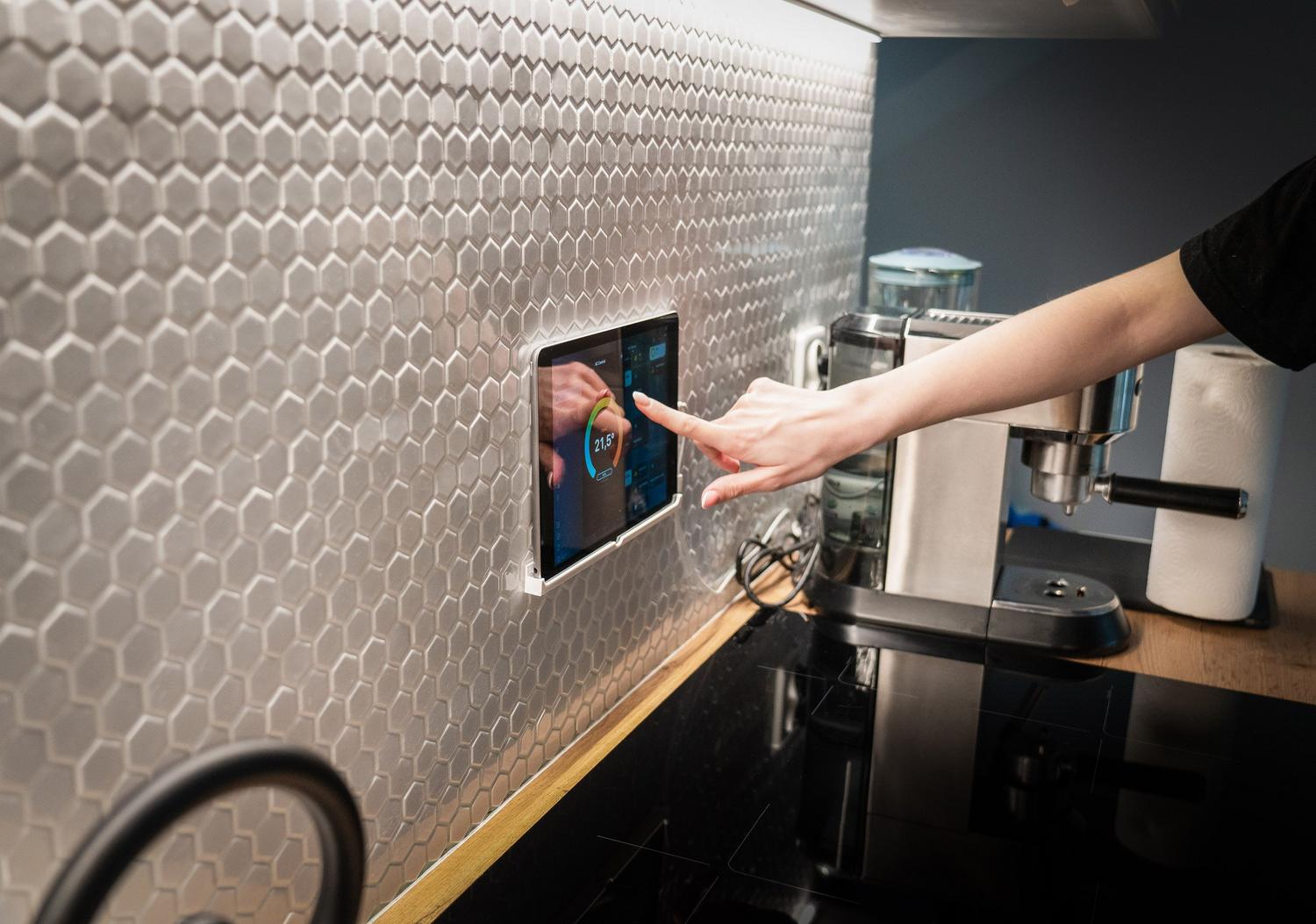
If you want your tablet to do more than just manage your home theater, you can turn it into a smart control center. With the arrival of Android 15 , Google introduced a screensaver called Home Controls . When you place the device in a dock, the Google Home favorites view is launched, allowing you to turn on lights or adjust the thermostat from the lock screen, integrating with Home Assistant APIs and other smart lighting and sensor control systems.
Another very simple alternative is to use the Action Blocks app . This tool lets you create custom buttons on your home screen that send direct commands to Google Assistant. Simply configure the custom action, choose an icon, and place the widget on your home screen. It's an extremely lightweight way to manage your home without overloading the processor of an older tablet.

Physical assembly tips
For the system to be truly efficient, ideally it should be wall-mounted using a suitable bracket, and you can even 3D print brackets if you're looking for something more customized. To prevent the screen from turning off, it's recommended to set the brightness to the appropriate level and adjust the power settings so the screen doesn't lock , ensuring the panel is always available. If the Google ecosystem doesn't appeal to you, you can always opt for alternatives like Alexa, HomeKit, or SmartThings , although in these cases you might need an external hub to centralize management.
Converting an old Android device into a dashboard allows you to centralize the monitoring of Jellyfin data flows, optimize NAS storage through usage history, and control home automation through smart widgets and screensavers, achieving an efficient command center that avoids the need to constantly access complex administration panels.
