- PCIe lanes are shared between GPUs, M.2, SATA, and expansion slots, so it's vital to check the manual to avoid losing ports or bandwidth.
- In most current GPUs, switching from PCIe x16 to x8 barely affects performance, while dropping to PCIe 3.0 x4 can cause losses of around 25%.
- M.2 sockets can disable SATA ports when using PCIe x4 modes, and the speed of an NVMe RAID is limited by the slowest slot.
- Planning the configuration of PCIe slots and versions allows you to build scalable NAS and homelabs, ready for future storage and network expansions.
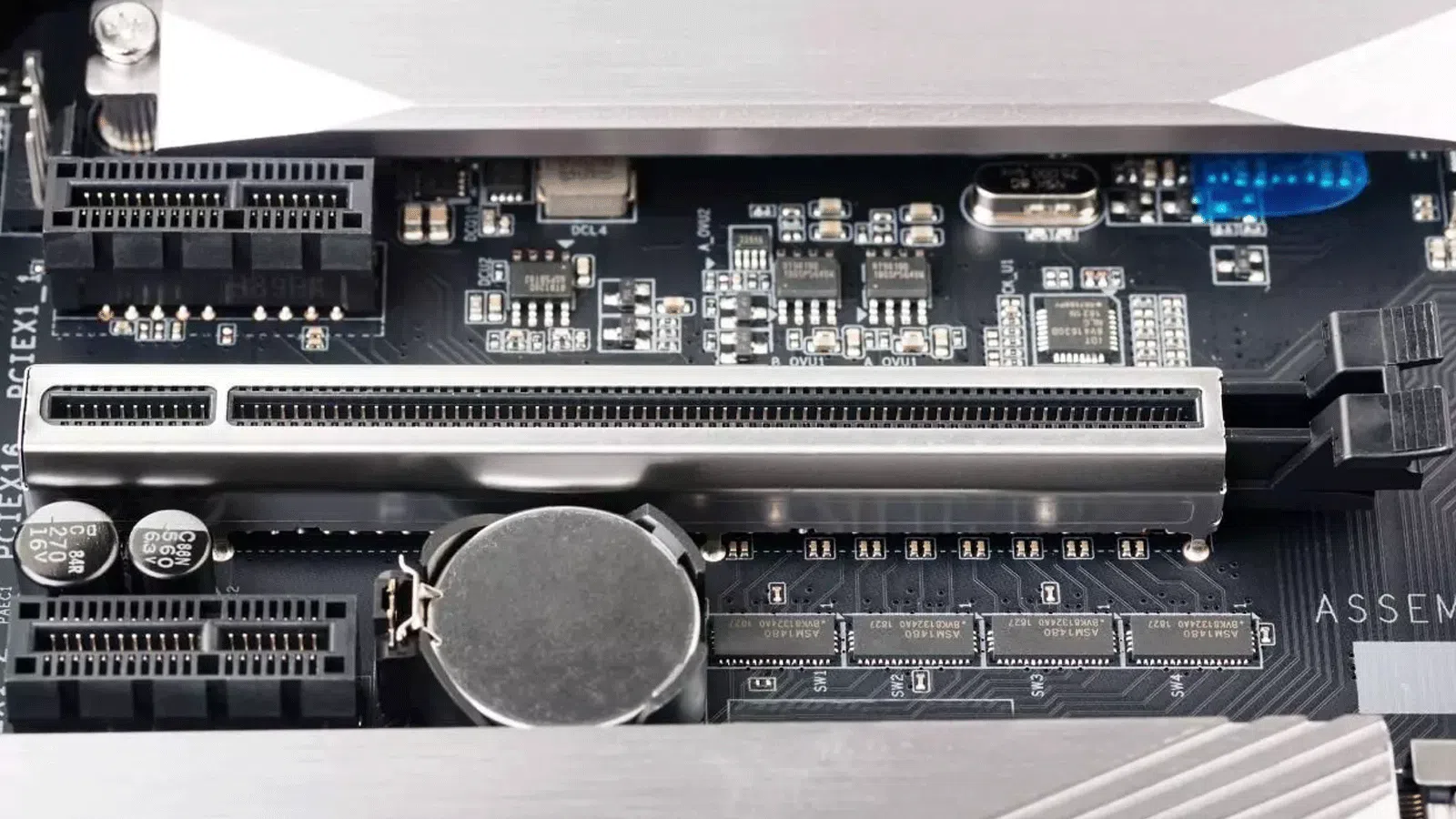
Building a home NAS or a powerful homelab with desktop hardware has one clear advantage: the incredible flexibility offered by PCIe slots for expanding the system with graphics cards, NVMe SSDs, high-speed network cards, and much more. The problem arises when you start adding components: GPUs, multiple NVMe drives, controllers, 10GbE, capture cards… and you wonder how on earth the PCIe lanes are allocated and what gets sacrificed along the way.
In this context, understanding how your motherboard's PCIe lanes, M.2 sockets , and SATA ports work is key to maximizing every lane of bandwidth without creating bottlenecks . We'll break this down step by step, using real-world scenarios (like a NAS/homelab with a GTX 1080, several NVMe drives, and a 10GbE SFP+ card) and combining it with a thorough explanation of PCI Express technology, its generations, lanes, and practical limitations.
Real-world scenario: NAS / homelab with multiple PCIe, NVMe and SATA drives
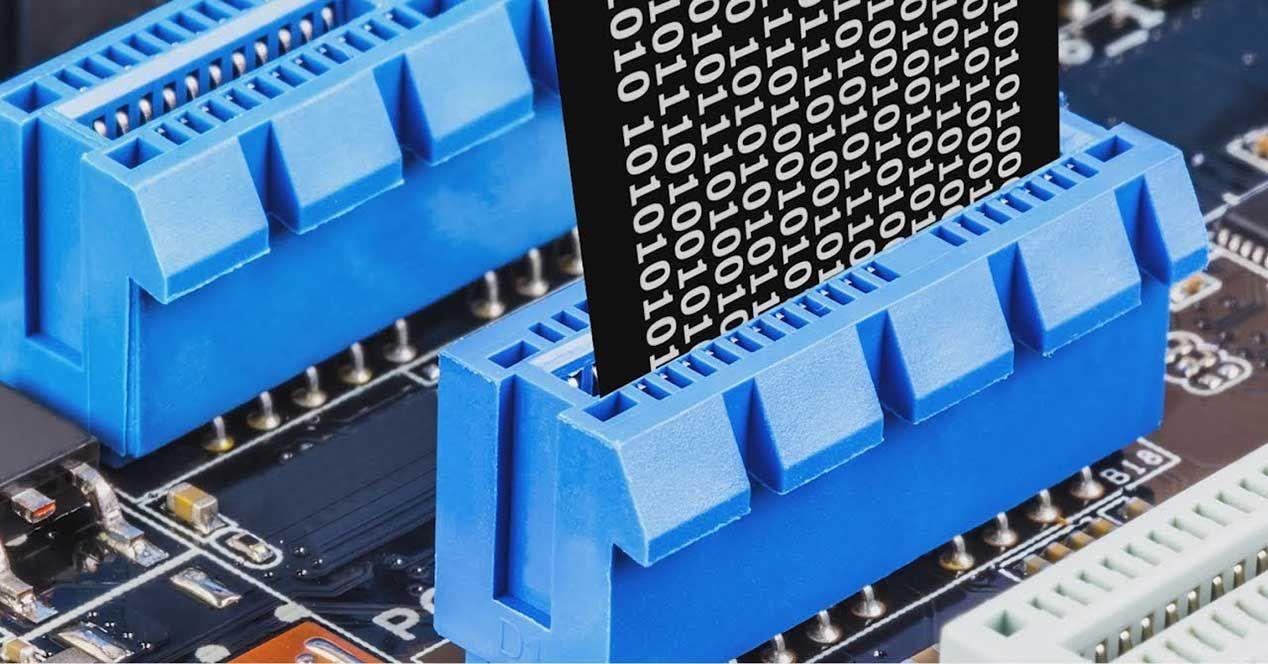
Imagine you want to set up a home server with an X470 motherboard like the Fatal1ty X470 Gaming K4 and you have in mind a system loaded with peripherals : between 5 and 6 SATA HDDs for mass storage, 2 NVMe SSDs in RAID1 where you can run unRAID and Docker containers, a GTX 1080 for gaming and testing LLMs, and a 10 GbE SFP+ card for high-speed networking.
This X470 motherboard offers, as standard, two PCI Express 3.0 x16 slots (configurable as x16 in the first slot, or x8/x8 if both are used), in addition to four PCIe 2.0 x1 slots for small expansion cards. For storage, it features six SATA3 ports with RAID 0, 1, and 10 support, and two M.2 sockets (one Ultra M.2 M2_1 and one M2_2) with different speeds: the first can operate up to PCIe Gen3 x4 (depending on the CPU), and the second reaches up to Gen2 x2.
The idea of installing 6 SATA HDDs + 2 NVMe drives + a GPU + 10 GbE is viable, but you have to be very careful with the allocation of lanes. The first PCIe 3.0 x16 slot is directly connected to the Ryzen CPU: in GPU-only mode, it operates at x16; if you add a second large graphics card in the other x16 slot, both will drop to x8/x8. The M.2 sockets are also powered by PCIe lanes, and in many designs, using certain PCIe x4 modes in M.2 disables some physical SATA ports on the motherboard.
This means that, depending on how you configure the M.2 and PCIe slots, you could end up without some SATA ports or without the full bandwidth of your GPU . That's why it's essential to check your motherboard manual to see exactly which combinations disable which ports, and not to install it blindly.
How does PCIe lane allocation affect GPUs, NVMe, and networking?
On platforms like X470 with Ryzen, the CPU offers a limited number of PCIe lanes that are shared between the primary GPU, M.2 sockets, and, to a lesser extent, other slots . The chipset provides additional lanes, but these are usually PCIe 2.0 or 3.0 with an indirect path to the CPU, and they share internal bandwidth.
In practice, the first PCIe x16 slot is usually reserved for the graphics card. When you insert a second card into the other x16 slot, the motherboard configures it as x8/x8 to distribute the 16 available lanes . This typically has a negligible impact on modern PCIe 3.0 GPUs: the jump from x16 to x8 is barely noticeable in terms of gaming performance or typical workloads.
If you try to set up two NVMe drives in RAID 1 using an M.2 Gen3 x4 and an M.2 Gen2 x2, the array will be throttled by the slower drive . The usable bandwidth will be that of the Gen2 x2 socket, which may still be sufficient for a home NAS, but it's a significant factor to consider. Sometimes it's more efficient to use a PCIe adapter card for NVMe in an x4 or x8 slot of the chipset and leave the M2_1 slot free for the system SSD.
The 10GbE SFP+ network card can be installed in a PCIe x4 or x8 slot without issue; its actual bandwidth is far from saturating a PCIe 3.0 x4. The key point is deciding whether to place it in the second x16 slot shared with the GPU (forcing x8/x8 mode) or in one of the smaller slots, if the motherboard supports them with a sufficient number of lanes.
Concrete example: How to maximize PCIe lanes and SATA ports?
For a NAS/homelab with a Fatal1ty X470 Gaming K4 and a compatible Ryzen processor, a sensible configuration to maximize lanes and keep all possible SATA ports operational could follow this general logic (always checking the exact motherboard manual):
- GPU (GTX 1080) in the first PCIe 3.0 x16 slot (PCIE1), working at x16 if there is no second large card.
- First NVMe SSD in M2_1, taking advantage of PCIe Gen3 x4 as a boot disk and for system/unRAID.
- 10 GbE SFP+ Card in the second PCIe x16 slot (PCIE4), accepting that GPU and NIC will share lines and remain at x8/x8, which for a GTX 1080 is more than enough.
- HDD SATA occupying the 5-6 SATA ports, provided that activating PCIe x4 mode on M2_1 does not disable some specific ports (check the table in the manual).
- Dejar M2_2 Gen2 x2 either for a secondary NVMe drive of lower priority, or simply free if no additional performance is needed.
In this setup, you sacrifice full x16 mode on the GPU, but you gain a large PCIe slot for 10GbE and maintain a very fast NVMe drive in the M2_1 slot. If you want RAID1 NVMe, you have two options: accept the bottleneck of the M2_2 Gen2 x2, or buy a PCIe card for multiple NVMe drives and put it in the second x16 slot, moving the NIC to a smaller slot if the motherboard allows it.
In any case, the key is to understand that the actual performance loss when downgrading the GPU to x8 on PCIe 3.0 is very low, whereas losing SATA ports or being limited in NVMe can hurt much more in a NAS or server that depends on disk I/O.
From desktop to expansion platform: what can be added via PCIe
One of the biggest advantages of desktop PCs over laptops or consoles is that PCIe slots turn the computer into a kind of hardware "Lego" building block . Almost any advanced feature you might need can be added with a PCIe expansion card.
Typical expansions that connect to PCIe include video capture cards, dedicated sound cards, graphics cards, network cards, USB controllers, and NVMe storage adapters . Many of these install in seconds and are recognized by the system upon startup, often with native support or minimal drivers.
For example, if you want to capture the signal from a console or a professional camera, a PCIe capture card offers better bandwidth and lower latency than most USB solutions. The same is true when you're looking for high-quality audio: a PCIe sound card gives you more inputs and better control than integrated audio, ideal for podcasts or music recording.
In the graphics arena, the PCIe x16 slot is the standard for gaming and professional GPUs. Simply ensure that the graphics card's power is balanced with the CPU to avoid bottlenecks; that is, that the processor isn't unable to supply enough data to the card.
It is also very common to install PCIe cards to add USB-A or USB-C ports when the motherboard has fallen short, or even TV tuner cards, advanced WiFi network cards, or cards with several M.2 SSDs to expand high-performance storage beyond the M.2 integrated on the motherboard.
PCIe slots: what they are and what types exist
A PCIe (Peripheral Component Interconnect Express) slot is the current standard interface for connecting high-speed expansion cards to the motherboard. Unlike older PCI or AGP buses, PCIe uses a point-to-point serial architecture : each device has its own dedicated link to the motherboard, without sharing a common bus with other components.
Graphics card slots differ in their physical size and the number of lanes, which determines their available bandwidth. The most common formats are x1, x4, x8, and x16 . More lanes mean more pins and a longer slot. A desktop GPU typically uses x16, while a sound or network card can function perfectly well in x1 or x4.
The interesting thing is that, physically, a shorter card can fit in a longer slot: for example, an x1 card works perfectly in an x16 slot , although it will only use one lane. The reverse isn't possible, because an x16 card simply won't fit in an x1 slot.
At the generational level, PCIe has evolved from 1.0 to 6.0 (with 7.0 on the way), doubling the bandwidth per lane with each version upgrade. This allows for a dramatic increase in effective performance from generation to generation, while maintaining the same number of physical lanes.
How PCIe lanes, bandwidth, and versions work
The PCIe architecture is based on individual full-duplex lanes , each consisting of a pair of differential lines for sending data and another for receiving it. A lane transmits data in both directions simultaneously, and slots are built by adding lanes: x1 has 1, x4 has 4, x8 has 8, and x16 has 16.
The total bandwidth of a PCIe link depends on two key variables: the number of lanes and the PCIe version . For example, in PCIe 3.0, each lane has a theoretical bandwidth of approximately 984,6 MB/s; therefore, an x16 PCIe 3.0 slot can handle around 15,8 GB/s. In PCIe 4.0, the bandwidth per lane increases to approximately 1969 MB/s, bringing x16 to nearly 31,5 GB/s, and so on.
- PCIe 1.0: ~250 MB/s per lane.
- PCIe 2.0: ~500 MB/s per lane.
- PCIe 3.0: ~984,6 MB/s per lane.
- PCIe 4.0: ~1969 MB/s per lane.
- PCIe 5.0: ~3938 MB/s per lane.
- PCIe 6.0: ~8 GB/s per lane (thanks to PAM4 and FLIT).
Being backward compatible, a PCIe 3.0 card works in a PCIe 4.0 or 5.0 slot, although limited to the card's speed. And vice versa: a PCIe 4.0 card in a 3.0 slot will operate at 3.0 speed. This greatly simplifies upgrades and extends the lifespan of motherboards.
History and evolution of PCIe: from PCI to 7.0
Before PCIe, the dominant standard was PCI, introduced by Intel in the early 90s as a replacement for buses like ISA, MCA, EISA, and VESA. Although VESA was competitive in terms of pure speed, PCI won out due to its cost, flexibility, and ease of integration , allowing for CPU upgrades without redesigning the entire motherboard.
For years, PCI evolved and increased bandwidth, but it eventually ran into the limitations of the shared bus, especially with the rise of powerful graphics cards. The intermediate solution was AGP, a dedicated port for the GPU, until PCI Express finally arrived around 2004 as a complete replacement and redesign of the connection philosophy.
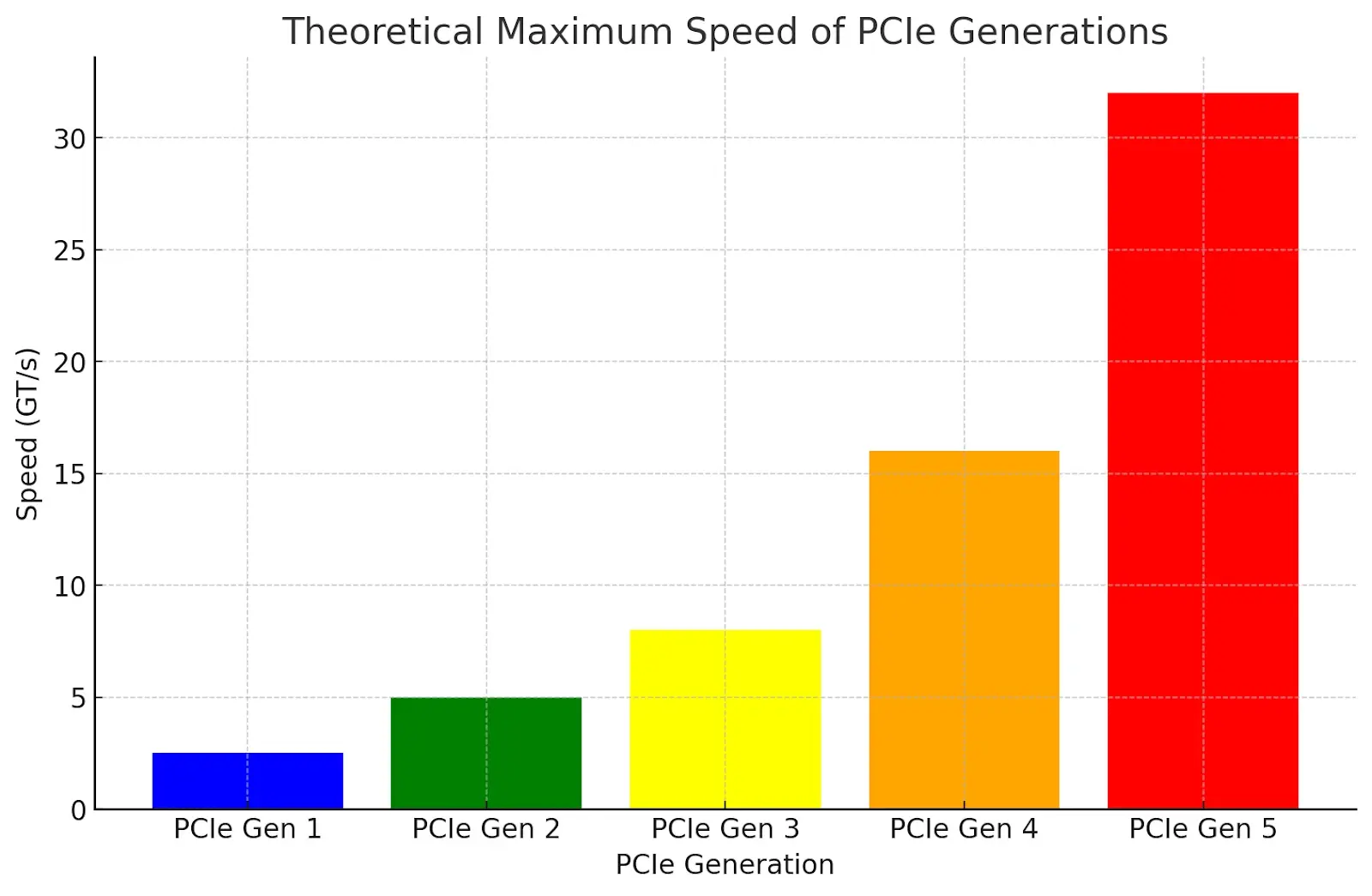
PCIe 1.0 introduced point-to-point serial links with 2,5 GT/s (gigatransfers per second) per lane and 8b/10b encoding, yielding 250 MB/s of usable throughput. PCIe 2.0 doubled the speed to 5 GT/s and 500 MB/s per lane. The biggest revolution came with PCIe 3.0, which switched to 128b/130b encoding , greatly reducing overhead and boosting throughput to nearly 1 GB/s per lane.
PCIe 4.0 and 5.0 continued the trend of doubling speed while maintaining 128b/130b encoding, increasing x16 bandwidth to 31,5 GB/s and 63 GB/s respectively. These versions have become essential in AI, data centers, 400/800 GbE networks, and ultra-fast storage.
PCIe 6.0 introduces PAM4 signaling and FLIT (Flow Control Unit) transport, which, along with FEC (Forward Error Correction), allows for speeds of up to 64 GT/s with a theoretical throughput of 256 GB/s at x16, while maintaining backward compatibility. PCIe 7.0, currently under development, aims for speeds of up to 128 GT/s and up to 512 GB/s at x16, also using PAM4 and highly efficient 1b/1b encoding.
Manufacturers like Synopsys have already announced complete IP solutions for PCIe 7.0 , with integrated controllers, PHYs, and security modules, designed for advanced manufacturing processes and closely linked to CXL and massive AI applications. While it will still take years to reach the consumer market, it clearly indicates the direction high-performance interconnect is heading.
Do you really need more PCIe speed for your GPU?
A very common question is whether a graphics card performs better simply because it's in a newer PCIe slot or one with more lanes. The reality today is that no consumer GPU is saturating the bandwidth of a PCIe 4.0 x16 link , and in most cases, not even that of a PCIe 3.0 x16 link.
A modern graphics card primarily uses its own VRAM, which is usually faster than the system RAM. The PCIe bus is mainly used for transferring textures, command data, communicating with the CPU, and accessing shared memory in specific scenarios . Therefore, reducing the speed from x16 to x8 in PCIe 3.0 typically results in only a few percentage points of difference, often within the margin of error.
There are cases where the limitation is noticeable, for example with GPUs that only have x8 by design or when a powerful card is forced to work at x4 on an older version of the standard. A Radeon RX 5500 XT, limited to PCIe 4.0 x8 or 3.0 x8, experiences a much greater performance drop when it falls to 3.0 x8 compared to 4.0 x8 because it doesn't utilize all 16 lanes and relies more on the bandwidth per lane.
In tests with high-end cards like the RTX 5090, running at PCIe 5.0 x16 versus x8 has shown minimal difference in performance, while drastically reducing to PCIe 3.0 x4 causes performance drops of around 25% in certain rendering and AI workloads. In other words: worry more about avoiding downgrading to x4 on an older version than whether your GPU runs at x16 or x8.
Impact of using riser cables and vertical GPU mounting
Glass-sided towers have popularized vertical graphics card mounting using PCIe riser cables . It looks spectacular, but there's a significant risk: not all risers are created equal, and a cheap model might limit you to PCIe 3.0 x4 or introduce signal problems, resulting in a performance loss.
To mount the GPU vertically with confidence, it's recommended to look for PCIe extenders certified for at least PCIe 4.0 x16 , and on the latest generation platforms, even PCIe 5.0 x16. High-quality cables maintain signal integrity and make the actual performance loss virtually nonexistent, beyond a minimal, imperceptible margin.
Conversely, a cheap riser cable with poor shielding or outdated specifications can cause the motherboard and GPU to negotiate a lower-speed connection or fewer lanes, resulting in FPS drops, micro-stuttering, or even instability . It's always advisable to check the cable's official specifications before purchasing.
If you want to check the speed and number of lanes your graphics card is running on in your current system, tools like GPU-Z display the "Bus Interface" field , where you can see in real time whether the GPU is running on PCIe 3.0 x16, 4.0 x8, etc. This is very useful for detecting unexpected limitations caused by a riser card, a secondary slot, or an incorrect BIOS configuration.
M.2 configuration and relationship with SATA ports
One detail that often goes unnoticed is that, on many motherboards, M.2 sockets share resources with SATA ports. This means that enabling an M.2 drive in PCIe x4 mode can disable certain physical SATA ports . This information is usually found in the manual and sometimes also in BIOS/UEFI messages.
For example, on motherboards like the ASUS ROG Maximus IX Formula, if PCIe x4 mode is enabled for the M.2 slot, the BIOS warns that SATA ports 5 and 6 are disabled . The UEFI even displays a specific "M.2 bandwidth configuration" screen that clearly indicates the performance compromises involved in each mode.
The moral of the story is that before blindly deploying an NVMe drive in an M.2 configuration, it's advisable to access the UEFI, locate the M.2 configuration section, and check the operating mode: PCIe x4, x2, or SATA . Switching between modes not only affects NVMe performance but also determines which SATA ports remain active.
In a NAS/homelab with multiple HDDs, this is critical. An incorrect configuration can cause two drives to disappear from the RAID array when a second NVMe drive is installed because the chipset has cut their ports to free up lanes for the M.2 drive. Always check the compatibility table in the manual to avoid surprises.
Physical installation and maintenance of PCIe cards
Installing a PCIe card is fairly straightforward, but it's always a good idea to follow a specific order to avoid contact or power issues . First, turn off your PC, unplug the power cable, and open the case. Locate the appropriate PCIe slot (for example, the top x16 slot for the GPU) and remove the corresponding backplate.
Next, align the card with the slot and press it firmly but gently until it clicks into place. Many motherboards have a small latch at the end of the slot that clicks when the card is properly seated. Then, screw the card's metal bracket to the case to secure it.
For graphics cards or other devices that require extra power, connect the PCIe cables from the power supply. Once everything is assembled, close the case, plug in the computer, and boot it up. The operating system will usually detect the new card automatically , installing generic drivers or allowing you to install the manufacturer's drivers.
Regarding maintenance, the most important thing is to keep the slots and cards dust-free, preferably using compressed air . Checking periodically that the screws haven't loosened and that there are no signs of corrosion or physical damage helps prevent intermittent failures. It's also good practice to keep the BIOS/UEFI updated, as many versions improve compatibility and performance of the PCIe lanes. If you have any doubts about the power supply, consult our guide on how to determine if a power supply is good and has sufficient capacity.
Typical PCIe problems and how to solve them
The most common problems when installing PCIe cards are usually related to improper card seating, insufficient power, or incorrect drivers . If the system doesn't recognize the card, the first thing to do is turn off the computer, remove the card, and carefully reinsert it, making sure it's fully aligned and pushed in all the way.
If the card in question is a powerful GPU or controller, it's advisable to check that all PCIe power connectors are properly connected and that the power supply has sufficient wattage. Sometimes, a power supply with just enough wattage will cause the system to boot but the card to function erratically.
Performance issues can occur because the card is operating in a limited slot (for example, a GPU in an x4 chipset slot) or because the BIOS has configured the link to an older PCIe version. Tools like GPU-Z or Device Manager can help you view the link speed and the number of active lanes.
In some cases, certain motherboard and graphics card combinations may require a BIOS update to correct bugs in the PCIe connection. If, after checking the slot, cables, and drivers, the problem persists, it's a good idea to test the card in a different slot or even in another computer to determine whether the issue lies with the motherboard or the card itself.
How to plan a PCIe configuration with the future in mind
If you're building a PC, NAS, or workstation now and want it to last for years, it makes sense to choose a motherboard that offers several high-speed PCIe slots and support for newer versions , such as PCIe 4.0 or 5.0, even if your current hardware doesn't yet fully utilize them.
Beyond the GPU, consider potential future upgrades: more NVMe drives, 10/25/40 GbE cards, capture cards, HBA controllers, etc. A good motherboard with sufficient lanes, well-spaced physical slots, and a clear layout between the CPU and chipset will give you room for all those upgrades without having to change your platform.
It's also important to properly size the power supply from the start, with enough headroom for future demanding graphics cards. And make sure the case has adequate airflow for multiple expansion cards, especially if you're combining a powerful GPU, a high-power network card, and several heat-generating NVMe drives.
With everything we've seen, it's clear that knowing how PCIe lanes are distributed, what limitations each version brings, and how M.2, SATA, and expansion slots interact allows you to build very complete systems: from a humble home NAS with 6 HDDs, 2 NVMe drives, and a 10 GbE network to workstations with multiple GPUs and high-performance storage, always making the most of every available lane and avoiding surprises when adding new hardware.
