- Cloning allows you to transfer the operating system, programs, and files without needing to reinstall Windows.
- Choosing between direct cloning or clean installation is essential depending on the health status of the current system.
- The use of specialized software is necessary since Windows does not include a direct cloning tool.
- Adjusting the SSD alignment and boot order in the BIOS is critical for system performance and startup.

If you've bought a new SSD and don't want to spend hours reinstalling Windows and all your programs from scratch, you're probably considering disk cloning . This process essentially creates an exact mirror of your current drive, allowing you to migrate your entire PC ecosystem to a faster, more modern drive without losing a single file.
However, it's not always the smartest option. Depending on whether your system is riddled with errors or you simply want more space and speed , a clean install might be the better choice. In this article, we'll take a thorough look at how to migrate your data, which tools are the most reliable, and how to prevent your computer from freezing when trying to boot from the new drive.

Is cloning really worth it, or is it better to start from scratch?
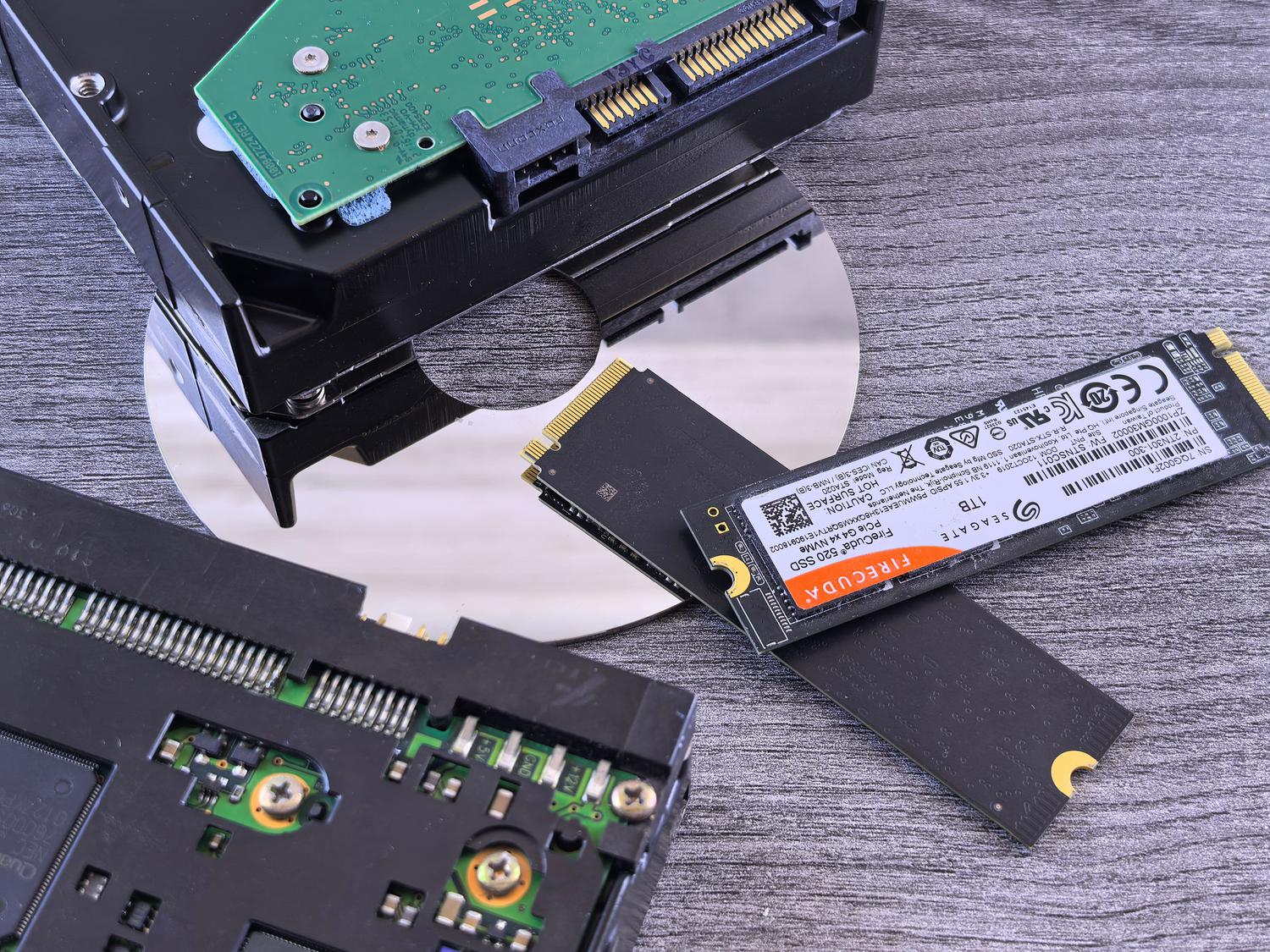
Before you jump in, you need to analyze your situation. Cloning is fantastic when you have a perfectly configured system and don't want to lose your preferences , specific drivers, or old software that's no longer easily found. Basically, you transfer the operating system, programs, and your personal folders all at once.
On the other hand, if your current Windows installation is slow or buggy, cloning is like moving the dirt from one house to another: you'll just transfer the errors to the new SSD. In those cases, the best course of action is a clean install. If you only need to move your photos and documents, don't complicate things by cloning; simply create a partition on the new drive and copy and paste your personal folders, then perform a full format of the old drive to use as a backup.
Key differences between HDD and SSD
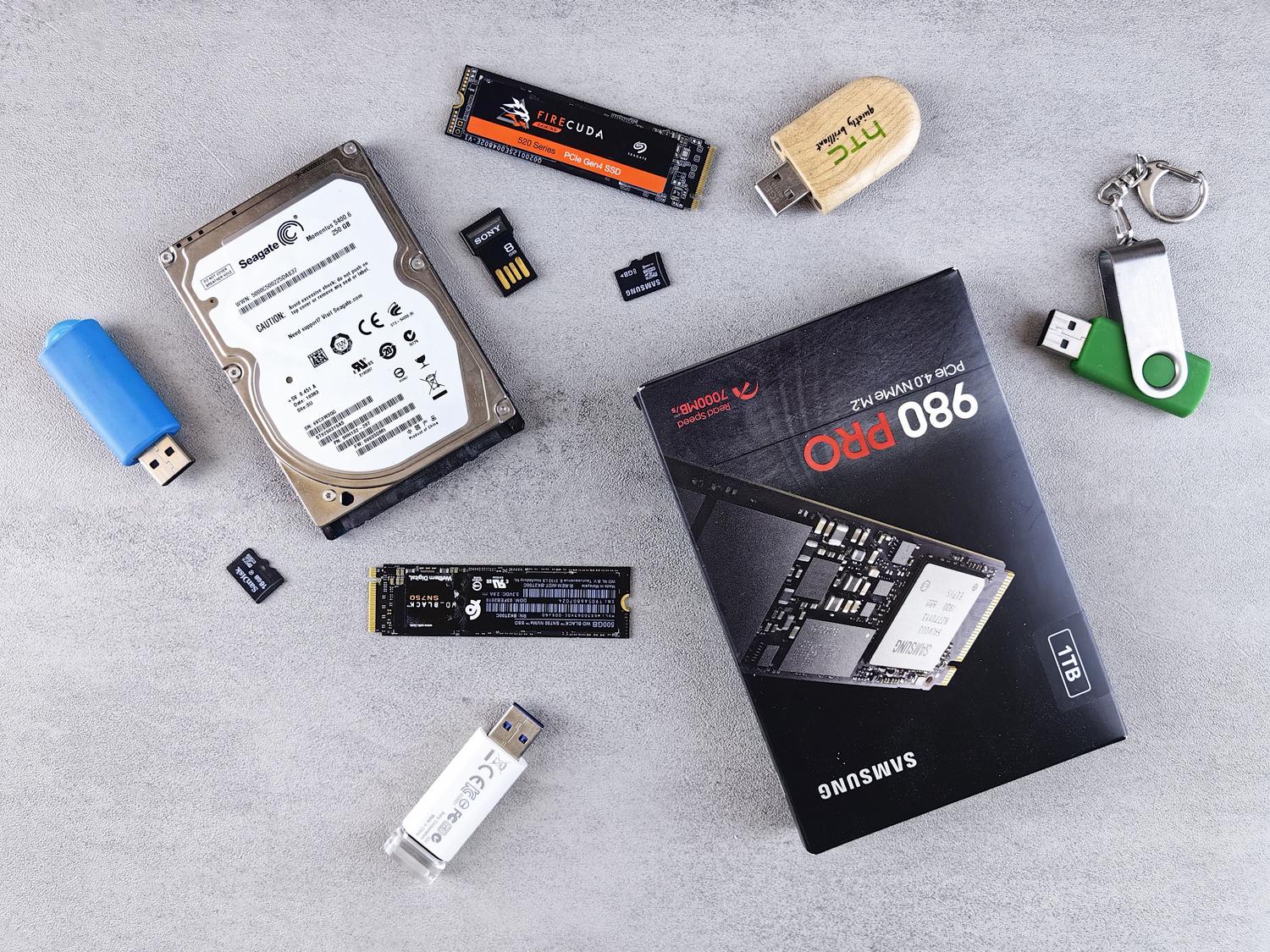
To understand why we want to migrate, it's important to remember that mechanical hard drives (HDDs) rely on spinning platters and read/write heads, while SSDs are more compact and faster . This makes a huge difference in everyday use.
- Speed: Windows boots up and applications load almost instantly on an SSD.
- Silence and resistance: With no moving parts, the SSD is silent and much more durable. accidental bumps.
- Efficiency: They consume less energy, which in a laptop translates to longer battery life.

Methods for transferring your information
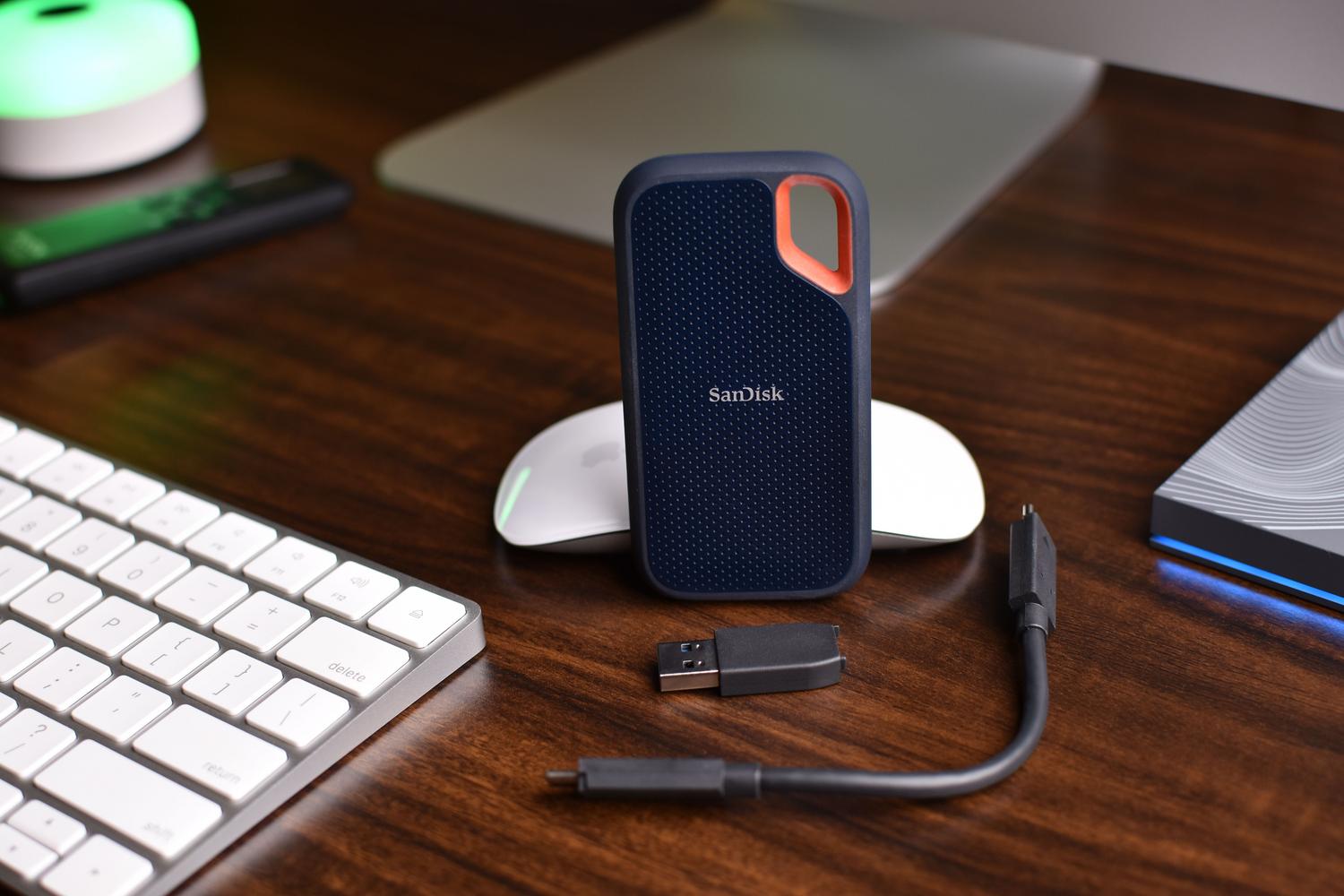
There is no single way to do it, and the choice depends on how much risk you are willing to take and how much time you have available:
- Direct cloning: It's the fast track. Copy the entire disk, including the boot sector, so that the new SSD is start-up immediatelyIt requires specialized software.
- Backup image: You create a giant archive of your entire system and then dump it onto the SSD. It's slower, but it gives you a... Backup external in case something goes wrong.
- Manual migration: You only move your personal files. It's the safest option, but does not transfer the system nor the installed programs.
Essential preparations before starting
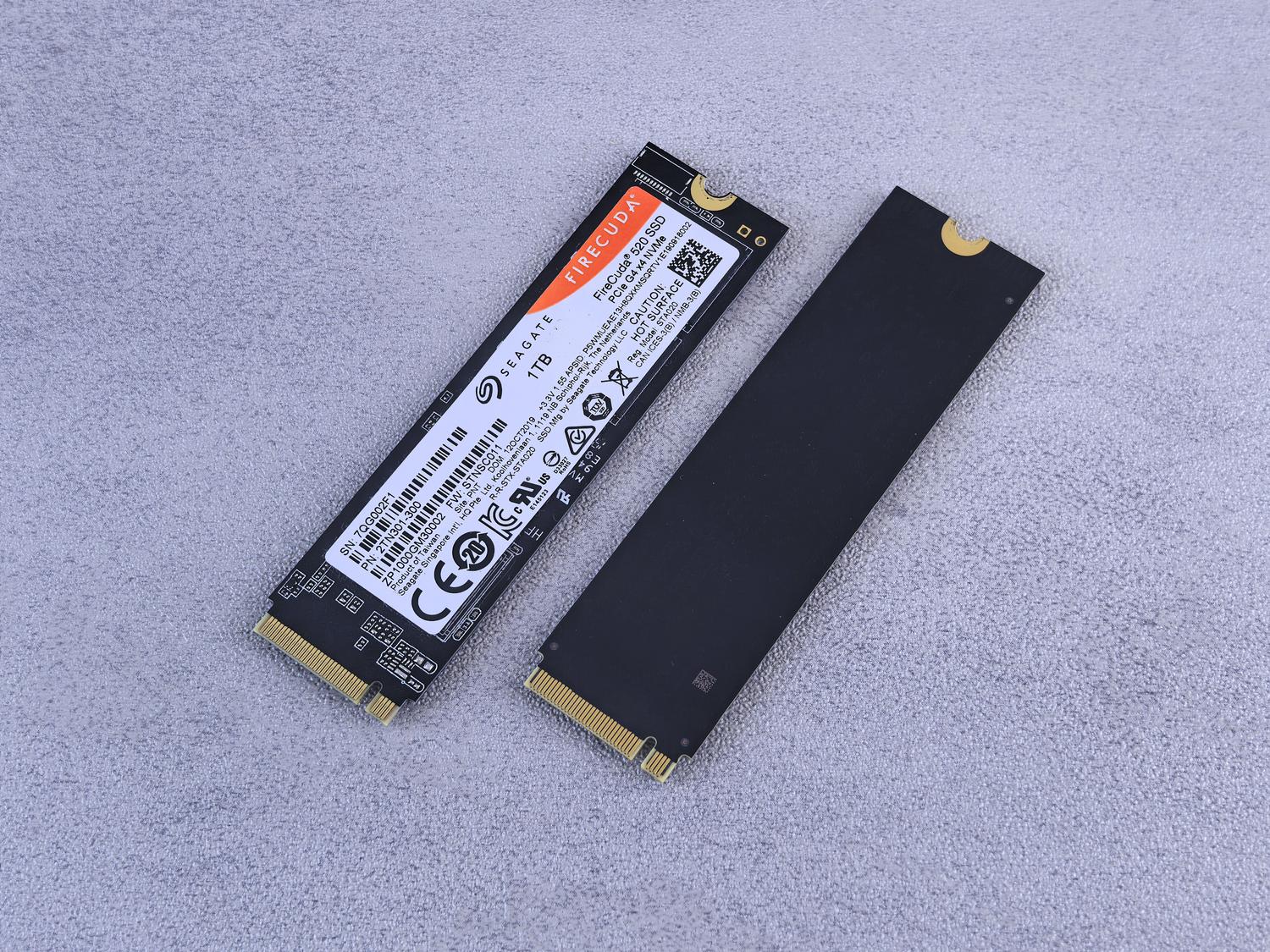
Don't rush into cloning without thinking, because a silly mistake can render your PC unusable. First, check if a hard drive is about to fail ; if the HDD is dying, cloning can fail or copy physical errors.
Make sure the destination SSD has sufficient capacity. If you're downgrading from a larger drive to a smaller one, the space occupied on the source drive must be less than the total capacity of the destination drive. Additionally, it's crucial to connect the SSD correctly, either by installing an internal M.2 drive or using a USB-to-SATA/NVMe adapter if you're using a laptop with limited storage.
One last tip: disconnect unnecessary peripherals such as printers or external hard drives so that the cloning software doesn't get confused when choosing the destination drive, and avoid using the PC while the process is running to prevent write errors.
Recommended tools for migration
Windows doesn't include a built-in cloning tool, so you have to use third-party software. Options like AOMEI Cloner Professional stand out for their intelligent cloning (it only copies used sectors) and SSD alignment to optimize performance.
There's also EaseUS Todo Backup, which is very intuitive for home users. For more professional environments or when you need to move a system to completely different hardware , Acronis True Image is the beast of the industry. Thanks to its Universal Restore feature, it can adapt system drivers so that Windows doesn't suffer blue screens when changing motherboards.
Step-by-step guide to successful cloning
The general process with most programs follows a similar logic. First, you open the tool and select the disk cloning option . Then, you choose the old drive as the source and the new SSD as the destination, keeping in mind that everything on the SSD will be erased.
Before pressing the power button, enable SSD alignment ; this is crucial to prevent premature wear and ensure optimal performance. Once the process is complete, shut down your computer and either physically swap the drives or adjust the boot order in the BIOS/UEFI so that the computer boots from the SSD instead of the HDD.

Troubleshooting common startup problems
It's very frustrating to finish cloning and then have the PC say it can't find the system. Most commonly, the boot order will still point to the old drive. Go into the BIOS and set the SSD as the top boot priority.
Another headache is the incompatibility between MBR and GPT . If your drive is MBR, you need Legacy/CSM mode; if it's GPT, you need UEFI. If the SSD won't boot, you can learn how to convert an MBR drive to GPT to resolve the conflict. If none of this works, you can try startup repair from the Windows Recovery menu to fix corrupted boot files.
If you notice that your new SSD isn't showing its full capacity, don't panic. Sometimes the software retains the old disk's structure and leaves some space unallocated . Simply go to Disk Management in Windows and extend the primary partition to utilize every GB of your new drive.
Ultimately, migrating to an SSD is the most significant upgrade you can make to a computer, provided you choose the right method based on your system's condition and use tools that guarantee data integrity. Keeping the old drive untouched for a few days is the best safety net before formatting it and reusing it as an external drive for extra storage.
