- The actual WiFi speed depends on both the router and its location, band configuration, channels, and DNS.
- Changing your router and adjusting channels, bands, and firmware reduces interference and improves stability and latency.
- Choosing the right frequency between 2,4 GHz and 5 GHz, and using PLC, repeaters or WiFi Mesh can make all the difference in large homes.
- A good security configuration and device control prevents saturation and makes better use of bandwidth.
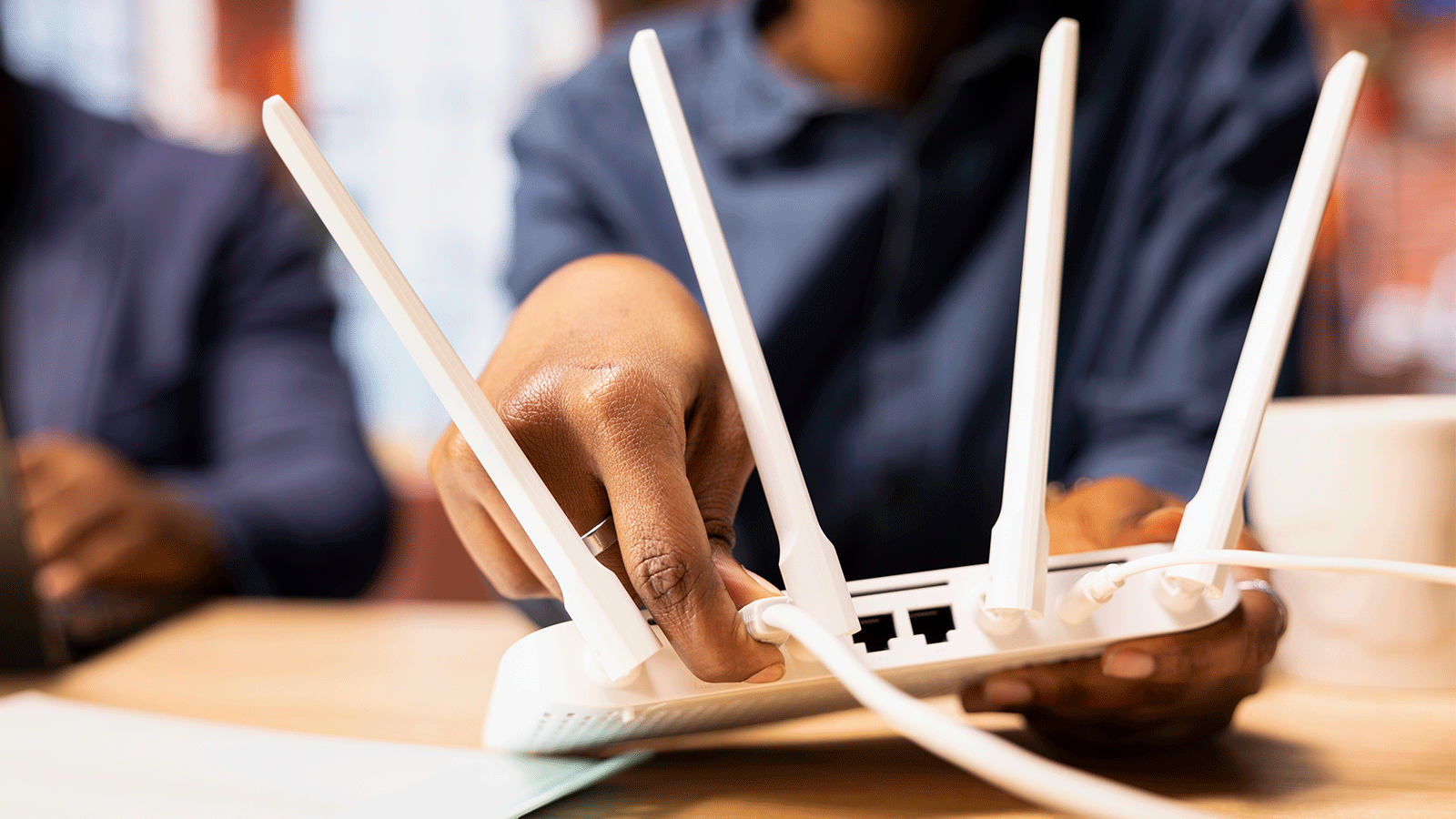
If you notice that Your WiFi is choppy, pages load slowly, or you get kicked out of online games because of the network latencyYou're not alone. We often blame the provider, but the reality is that, with the same contracted speed, you can have a very different experience simply by changing your router and properly adjusting your network settings.
As is the case with many people who "change routers more often than internet providers," a good trick is squeeze the most out of it equipment configurationNetwork name, power, channels, DNS, firmware, and location. You don't need to be a network engineer: with a few clear ideas and some common sense, your connection can be greatly improved without increasing your plan.
Why changing your router can improve your connection so much
The router that the company provides is usually "limited": They block certain advanced menus to prevent the user from misconfiguring them.The intention is not bad, but that also limits the possibilities of optimizing the network, choosing better DNS servers, managing channels, or adjusting transmission power.
Even so, even with the carrier's equipment, it's worth it. Enter the administration panel (usually 192.168.1.1 or 192.168.0.1) and tweak some key settings: band used, channel, DNS, firmware update and security.
It is also important to understand that the contracted speed It doesn't guarantee smooth browsing: the remote server might be slow, networks might get congested, and your Wi-Fi could be plagued with interference. That's why both changing your router and configuring it correctly can make a real difference in your daily experience.
Manually configure the router's DNS settings to improve speed
One of the most overlooked adjustments is that of the DNS (Domain Name System), the servers that “translate” website names to IP addressesEvery time you type a URL or click on a link, your computer checks those DNS servers before starting to load the page.
The operators configure their routers their own default DNS serversThey work, but they aren't always the fastest. If you choose faster servers, that small resolution time is reduced, and the overall feeling is one of quicker browsing, even if your maximum download speed remains the same.
A widely used example is Cloudflare, which offers Free DNS with very high performance and securityMany users prefer them even to Google's DNS or those of their own operator because of their speed and good response.
The addresses that are usually used are 1.1.1.1 as the primary DNS and 1.0.0.1 as the secondary DNSYou can also opt for Google's DNS (8.8.8.8 and 8.8.4.4), but the idea is always the same: to look for fast and reliable servers.
To change them from the router, the usual process is as follows (it may vary slightly depending on the model):
- Connect to WiFi or via cable and open the browser.
- Type in the address bar 192.168.1.1 or 192.168.0.1 (It is the most common gateway).
- Enter the username and password to access the router, which is usually on the sticker at the bottom of the device.
- Enter the section WAN, Internet or Advanced Settingsdepending on the interface.
- Find the DNS section and change the mode to “Static” or “Manual”.
- Enter 1.1.1.1 in the primary DNS and 1.0.0.1 in the secondary DNS, and save the changes.
Note that Some carriers can remotely overwrite these settingsThis is usually done through a management system like TR-069 (found in the maintenance menu on many routers). If your device allows it, you can disable remote management to prevent unauthorized changes.
However, one thing needs to be clarified: Changing your DNS settings will not make downloads or uploads any faster in terms of maximum megabytes per second.What improves is the time that elapses from when you click until the browser starts receiving data, which is very noticeable in web browsing, searches, or applications that make many small queries.
Router location: the site matters (a lot)
No matter how good the router is, If you hide it behind the TV, inside a piece of furniture, or in a far corner of the houseThe signal will be affected. WiFi is radio, and any obstacle (walls, ceilings, doors, cabinets, metal structures) weakens the coverage and creates interferences.
The most advisable is Place the router in an area as central as possible within the home.This way, the coverage is distributed more evenly. If you place it at one end (for example, at the entrance or next to the ONT in the living room on one side of the house), the rooms further away will experience more interruptions and slower speeds.
It also helps to place it in at a certain height, on a table, shelf, or wall bracketNever place it on the floor. Many routers distribute the signal in such a way that it is better distributed if the device is somewhat elevated, without immediate obstacles around it.
Also avoid locking him up: Do not put it inside closets, false ceilings or decorative boxesWalls and doors reduce signal strength; the clearer the space, the better coverage you'll have throughout the house.
You might be tempted to hide it because it's not exactly aesthetically pleasing, but if you cover it up too much, you'll end up paying the price with interruptions and a poor user experience. In large or multi-story homes, its location is even more critical, and you may need to combine it with other devices such as powerline adapters, repeaters, or mesh systems.
Position the antennas correctly to take advantage of the signal
Most routers with external antennas They can be seen in the promotional photos with all the antennas pointed upwards, as if it were the “correct” postureHowever, that placement is not always the most efficient way to cover the entire space.
A very useful trick is to position the antennas in a perpendicular position: one vertical and the other horizontalThe technical reason is that reception is maximized when the device's antenna and the router's antenna share the same polarization plane.
In simpler terms: if the laptop, mobile phone or console has its internal antennas in a certain orientationIt is best if at least one of the router's antennas matches that orientation so that the link is more stable and has a better signal.
Don't panic if all your antennas are pointing upwards, it's not a big deal. It's simply a way to improve your signal, especially in rooms that are a bit further away. Playing with that 90-degree orientation between antennas can give a small advantage that adds up along with the rest of the adjustments.
You're not going to go from a disastrous connection to a perfect network just by turning the antennas, but in a more or less fine-tuned configuration, These details also matter.
Router firmware always up to date
The firmware is the internal software that controls all the router's functionsManufacturers typically release regular updates to fix bugs, improve stability, patch security vulnerabilities, and even optimize WiFi performance.
Some routers are being updated automatically without the user having to do anythingwhile others require you to log into the administration panel and manually search for new versions.
It's advisable to check from time to time if there are Firmware updates are available in the router's own menu or on the manufacturer's website.Often, a simple update can reduce crashes, random disconnections, or compatibility issues with certain devices.
Furthermore, a recent firmware means greater security against external attacks and known vulnerabilities, something fundamental in a team that is permanently connected to the Internet and exposed.
Choosing wisely between 2,4 GHz and 5 GHz WiFi
Modern routers typically offer at least two bands: 2,4 GHz and 5 GHzSometimes they appear as two different networks (for example, "MiCasa" and "MiCasa_5G" or "PLUS"), and at other times they are unified under the same name with automatic selection.
The band 2,4 GHz offers greater range and penetrates walls betterHowever, it is slower and suffers more interference. It shares frequencies with many other devices (Bluetooth, microwaves, etc.) and, in addition, has fewer available channels, so in buildings with many neighbors it becomes saturated easily.
Instead, the The 5 GHz band provides higher speed and is usually less congested., with more channels to distribute and better response for demanding activities such as online gaming, high-resolution streaming or high-quality video calls.
The weak point of 5 GHz is that It has more difficulty passing through walls and ceilingsIn a large apartment or a multi-story house, that band may barely reach the furthest room, while the 2,4 GHz band handles the distance better.
Therefore, the usual strategy is:
- Use 5 GHz for devices close to the router or connected by line of sight (desktop computers, consoles, Smart TVs next to the router).
- Use 2,4 GHz for mobile phones, tablets, or devices that are very far away, where the priority is to arrive with a stable signal, even if the maximum speed is lower.
A typical scenario: someone puts their gaming PC on the third floor and the router is in the basement, at the other end of the house. There, Neither 5 GHz nor a poorly placed extender will work miracles.: the speed drops to less than 10 Mbps and the connection drops constantly.
In situations like this, if you can't move the router because other family members need it to work remotely, It is essential to properly combine the band selection with other network devices (PLC, well-placed repeaters, Mesh) and, if possible, run a partial network cable to an intermediate point.
Choose the least congested WiFi channel
In addition to the band (2,4 or 5 GHz), each network operates on a specific channel within that bandIf many nearby routers use the same channel, they interfere with each other and performance plummets: more latency, micro-cuts, speed drops and a general feeling of "heavy" WiFi.
At 2,4 GHz there are up to 14 possible channels (although not all are used in all countries)separated by only 5 MHz, while each channel needs a width of about 22 MHz. This causes many channels to overlap and generate interference.
That's why it's generally recommended to use the channels 1, 6 and 11 in 2,4 GHz, since they are considered "non-overlapping" in practice: they maintain sufficient separation between them to minimize mutual interference.
There are many more channels in the 5 GHz band (between 24 and 25 depending on the country), and although saturation is usually lower, Many home routers frequently use channels 36, 40, 44, and 48This makes it easier to find a quiet spot with less noise around.
Almost all routers have a mode of automatic channel selectionIn theory, the system chooses the person who is most available. The problem is that this analysis is done periodically (for example, every 12 hours), and the actual situation can change significantly between one moment and the next.
To fine-tune things, it's very useful to use applications like WiFi Analyzer, NetSpot, Fing, or others of that type that allow you to see which channels your neighbors' networks are using and which ones are less congested.
The procedure would be:
- Install a WiFi analysis app on your mobile phone or laptop.
- Identify your network and see which channel it's currently on..
- Check which nearby channels have fewer overlapping networks.
- Enter the router settings, go to WiFi and change the Control Channel from automatic to a specific, less saturated channel.
Ideally, make a speed and latency test Before touching anything, and repeat after changing channels. If the improvement isn't noticeable, try the next least congested option. With a little patience, you may notice a clear improvement, especially in buildings with many networks nearby.
Optimize your connection: cable, network cards, and security
Beyond WiFi, there are some basic points to consider. Your home's global connection is working at full capacity.The first, although it may sound obvious, is that whenever possible you should use an Ethernet cable for devices that do not move.
A wired connection is more stable, faster and with better latency than any WiFi, no matter how good the router is. If your PC, game console, or TV is near the router, it's best to connect them with a cable and use WiFi for phones, tablets, and laptops.
It also matters NIC from the device itself. If your PC or laptop has an older or lower-end Wi-Fi adapter, it might become a bottleneck and prevent you from taking full advantage of the speed offered by your router or fiber optic connection. Sometimes, investing in a good USB or PCIe Wi-Fi adapter greatly improves the experience.
Another critical aspect is the network securityIf your Wi-Fi has no password or you use a very simple one, anyone can connect and hog your bandwidth. Aside from the obvious security risks, this means slower speeds for you.
Make sure to use a WPA2 or WPA3 encryption with a strong password And avoid passwords like 12345678 or similar. You can also see which devices are connected in the router's control panel and disconnect any you don't recognize.
What to do when WiFi doesn't reach: PLC, repeaters and Mesh networks
In many homes, especially those with several floors or a large surface area, No matter how well you position the router, the signal doesn't reach all rooms with good quality.In those cases, in addition to playing with bands and channels, it may be necessary to extend the network.
A very popular option is the PLC (Powerline)These devices use the house's electrical wiring to carry the connection from the router to another area where coverage is poor, creating a new WiFi access point there (and sometimes Ethernet ports as well).
Its configuration is usually simple: You connect a PLC adapter next to the router and connect it with a network cable, and you place the second PLC in the room where you want to improve the signal, plugged into a direct power outlet (it's best to avoid power strips when possible).
Another alternative is the classic WiFi repeatersThese are placed halfway between the router and the area with poor coverage. They capture the signal and amplify it to reach further. They work, but are usually less efficient than a good powerline adapter (PLC) and, in many cases, reduce the maximum speed by repeating the signal.
The third option, which is becoming increasingly widespread, is the systems WiFi Mesh or mesh networksThey are made up of several nodes that communicate with each other and with the router to offer a unified network, intelligently managing which point each device connects to.
The big advantage is that The nodes coordinate to decide which one offers the best performance at any given time.not necessarily the closest one physically. This allows you to move around the house without losing signal or experiencing a sudden network change, which is very convenient for mobile phones and laptops.
The drawback is the price: Mesh systems are usually more expensive than a repeater or basic PLCs.But if you have a large house, many devices, and want stability, it can be one of the investments that makes the biggest difference in your daily life.
Managing saturation: fewer gadgets, better experience
In practice, we are increasingly finding More devices connected to the same router: mobiles, tablets, laptops, consoles, televisions, home automation, smart speakers…All of that consumes a portion of the router's bandwidth and management capacity.
The more devices that are connected (and especially if they are continuously transmitting data), It's easier for the network to become overloaded.This translates into slower speeds, higher latency, and a worse experience in games, video calls, or streaming.
It's a good idea to do one from time to time. audit of which devices are actually using the network and disconnect the ones you don't need. Many modern routers include parental control or QoS (Quality of Service) features that allow you to prioritize traffic from certain devices or applications.
For example, you can give priority to the remote work PC or the console compared to other less critical devices, so that when there is congestion, you are not the one who suffers the outages.
If you have a very old or very basic router, it's possible that cannot properly manage a large number of devicesEven if the contracted speed isn't exceptional, in those cases, opting for a more modern router with WiFi 5 (802.11ac) or WiFi 6 (802.11ax) can represent a significant leap in stability and performance.
When is it worth upgrading to a better router?
Although you can get a lot out of your carrier's equipment, there comes a point where the hardware itself sets the limitIf your router is old, freezes often, doesn't support modern bands, or doesn't offer WiFi 5/6, it's probably fallen short of current demands.
When evaluating a new router, consider a few key aspects:
- WiFi Standard: at least WiFi 5 (802.11ac) and, if the budget allows, WiFi 6 (802.11ax).
- Gigabit Ethernet Ports: essential for taking advantage of fast wired fiber optic connections.
- Dual band or triband: to be able to separate devices between 2,4 GHz, 5 GHz and, in some models, 6 GHz.
- Number and type of antennasPowerful omnidirectional antennas help to better distribute the signal.
- Build quality and firmwareBrands with good support usually offer updates and greater stability.
If your provider has given you a very basic router, ask if They can send you a more modern model. Or, if you want more control, consider buying a neutral router and connecting it to the company's equipment in bridge mode or similar.
Investing in a good router, combined with careful configuration (fast DNS, well-chosen channels, good location, and up-to-date firmware), makes it make the most of the connection you already pay for, without needing to upgrade to a more expensive tariff just to disguise coverage or saturation problems.
With all of the above, it's clear that improving your connection isn't just about getting more megabytes, but about Choose a good router, position it correctly, adjust bands and channels, configure fast DNS, keep the firmware updated, and support the network with PLC, repeaters, or Mesh when the house requires it.By also taking care of security and the number of connected devices, you can go from a frustrating WiFi to a stable, fast and convenient connection throughout the home.

Table of Contents
- Why changing your router can improve your connection so much
- Manually configure the router's DNS settings to improve speed
- Router location: the site matters (a lot)
- Position the antennas correctly to take advantage of the signal
- Router firmware always up to date
- Choosing wisely between 2,4 GHz and 5 GHz WiFi
- Choose the least congested WiFi channel
- Optimize your connection: cable, network cards, and security
- What to do when WiFi doesn't reach: PLC, repeaters and Mesh networks
- Managing saturation: fewer gadgets, better experience
- When is it worth upgrading to a better router?