- The memory hierarchy and the design of data structures largely determine the utilization of the CPU cache.
- Grouping hot data, using contiguous containers, and SoA patterns reduces cache misses and improves latency.
- In Windows, updating the system and drivers and limiting background processes frees up CPU, RAM, and cache.
- Complementing software optimizations with power adjustments and, if necessary, hardware improvements maximizes overall performance.

La CPU cache optimization It's one of those topics that separates code that "works" from code that "flies." When we understand how memory is organized, what access times each level handles, and how the hardware behaves, we can achieve massive performance improvements without changing machines.
Meanwhile, a significant number of Windows users suffer from a more mundane problem: their PCs are slow. And often the root of the problem lies precisely there, in inefficient use of memory, cache, and the CPU itself. With a combination of good low-level design (data structures, memory access patterns) and practical settings in Windows (cleaning, updating, power modes, etc.), very noticeable improvements can be achieved, from small increases of 5% to jumps of 30-40% in certain scenarios.
Memory hierarchy and latencies: why the cache rules
Before we start tweaking code or configuring Windows, we need to understand one thing clearly: not all memory is created equal. The difference between accessing L1, L2, L3 caches, RAM, or disk is enormous, and many cache optimizations are literally based on this. avoid going to slow levels everything possible.
In a modern processor, typical access times (order of magnitude) are roughly as follows: an access to the L1 cache It's around half a nanosecond, a jump prediction failure takes several nanoseconds, L2 It's around 7 ns, while reaching main memory can exceed 100 ns. If we move outside the device (network, SSD, mechanical hard drive), the numbers skyrocket to hundreds of thousands or millions of nanoseconds.
This stark difference is what makes organizing data properly, reducing cache misses, and designing sequential access patterns so important. A loop that lives in L1 cache will be significantly faster than one that constantly accesses RAM or the SSD, even if they perform the same function logically.
Furthermore, the CPU cache is organized into several levels: L1, very small and extremely fast; L2, larger and somewhat slower; and L3, even larger, often shared between cores. The idea is to keep the "hot" data (the data that is used frequently) close at hand and relegate the rest to slower levels. As developers, we can help make this happen naturally with good data structure design and with predictable access.
What is cache and why does it affect performance?
The cache, in any context (CPU, disk, web…), is a fast storage of recently used dataInstead of always accessing the slowest source, we keep a copy of what is most likely to be reused. This shortens response time and reduces the strain on primary resources.
In general, caching is used to speed up access and improve the user experience. In practice, it also allows the system to perform more work with the same hardware: less waiting, fewer blocks, and fewer queues. That's why it's used in CPUs, disks, browsers, distributed systems, and virtually any software that handles data intensively.
A typical PC contains several types of cache: disk cache (RAM that stores data from the hard drive), web cache (static browser resources) and CPU cache (L1, L2, L3). They all work with the same basic idea: to store what will probably be needed later, avoiding repeating slow operations.
Types of cache: disk, web, and CPU cache
Within a real-world system, several caching mechanisms converge, each at its own level. Understanding them helps both in programming better and in diagnosing why a PC is performing worse than expected.
Disk cache
The disk cache is an area of memory (usually RAM) where the operating system stores data recently read or written to the diskWhen the application requests that data again, the system first checks the cache: if it's there, access is much faster than going to the disk, especially if we're talking about mechanical disks.
This mechanism drastically reduces loading times, decreases the number of physical read and write operations, and, in turn, extends the life of the discIn scenarios with repetitive access to the same files (databases, servers, heavy applications), disk caching makes a big difference.
web cache
In the browser, the web cache temporarily stores images, stylesheets, JavaScript, and other resources. Thanks to this, when you revisit a page or navigate between sections within the same site, the browser can... draw from what you already have stored instead of ordering it again online.
The result is twofold: shorter loading times for the user and less bandwidth consumption, both on your connection and on the server serving the content. However, if the cache isn't managed properly, outdated resources can appear, which is why it's sometimes advisable to clear it.
CPU cache: L1, L2, and L3 levels
The crown jewel in terms of performance is the CPU cache. Modern processors include several hierarchical levels designed to minimize data and instruction access latency. Generally speaking, L1 is the smallest and fastest, L2 is intermediate, and L3 is the largest and slowest, often shared.
La L1 cache It is usually separated into instructions and data, with typical sizes of a few tens of KB per core. It is extremely fast and is used for the most immediate tasks. L2 cache It has greater capacity (hundreds of KB to several MB) and acts as an L1 backup. L3 cache It can reach several MB or tens of MB, shared by several cores, and serves as the last level before going to RAM.
When the memory access pattern is reasonably sequential or predictable, the hardware is able to anticipate it and bring the data to these cache levels. When it is chaotic, full of random jumps and scattered structures, the processor spends too much time waiting for memory and the CPU gets "bored". This is where code-level optimization comes in.
Optimize data structures for CPU caching
Much of the performance depends on how we design our data structures. It's not the same to have a giant object with hot and cold fields mixed together as it is to separate what is used frequently from what is rarely used. Every cache line brought to the processor has a cost; if we fill those lines with useless data, we're wasting bandwidth.
Group hot data and separate cold data
A key strategy is to identify which fields in a structure are accessed in almost every operation (“hot” data) and which are used only occasionally (“cold” data). The former should to be together in memory and, if possible, fit in one or a few cache lines. The latter can be in a separate structure, referenced by a pointer or index.
For example, instead of having a user object with long strings (name, biography, email) mixed with flags or markers that are constantly being checked, it's better to group the "hot" data (id, last login, active status) into a compact structure and leave the rest of the information in a separate "details" structure. This way, when the code iterates through a list of users to check a status or marker, the cache lines are almost entirely filled with relevant data.
Reduce filler and make better use of every line
Another battlefront lies in the physical design of the structures: the order of the fields and their types. Because of alignment, mixing types of different sizes in a disordered way can introduce padding bytes that only serve to waste memory and, even worse, cache lines.
If we reorder a data structure to group large types first (e.g., doubles or int64_t), then medium types, and finally the smallest types (bool, char), we typically reduce or eliminate much of the padding. This allows more elements to fit per cache line, reducing the strain on the memory hierarchy and the likelihood of memory misses.
Choose adjacent containers
The containers that store the items in contiguous memoryVectors, as a type of array, are generally much more cache-friendly than structures based on sparse nodes linked by pointers (trees, classic linked lists, etc.). When traversing a vector, the hardware can perfectly predict the next access and pre-load the following cache lines.
In contrast, structures like tree-based maps or linked lists distribute their nodes across the heap, forcing the CPU to perform continuous pointer chasing. Each jump can result in a cache miss and a costly trip back to main memory. That's why many modern libraries offer dense hash mapsopen tables and other containers that try to keep the data as compact as possible.
Online storage for small collections
Many algorithms involve very small collections (a few integers, a few structures) that are constantly created and destroyed. If each of these causes a heap allocation, we not only incur memory management costs but also have data scattered across RAM. The solution is to use containers with online storage for small sizes.
This type of container reserves space for 8 or 16 elements directly within the object itself. As long as this limit is not exceeded, there's no need to access the heap, and the data remains attached to the rest of the function or class state, which is very beneficial for caching.
Access patterns: from AoS to SoA and the use of bitsets
Even with well-structured caches, the data access pattern largely determines performance. It's not the same to traverse an array sequentially as it is to jump from one address to another based on a list of pointers. There are some recurring techniques for maximizing cache utilization.
Array of Structures (AoS) vs Structure of Arrays (SoA)
A classic pattern is the shift from an "array of structures" (AoS) design to an "array structure" (SoA). In AoS, each element is an object with many fields (for example, the position and mass of a particle), and these elements are stored sequentially. When you only need to read a portion of these fields (for example, the position), you are forced to load cache lines that also carry unused data.
In SoA, on the other hand, the different attributes are separated into parallel arrays: one for x, another for y, another for z, another for mass, etc. Thus, if an algorithm only updates the positions, it only touches the coordinate arrays, and the cache is not contaminated with irrelevant informationFurthermore, this design favors vectorization and the use of SIMD instructions.
Bitsets and references by index
For small domains (e.g., flags ranging from 0 to 255), using a bitset is much more efficient than a hash-based set structure. A bitset of 256 positions occupies only a few tens of bytes and allows for very fast, fully contiguous, and cache-friendly operations, instead of having to resolve collisions in a hash table.
Similarly, replace pointers with indices in contiguous arrays It can reduce the size of the structures (32-bit indices instead of 64-bit pointers) and improve cache coherence. Instead of nodes spread across the heap, a vector of nodes is stored and they are pointed to by their position, facilitating sequential traversals.
Prefetching: when to get ahead of the work
In addition to hardware prefetching, which attempts to anticipate sequential access patterns, we have software prefetching instructions for advance data loading in specific cases. This makes sense when the pattern is predictable but not strictly linear, as occurs in hash tables or linked lists.
The general idea is simple: while processing element i, you instruct the hardware to bring element i+1 (or some future block) into the cache. When you reach that element, the probability that it's already in L1 or L2 is high, and the waiting time is reduced. This can be implemented with compiler prefetch primitives or specific libraries.
However, there's no point in using explicit prefetching in completely sequential accesses, because the hardware already handles it automatically. In fact, adding unnecessary prefetching can dirty the cache and worsen performance. As is almost always the case with performance, it's best to measure before and after.
Cached location, replacement, and prefetching policies
At a more theoretical level, cache systems are based on policies for where to store data, when to retrieve it, and which data to evict when there isn't enough room. Although these details are managed by the hardware or the operating system, understanding them helps in interpreting certain unusual behaviors.
Regarding location, schemes can be used of memory segmentation or set-associative allocation, where each main memory address can only map to a subset of the cache. This influences the number of conflicts and the probability of two addresses overlapping within the cache.
Regarding cache flushing (what happens when there's a cache miss), replacement policies come into play: LRU (Least Recently Used), FIFO, or even random replacement. LRU attempts to keep the most recently used data in the cache, assuming it will be needed again, while FIFO simply discards the oldest data. Each policy has its advantages depending on the actual access pattern.
In the prefetching section, there are mechanisms based on historical patterns: if the hardware detects that each access is shifted, for example, always by 64 bytes, it will tend to anticipate adjacent blocksIn other cases, space prefetching (bringing in an entire block even if you only requested a part of it) is used to minimize the number of trips to main memory.
Measuring and profiling cache behavior
Optimizing without measuring is like going in blind. There are performance analysis tools that allow you to see specific cache metrics: references, L1 misses, last-level cache (LLC) misses, miss percentage, etc. These metrics indicate whether your changes are actually improving the situation.
If, for example, the percentage of misses in L1 is around 2-3%, it is usually considered reasonable, whereas very high miss rates in the last level cache may indicate problems with spatial or temporal locationCombining these figures with CPU and memory profiles helps to detect which parts of the code are putting the most pressure on the memory hierarchy.
Cache and performance optimization in Windows
Beyond the code itself, many users wonder why their Windows PC runs so slowly if, "in theory," it has a good CPU and RAM. Part of the answer lies in the system itself, resident applications, and the accumulation of digital junk files. They consume CPU, memory, and cache. constantly, leaving fewer resources for important tasks. By applying several specific optimizations in Windows 10 and Windows 11, it is possible to free up CPU and RAM resources (For example, by configuring virtual memory), reducing background processes and improving the system's ability to cache relevant data. Depending on the initial situation, these improvements can range from minor tweaks to very noticeable changes in overall performance.
Update Windows and drivers
A very basic step that many people neglect is keeping both the operating system and drivers up to date. Windows updates don't just bring security patches: they often include improvements in resource management, memory leak fixes and kernel optimization.
From the Windows settings panel (Start > Settings > Update & Security > Windows Update), you can search for both general updates and optional packages, including non-critical drivers that can optimize the performance of your CPU, GPU, or chipset. Installing these components can resolve bottlenecks or stability issues that directly affect how cache and memory are utilized.
Disable P2P distribution of updates
Since Windows 10, the system can download and share updates using a P2P mechanism with other computers. While ingenious, this system means that the computer... uses CPU, network and disk to help distribute updates, something that isn't always desirable.
Disabling "Delivery Optimization" in Windows Update prevents your PC from serving or downloading update fragments to other computers. This frees up resources, reduces background activity, and can improve overall performance, especially on less powerful systems.
Free up disk space and remove junk files
When the disk is full or nearly full, Windows has less space for paging and creating temporary files, which ultimately affects performance. Use the built-in tool of Disk Cleanup It allows you to delete temporary files, remnants of updates, items from the trash, and other data that is no longer needed.
In addition to this cleanup tool, it's advisable to regularly empty the Recycle Bin and use Windows storage options to delete accumulated temporary files. The less space there is on the system drive, the more efficiently the memory subsystem will operate and the more effectively the disk cache will function.
Optimize startup and background programs
One of the biggest enemies of the CPU and cache on a PC used daily is programs that start automatically and run in the background: synchronizers, updaters, small utilities that we barely use, etc. Although they may seem lightweight, each one adds threads, memory, disk accesses, and cache consumption.
From the Task Manager or with Sysinternals for process controlOn the Home tab, it is possible disable unnecessary applications to prevent them from loading automatically. Also, in the Privacy settings, you can control which applications are allowed to run in the background. Reducing this list not only improves startup time but also reduces the continuous load on the CPU and RAM.
Reduce graphic effects and notifications
Window animations, transparencies, and other visual embellishments consume resources. On older or less powerful computers, it may be beneficial to adjust Windows settings to prioritize performance over appearance. This is done through the system's advanced options, in the performance section, by selecting the configuration that favors speed.
Similarly, an excess of notifications can saturate the user and the teamDisabling unnecessary alerts not only cleans up the user experience, but also prevents background processes or checks from being triggered too frequently.
Power modes, hibernation, and peak performance
Windows includes several power plans that directly influence how the CPU is managed: whether battery life or pure performance is prioritized. On desktops and laptops that are plugged in, it's usually a good idea to review these settings.
El quick start Fast Startup combines features of shutdown and hibernation to speed up boot times by preloading part of the kernel and drivers before shutting down. Enabling it can significantly reduce boot time, although it's advisable to temporarily disable it if it causes problems with updates or BIOS access.
On the other hand, there is a hidden “maximum performance” plan This forces the CPU and other components to work less efficiently, prioritizing energy savings. Enabling it can provide a bit more headroom for intensive tasks, but at the cost of increased heat, fan noise, and power consumption.
Efficient management of space and memory in the system
In addition to regular cleaning and controlling resident programs, there are other ways to get better use of the computer's physical resources and, in turn, the CPU and disk cache.
Having a desktop cluttered with icons, shortcuts, folders, and files isn't just visual clutter: Windows needs to manage all of that, which adds some extra workload. Maintaining a reasonably clean desk Organizing files into folders within drives is a simple practice that contributes to a lighter environment.
It also helps to rely on cloud storage solutions for certain files, which reduces the amount of local storage used. Provided this is done sensibly (without relying entirely on the internet connection), the local system can be kept less burdened and have more flexibility.
Specific technologies: ReadyBoost, overclocking and hardware
On systems with a mechanical hard drive and limited RAM, Windows includes technologies like ReadyBoost, which allows you to use a fast USB drive as a kind of additional cache. While not a magic bullet, in certain configurations it can provide a boost in performance. relieve some of the pressure on the disc.
At the other end of the spectrum, advanced users can overclock their CPUs using tools like Intel Extreme Tuning Utility (for unlocked processors). Increasing the clock speed boosts performance, but also increases temperature and power consumption, with a real risk of instability and damage if voltage and cooling aren't carefully managed.
When all software optimizations fall short, it's time to consider hardware upgrades: replacing a hard drive with an SSD, expanding RAM, or even change processor or the entire system. An SSD, in particular, transforms the perceived performance of the system, as it drastically reduces disk access times, which in turn allows the disk cache and virtual memory to work much more smoothly.
Together, combine good design of data structures and memory access patterns To exploit the CPU cache with a careful Windows configuration (updated, lightweight, without junk or unnecessary processes, with the appropriate power plan and, if necessary, with small aids such as ReadyBoost or hardware improvements) allows you to get much more out of the same computer, achieving applications that respond with agility and a system that feels noticeably faster without the need for "magic" or esoteric tricks.
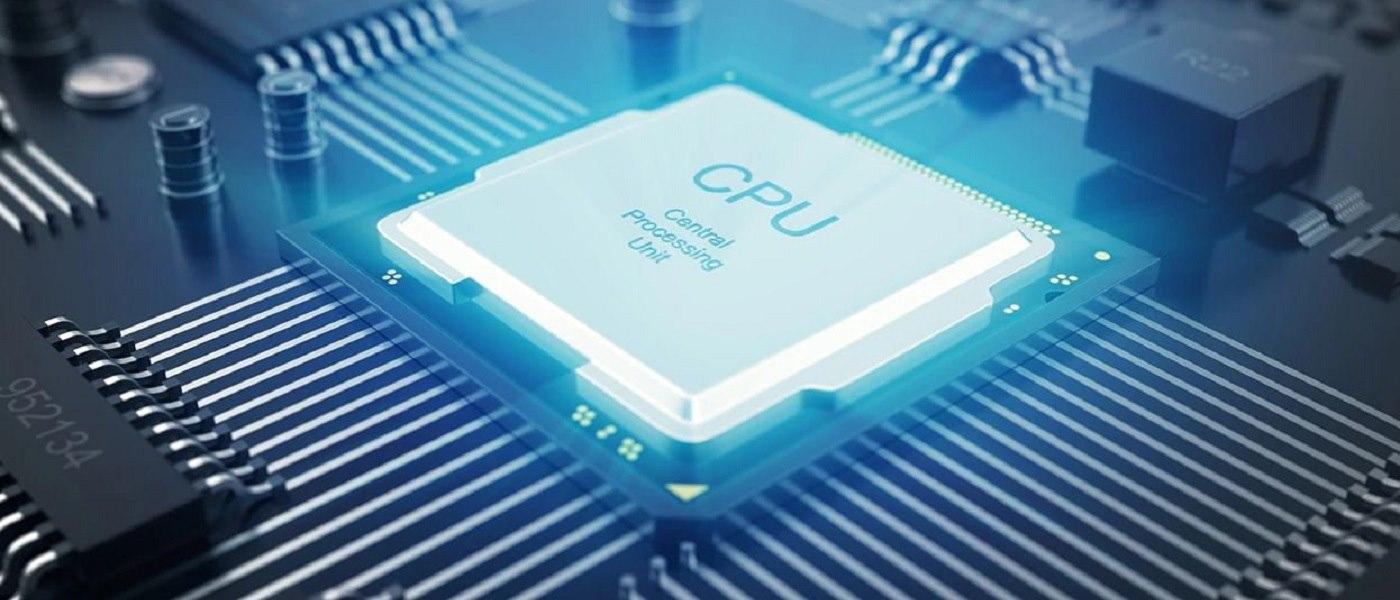
Table of Contents
- Memory hierarchy and latencies: why the cache rules
- What is cache and why does it affect performance?
- Types of cache: disk, web, and CPU cache
- Optimize data structures for CPU caching
- Access patterns: from AoS to SoA and the use of bitsets
- Prefetching: when to get ahead of the work
- Cached location, replacement, and prefetching policies
- Measuring and profiling cache behavior
- Cache and performance optimization in Windows
- Power modes, hibernation, and peak performance
- Efficient management of space and memory in the system
- Specific technologies: ReadyBoost, overclocking and hardware