- All-in-One computers prioritize aesthetics and space saving at the expense of performance, expandability, and repairability.
- Laptops offer mobility and versatility, but sacrifice ergonomics and are usually less upgradeable.
- Tower PCs and some mini PCs remain the best option for power, cooling, and long lifespan.
- The right choice depends on whether you value portability, a large fixed screen, appearance, or expandability more.
Choosing between an all-in-one computer , a laptop, or even a mini PC is no longer a trivial decision. Working from home, online classes, casual gaming, content creation, or simply browsing and managing tasks… each user has different needs, and the market is full of formats designed to save space and cables without sacrificing power.
In the following lines you will find a very complete guide in clear language that compiles and reorganizes all the information that appears in the best buying guides in the sector: what exactly an All in One is, how it differs from a laptop and a miniPC, its advantages, its many drawbacks, what uses make the most sense for each format, examples of real configurations and recommendations according to the type of user and office.
What is an All-in-One (AIO) computer and where did this format come from?

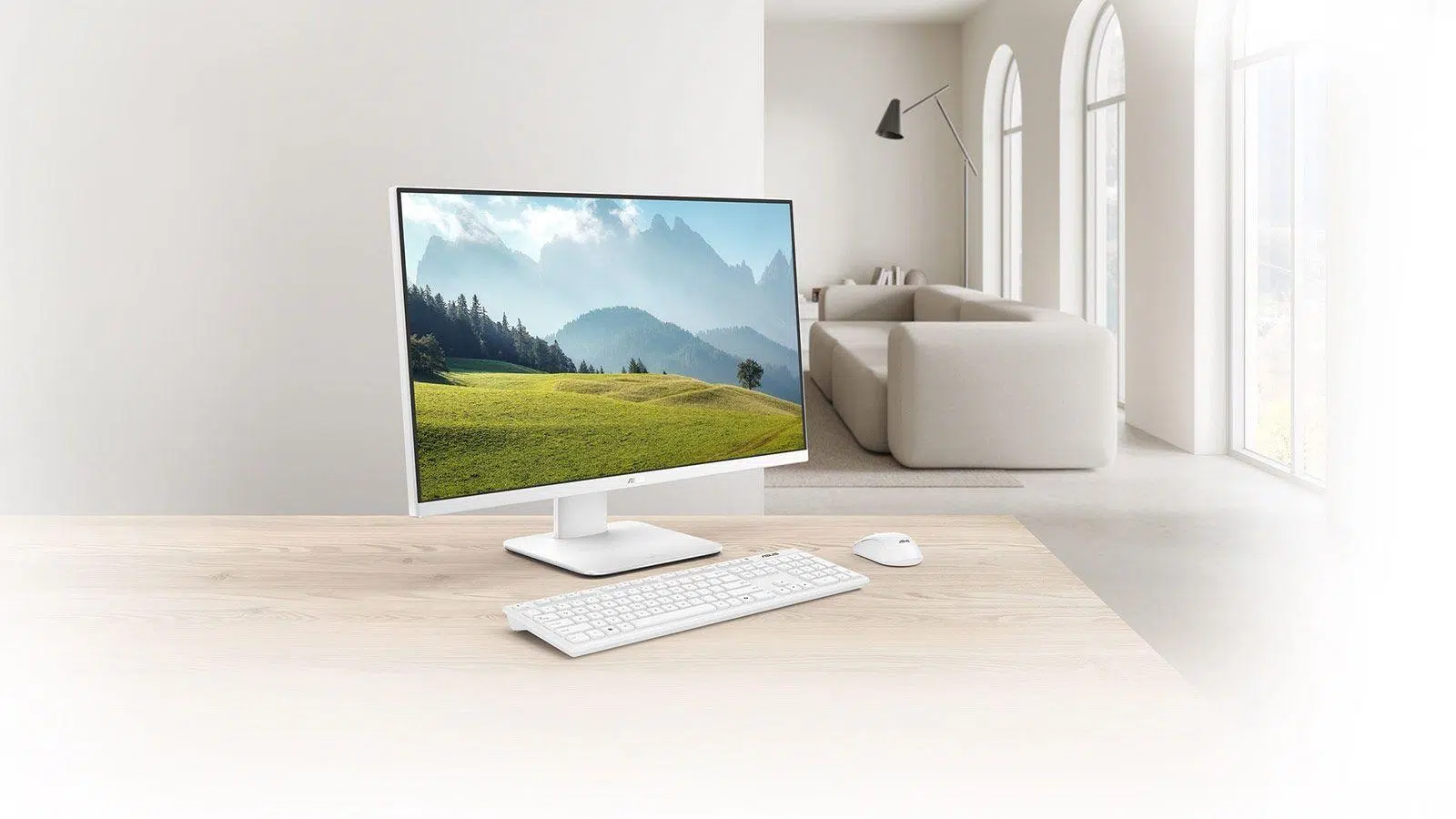
An All-in-One computer, or "all-in-one" PC without a tower , is a desktop computer that integrates all the computer components into the same casing as the screen: motherboard, processor, RAM, storage, connectors, cooling system and even, in most models, speakers and webcam.
At first glance, it looks like a large monitor and little else, but in the back or at the base is all the hardware you'd find in a laptop . And this is no coincidence: many all-in-one PCs use components designed for laptops (low-power CPUs, integrated graphics, SO-DIMM RAM modules, etc.) to fit everything into such a slim space.
The concept isn't new: the first major example was Apple's original Macintosh , which took advantage of the enormous size of CRT screens to house the circuitry. With the arrival of the iMac in the late 90s, the format was refined with flat panels, minimalist designs, and meticulous hardware integration, and since then it has spread to many Windows PC manufacturers.
Compared to a traditional desktop computer, the main difference is that an all-in-one (AIO) doesn't have a separate tower with drive bays and expansion slots . Compared to a laptop, the AIO sacrifices battery life and portability in exchange for much larger screen sizes and a more comfortable and clutter-free workspace.
Real advantages of an All-in-One: where these "towerless PCs" shine
All-in-one (AIO) PCs aren't for everyone, but when they're a good fit, they work very well. Their strengths lie primarily in their size, aesthetics, and ease of use.
Desk space saving
The main advantage of an all-in-one PC is the massive space savings compared to a tower PC . You only have the screen, keyboard, and mouse on the desk, without a case taking up space underneath or on top, and without that typical desktop cable clutter.
This makes them especially appealing in small offices, reception areas, customer service counters , or home offices where space is limited and a clutter-free workspace is desired. Cabling is often reduced to just power cables, as the network can be Wi-Fi enabled and peripherals can be wireless.
Fewer cables and simplified connections
With everything integrated, external connections are minimized. A typical AIO only needs the power cable and, at most, the bulk of one or two additional cables if you use a wired keyboard and mouse. There's no video cable, no external audio cables; it's all internal.
Most current models include Wi-Fi and Bluetooth , so you can even forget about the network cable and connect wireless peripherals without any problems. For many users, this "plug and play" feature is key.
Easy to move (even though it's not a laptop)
While an all-in-one PC isn't designed to be taken on the go, it's much easier to move around than a traditional desktop computer. In practice, it's like moving a slightly heavier monitor: you unplug the power cable and move it to another room without any fuss.
This is convenient in offices where workstations are frequently rearranged, in homes where the PC moves from the office to the living room, or if you simply need to change its location for a presentation or a one-off training session.
Visually impeccable workspace
In businesses where image matters (consulting rooms, hotels, shops, corporate receptions, academies…) the All in One offers a much cleaner and more modern look than a tower and monitor with a tangle of cables.
In these scenarios, extreme performance or expandability matters less than the sense of order and professionalism that the workspace conveys. That's where an all-in-one (AIO) computer is clearly advantageous.
Webcam, audio and other integrated extras
Many models include integrated webcams, microphones, and speakers , just like a laptop. For remote work, video calls, or online classes, it's very convenient not having to add extra accessories.
Furthermore, in mid-range and high-end models it is common to find Full HD or higher screens with good viewing angles, something crucial when you spend many hours in front of the machine.
Disadvantages and limitations of All-in-One PCs: what they almost never tell you
The downside of such a compact and attractive design is that there are many compromises . An all-in-one (AIO) PC has more drawbacks than it initially appears, especially when compared to a well-built desktop PC.
Difficult access to the interior and very limited extensions
The biggest problem with this form factor is that accessing the internal hardware is often complicated . In some models, you can only remove small covers to change the RAM or storage drive; in others, you can't even do that, and everything is soldered in place.
In most cases, forget about adding a dedicated graphics card , more drive bays, extra PCIe cards, or anything like that. The design is completely closed, making the experience similar to that of a laptop: what you buy is practically what you'll have until the computer dies.
Lower performance and very poor cooling
Because the casing is so thin and the internal space so tight, the vast majority of All-in-One PCs use low-power laptop hardware : U-series processors or similar, and integrated graphics (Intel UHD, Iris Xe, AMD Radeon integrated, etc.).
That's fine for office work, browsing, business management, video streaming, or even some light editing , but it falls short for demanding tasks (serious video editing, 3D, demanding gaming). Furthermore, the cooling systems are small, and when the CPU gets hot , they often enter thermal throttling : the processor reduces its frequency to prevent overheating, resulting in performance drops when you need it most.
Higher price than an equivalent desktop computer
Engineering and manufacturing a PC inside a screen isn't cheap. That's why, with equal power, an all-in-one computer is usually considerably more expensive than a desktop with a separate tower and monitor.
In practice, you're paying more for a machine with worse performance, fewer upgrade options, and weaker cooling , in exchange for fewer cables and a cleaner aesthetic. You're also paying for the integrated panel, which is usually quite large (23-27 inches or more) and increases the overall price.
Connectivity and ports below a tower
Another weak point is connectivity . Although modern all-in-one PCs include the basics (USB, HDMI or DisplayPort output, audio jack, card reader in some cases), they usually have fewer ports than a tower PC.
If you need to connect many peripherals or additional monitors, you'll end up using USB hubs or docking stations , which adds cost and, incidentally, more gadgets and cables on the desk.
Fragility and more expensive repairs
Because all the components are compressed behind the screen, a hard knock or a fall that affects the panel can damage both the screen and the internal hardware . Repairing an AIO is nothing like replacing a loose part in a tower PC.
In a traditional desktop computer, if the graphics card, power supply, or hard drive fails, you simply replace that component and you're good to go; in a laptop, you can still replace the screen. However, in many all-in-one computers, a broken screen or a motherboard failure can render the entire system unusable due to cost or the sheer unavailability of replacement parts.
MiniPC, All-in-One and Desktop: Where Each Format Fits
When you search for "towerless PCs", you'll find not only AIOs, but also mini PCs and small towers (Micro ATX, Mini ITX) that offer interesting alternatives.
What does a miniPC offer compared to an AIO and a tower?
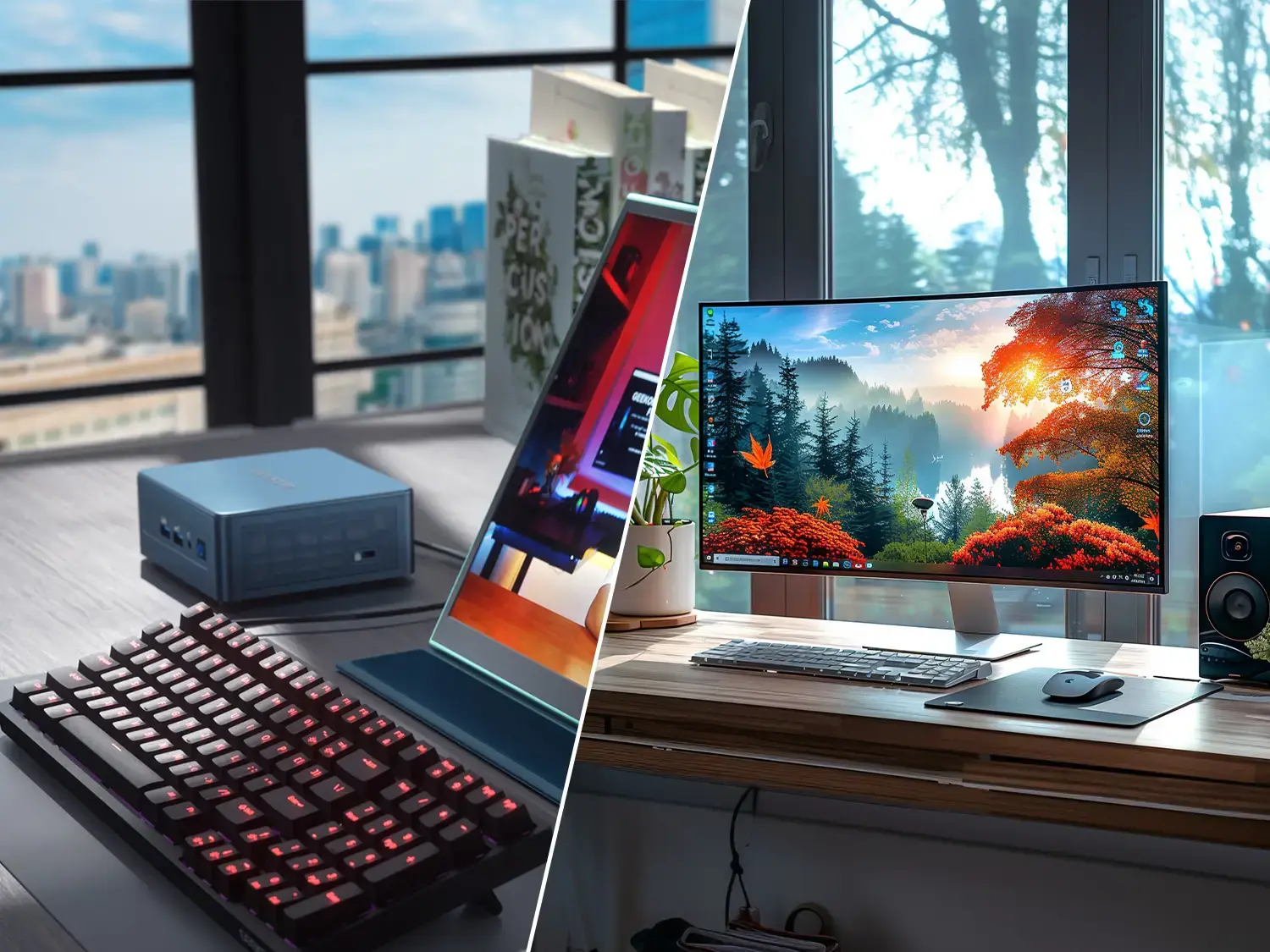
A mini PC is basically a miniature tower : a very small case that houses the motherboard (ITX or similar), CPU, RAM, storage, and ports. It doesn't include a screen or peripherals, but it takes up minimal space and can be left on a desk, mounted behind a monitor, or placed inside a TV stand as an HTPC.
Its key advantages are its small size and weight , the ability to choose your monitor and peripherals, and, in many models, some internal upgrade options (RAM and SSD are usually readily available). The most powerful models approach the performance of compact desktops and can even be used for gaming or editing, although large dedicated graphics cards remain difficult to fit into very small form factors.
Their drawbacks are similar to those of all-in-one PCs: performance limited by space , dedicated graphics cards that are often unavailable, and a slightly smaller number of ports than a full-size tower. Even so, they generally offer more flexibility than an all-in-one PC because the screen is separate.
Tower desktop: the king of performance and expandability
The classic tower PC remains unbeatable when performance, cooling, and expandability are priorities . From large ATX cases to well-designed Micro ATX or Mini ITX chassis, there are options that don't take up too much space and allow for the installation of very powerful hardware with good airflow.
In tower format you can add high-end dedicated graphics cards, several storage units, additional cards , change the power supply, improve cooling and extend the useful life of the equipment for many years through occasional upgrades.
The price? For the same performance, it's usually cheaper than an all-in-one , although you'll have to add a monitor, keyboard, and mouse. The main drawback remains the physical space and the cabling, which is less "Instagrammable" but much more flexible.
Laptop vs All-in-One: Portability vs. Large Screen
The big question for many users isn't tower vs. AIO, but All-in-One vs. laptop . This is especially true for office workers, freelancers, and students who are torn between being able to move their computer around or having a more comfortable, fixed workstation.
Key advantages of the laptop
The laptop's greatest asset is its name: portability . It runs on battery power, doesn't depend on a constant power outlet, and is easy to take from home to the office, to class, on a trip, or to a coffee shop.
Current models combine slim, lightweight designs with highly efficient processors , good-quality screens, and battery life that, in decent mid-range models, can last for many hours away from the power outlet. And if you need more flexibility, 2-in-1s and convertibles allow you to use the device as a tablet, in tent mode, and more.
Another advantage is the huge variety of ranges and configurations : from basic 15,6″ computers for office and web use, to mobile workstations with powerful CPUs, dedicated GPUs and 16-17″ screens designed for content creation or gaming.
Weak points of a laptop compared to a desktop computer
The downside of a laptop is that, if you work for many hours at a time, its design isn't the most ergonomic. The fixed relationship between the keyboard and screen forces you into unhealthy postures for your neck, back, and wrists , unless you use a stand and an external keyboard and follow the guide for adjusting the monitor's ergonomic height.
They also tend to be more complicated and expensive to upgrade: in many cases, you can only upgrade the RAM and SSD , and more and more models have these components soldered in. Furthermore, while there are very powerful laptops, heat and power management limit their sustained performance compared to a well-cooled desktop computer.
Advantages and disadvantages of the AIO versus the laptop
An All-in-One, compared to a laptop, primarily offers a larger and more comfortable screen for working, studying, or consuming content, as well as better posture by being able to place the monitor at the correct height and use a full keyboard and mouse.
If you don't usually move around with your computer and always work in the same place, an all-in-one (AIO) feels like a very tidy desktop : you put the monitor on, plug in the cable, and you're good to go. However, you completely lose the ability to work unplugged and easily take it to meetings, classes, or trips.
Use cases: who should bet on each type of equipment
Once you understand the characteristics of each format, it's time to apply them to your specific situation . A public-facing office is not the same as a design studio or a student who divides their time between home, the library, and university.
When does it make sense to buy an All-in-One?
An AIO is usually the logical choice when looking for a fixed, visually clean and easy-to-use computer , and future expansion or maximum raw performance is not a priority.
It fits especially well in:
- Offices and businesses that face the public: hotel receptions, clinics, shops, academies, offices where the client sees the workstation and values a neat and cable-free aesthetic.
- Teleworking and home office automationEmail management, Office suites, CRM, ERP, web browsing, video calls, and business applications that are not particularly resource-intensive.
- Distance learning students or online classes who spend many hours in front of the computer and appreciate a large screen, an integrated webcam and fewer loose gadgets.
- Homes with limited space or where a visible tower is not desired No complex cabling required, but a fixed workstation is preferred to a laptop.
In all these cases, it is advisable to choose an AIO with a current mid-range processor (Core i5/Ryzen 5), at least 8-16 GB of RAM and a 512 GB or 1 TB SSD , so that the computer does not become inadequate in a few years, considering how limited the upgrades are.
When is a laptop better?
The laptop wins hands down in any context where you need real mobility :
- Professionals who travel, work in different locations, attend external meetings, or constantly alternate between home and office.
- University students and students who spend their time between home, library, university, coworking spaces, etc.
- Users who value being able to work from a sofa, a coffee shop, the train, or anywhere with a nearby power outlet.
If this is your situation, a decent laptop is probably worth it, along with an external monitor and keyboard/mouse if you want convenience at home . This way you get the best of both worlds: portability when you're on the go and ergonomics when you're working at your desk.
When to choose between a tower or a miniPC
If your priority is power, thermal stability and being able to upgrade the equipment for years , the sensible thing is still a tower desktop (even in a compact format) or a somewhat more "serious" miniPC.
It is the clear choice for:
- Demanding gaming with powerful dedicated graphics cards and high refresh rate monitors.
- Video editing, 3D, CAD, rendering, AI and generally heavy workloads that benefit from powerful GPUs, plenty of RAM, and good airflow.
- Users who want extend the life of your investment updating individual parts periodically instead of replacing the entire system.
In these scenarios, an All in One is usually more of an aesthetic whim than a rational decision: you'll pay more for something that will make more noise, run hotter, perform worse, and leave you locked into the original configuration.
Examples of typical configurations: landing the numbers
To put all this into context, it's helpful to look at real configurations that are currently on the market and what kind of use they allow.
All-in-One entry-level computer for office applications and general use
A typical example in the affordable range would be an AIO with a latest generation AMD Ryzen 3 or Intel Core i3 processor , 8 GB of RAM and a 256 GB-512 GB SSD, a 22-24 inch Full HD screen and integrated graphics.
Laptops with specifications like a Ryzen 3 3250U, 8GB of RAM, and a 256GB SSD on a 22" FHD screen are well-suited for browsing, online tasks, office applications, video calls, and content playback . They aren't machines for editing 4K video or playing the latest games, but they are perfectly adequate for traditional office use.
Lightweight mid-range laptop for everyday work
In the laptop world, a very common combination is an 11th generation Intel Core i3/i5 or Ryzen 5 , 8 GB of RAM, a 256-512 GB SSD and a 15,6″ HD or Full HD screen weighing less than 2 kg.
With specifications similar to a Core i3-1125G4, 8 GB of RAM (expandable), a 256 GB SSD and a weight of 1,6-1,8 kg, you have perfect computers for everyday work, browsing, office tasks, online management and some leisure , with the advantage of being able to carry them under your arm and connect them to an external monitor when you are at home.
Mid-range all-in-one for an office or business
Moving up a level, we find all-in-one PCs with modern Ryzen 5 or Core i5 processors, 16 GB of RAM, and 512 GB SSDs , along with 23,8-27" Full HD screens and more refined designs. These machines allow for more intensive multitasking, more demanding management applications, and some light image or video editing without too much strain.
In business environments that want a powerful, long-lasting and well-presented fixed workstation , these mid-range configurations are the sweet spot, provided that the limitation of future expansion is accepted.
At the high end of the market there are extremely capable AIOs, with high-quality 4K or 5K screens, Core i7/i9 processors or chips like Apple's M3, 16-32 GB of RAM and very powerful dedicated or integrated graphics.
These devices are designed for content creators, designers, video editors, and visual professionals who value an excellent screen and a highly polished design. However, even here you still face the same fundamental limitation: little to no real internal expansion capability and complete dependence on the manufacturer if something breaks outside of the warranty period.
How to decide: key questions before checking out
When you're hesitating between an All-in-One and a laptop (or between an AIO and a tower), the most useful thing to do is to ask yourself a few frank questions about your day-to-day life.
- Will I be moving the equipment often? If the answer is yes (office/home, university, travel…), a laptop is the way to go. If it's going to be tied to a desk, you might consider an all-in-one or desktop computer.
- How much actual space do I have on the desk or in the office? If you're really strapped for cash or want a visually impeccable environment for the public, the AIO makes a lot of sense.
- Do I need a lot of power and the ability to upgrade? For serious gaming, intensive video editing, 3D, AI, etc., the most sensible thing is a tower or some powerful miniPC, never an AIO.
- How much do aesthetics matter to me compared to flexibility? If aesthetics are paramount and you only need a few features, an all-in-one PC shines. If you need complete flexibility, a desktop tower wins.
- What is my budget and how long do I expect the equipment to last? Given the same budget, a desktop computer typically offers better performance and a longer lifespan with upgrade options than an all-in-one (AIO). A laptop adds the advantage of portability.
Answering these questions honestly will guide you better than any generic list of "pros and cons," because it forces you to align the purchase with your actual way of working or studying.
Ultimately, all-in-one PCs, laptops, mini-PCs, and towers aren't inherently better or worse: they're simply different tools for different needs . If you know your priorities (portability, large screen, aesthetics, performance, future upgrades), finding the ideal format becomes a simple process of elimination and budget adjustment.
