- PC error messages usually indicate failures in drivers, memory, disk, permissions, or operating system settings.
- Windows Blue Screens of Death (BSODs) are identified by STOP codes that help locate the source of the problem.
- A good error message should be relevant, clear, actionable, and user-centric, avoiding unnecessary technical jargon.
- In Windows and Linux, many errors are resolved by updating drivers and tools, checking hardware, and correcting permissions and settings.
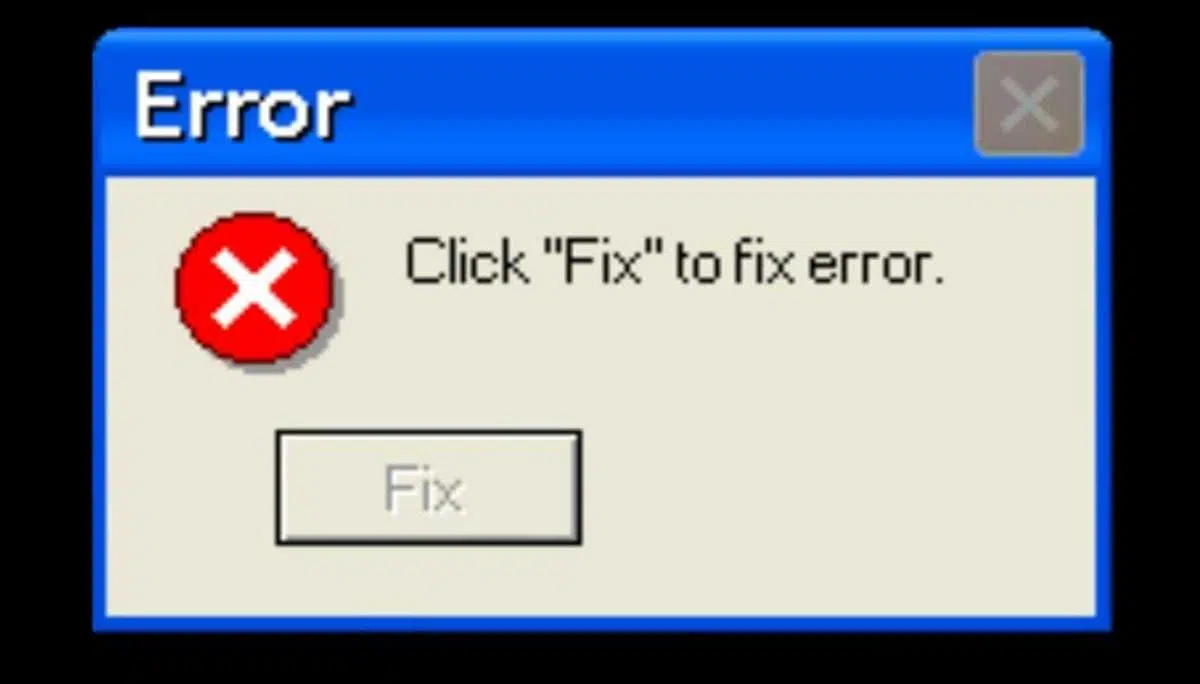
PC error messages are those warnings that appear at the worst possible moment: when you're working, playing games, or simply trying to start your computer. Sometimes they're clear, other times they're complete enigma, and often they don't even explain what happened. However, behind each warning there's usually a fairly logical cause: hardware failures , memory problems, disk errors, incorrectly installed drivers, or a corrupted operating system.
In this guide, we'll take an in-depth look at the most common types of error messages on a PC (Windows and Linux), what they actually mean, how normal warnings differ from serious errors (like the infamous Blue Screen of Death), and what you can do to fix them or at least understand what's going on. You'll also see how "proper" error messages should be written and why so many programs do it so terribly.
Typical Windows errors: drivers, memory, and system resources
One of the classic Windows warnings is the one that indicates a device driver is corrupted or that the system is low on memory or resources , identified as "Code 3" in Device Manager. The full message usually says something like the driver might be corrupted or the computer is running out of memory, suggesting freeing up resources or installing more RAM.
This type of error occurs when Windows cannot properly use a device (network card, graphics card, USB, etc.) either because the driver is corrupt, incorrectly installed, or outdated, or because the system is so short on RAM or virtual memory that it can no longer allocate more resources.
A basic but effective first solution is to close applications to free up memory . You can open Task Manager with CTRL + ALT + DEL and check which processes are using up RAM and CPU. If the problem is related to virtual memory, you can adjust the paging file size in System Properties, under the "Advanced" tab and the "Performance" section.
When the problem originates with the driver, it's recommended to uninstall and reinstall it through Device Manager . In the device properties, under the "Driver" tab, you can uninstall the driver, restart your PC, and then prompt Windows to scan for hardware changes so it can detect the device again. In some cases, you may need to download the updated driver from the manufacturer's website.
If your computer is constantly running at its limit, with repeated memory errors and insufficient resources messages, it's quite likely you need to upgrade your RAM . Adding more RAM alleviates many errors related to "out of memory," "application cannot continue," or random crashes.
Classic error messages at the system and file level
Aside from driver warnings, any PC user has likely encountered common messages indicating problems with permissions, devices, or files . While the wording may vary depending on the operating system, the underlying message is generally the same.
When an " Access denied " message appears, it means the user does not have sufficient permissions to read, write, or execute a file, folder, or resource, or that access has been restricted by another program or user. This type of error is common in multi-user systems, protected folders, or system files.
The message “ Device not ready ” usually appears when the system tries to access a drive that isn't ready : for example, a floppy disk drive or removable drive with no media inserted or with defective media. It's the classic case of trying to read a drive that has nothing to read.
If you see a " File not found " message , it usually means the file has been moved, deleted, renamed, or is corrupted . It could also be due to a misspelling of the name (more common in command lines) or because the specified path doesn't exist. Some programs also display this message when the file is damaged and cannot be opened correctly.
The " Low hard drive space " message appears when the drive is almost full. This can cause errors when saving documents, problems with the swap file, or issues installing programs. The solution involves deleting unnecessary files, clearing temporary files, or moving data to another drive , and in extreme cases, upgrading to a larger hard drive.
The " Out of memory " message indicates that the system doesn't have enough RAM available or is trying to load something too large . The usual solution is to close programs you're not using, avoid having dozens of tabs and applications open, and, if it happens frequently, consider upgrading your physical memory.
Historical errors and mythical messages from operating systems
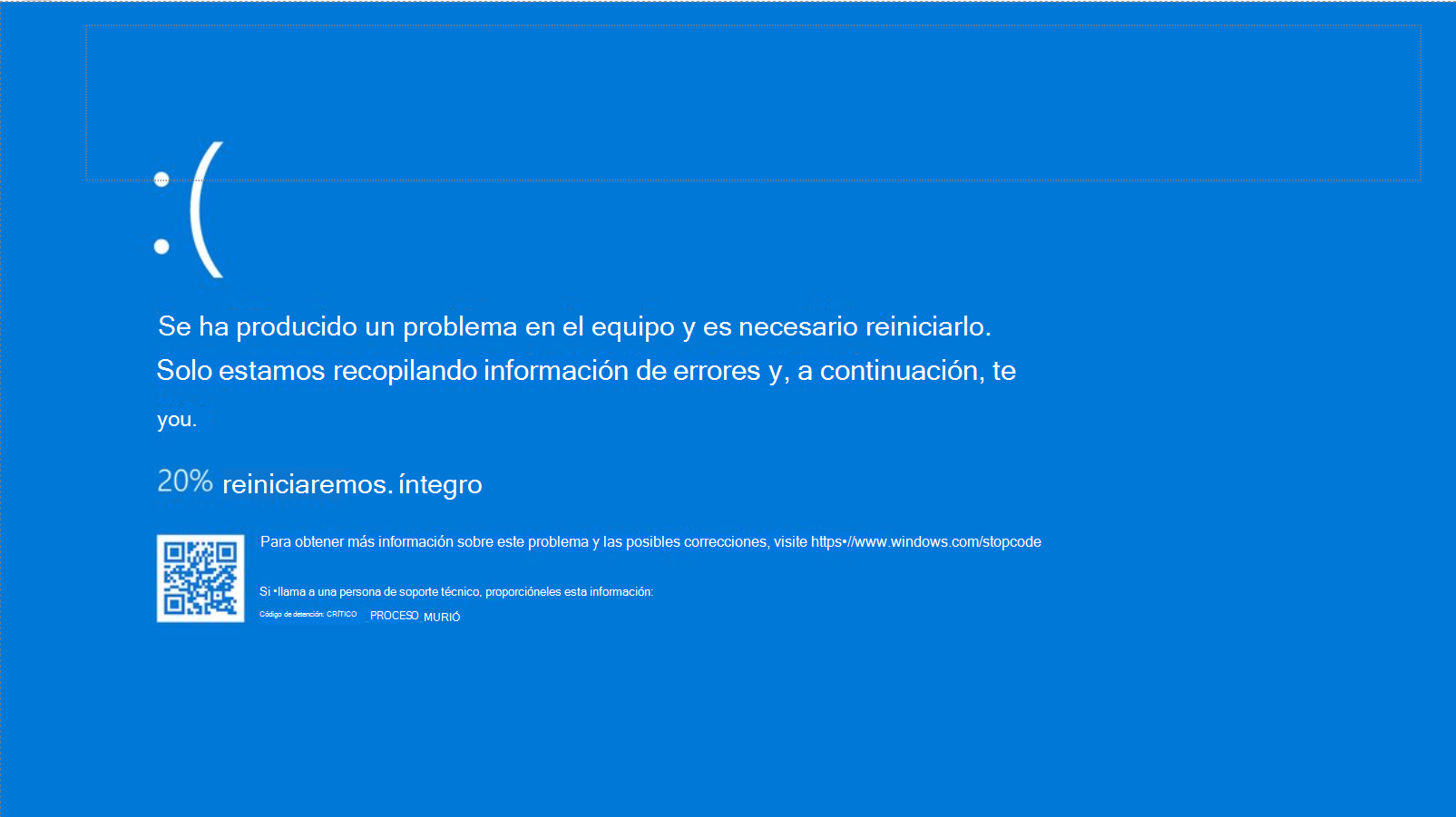
Throughout the history of computing, some error messages have appeared that are so curious they've become famous. Some systems have iconic warnings that any computer geek recognizes instantly.
In MS-DOS, the message “Abort, Retry, Ignore?” was very common —a confusing dialog where the user had to choose without a clear understanding of what would happen with each option. It wasn't exactly a model of good usability.
AmigaOS systems had the famous "Guru Meditation ," a kind of "screen of death" specific to that platform. In the Unix world, the modern equivalent is the "kernel panic ," which indicates that the system kernel has encountered an error from which it cannot recover.
In the web domain, one of the most common errors is Error 404 , which indicates that the server is responding but the requested resource does not exist . This can happen because the URL has changed, the file has been deleted, or the address has simply been misspelled.
And of course, in Windows we have the dreaded Blue Screen of Death (BSOD) , which appears when the system detects a critical error in the kernel, drivers, or hardware, and is forced to stop to avoid further damage.
Windows Blue Screens: STOP codes and common causes
A BSOD, or blue screen error, appears when Windows encounters a problem it cannot resolve without restarting. In modern versions like Windows 10 and 11, the typical message is " Your PC ran into a problem and needs to restart ," along with a stop (STOP) code in hexadecimal format (0x00000050, 0x0000007E, etc.).
The most common causes of these blue screens are faulty or incompatible drivers, damaged RAM, hard drives with bad sectors, damaged cables , overheating, an outdated BIOS, or corrupted system files . Each STOP code points to a specific source of the problem.
Among the most common errors are, for example, PAGE_FAULT_IN_NONPAGED_AREA (0x00000050) , which indicates that the system has tried to access a memory area that it should not have, usually due to faulty RAM, problematic drivers, or damaged NTFS volumes.
The code IRQL_NOT_LESS_OR_EQUAL (0x0000000A) indicates that a kernel-mode component has attempted to access memory with an inappropriate priority level, a common issue with poorly written or incompatible drivers . The error KMODE_EXCEPTION_NOT_HANDLED (0x0000001E) occurs when the exception handler detects that a process has executed an invalid instruction.
Other classics include DRIVER_IRQL_NOT_LESS_OR_EQUAL (0x000000D1) , which is similar to 0x0A but clearly indicates that the culprit is a driver; SYSTEM_SERVICE_EXCEPTION (0x0000003B) , which points to system services or drivers that throw exceptions; and SYSTEM_THREAD_EXCEPTION_NOT_HANDLED (0x0000007E) , usually caused by outdated or incompatible drivers.
You'll also see errors that point to hardware failures more directly, such as MEMORY_MANAGEMENT (0x0000001A) , associated with memory management problems and faulty RAM modules, or WHEA_UNCORRECTABLE_ERROR (0x00000124) , closely linked to physical failures of the CPU, motherboard, RAM, or voltage and temperature problems.
Disk and file system-centric STOP codes
When the problem is related to the disk or file system, STOP codes help identify it. For example, STOP 0x00000024 (NTFS_FILE_SYSTEM) or 0x00000023/0x00000024 (FAT_FILE_SYSTEM / NTFS_FILE_SYSTEM) indicate that Windows is having difficulty reading or writing to a partition , usually due to errors in ntfs.sys, damaged cables, bad sectors, or corrupted file systems.
In these cases it is highly recommended to run diagnostic tools from the equipment or disk manufacturer , temporarily disable antivirus, defragmenters or backups that may interfere, and run chkdsk /fo chkdsk /f /r on the affected drive to locate and isolate problematic sectors.
The error UNMOUNTABLE_BOOT_VOLUME (0x000000ED) usually appears at startup and indicates that Windows cannot access the boot partition . This can be due to a motherboard or controller change, or modifications to the disk connections. Sometimes it can be fixed with a chkdsk command from the recovery console, but other times it requires a thorough hardware and configuration check.
Similarly, INACCESSIBLE_BOOT_DEVICE (0x0000007B) indicates that the system cannot access the boot device during startup. A change in the BIOS SATA mode (RAID/AHCI), an incorrect storage controller, or corrupted boot files are common culprits.
Finally, errors such as BAD_POOL_HEADER (0x00000019) point to damage in the reserved memory area header (pool) , often caused by unstable drivers, hardware problems, or software conflicts that mishandle memory.
BSODs related to memory, drivers, and CPU
There is another family of blue screens clearly associated with faulty drivers, RAM, and processor . A typical example is STOP 0x00000050 (PAGE_FAULT_IN_NONPAGED_AREA) , already discussed, which is often resolved by removing newly installed hardware, running memory diagnostics, checking drivers, and executing chkdsk if the partition is NTFS.
The STOP codes 0x0000007E (SYSTEM_THREAD_EXCEPTION_NOT_HANDLED) and 0x0000008E (KERNEL_MODE_EXCEPTION_NOT_HANDLED) indicate that a system thread or a kernel-mode process has thrown an unhandled exception. These are usually related to incompatible drivers or BIOS, problematic hardware, or, very commonly, faulty graphics drivers (e.g., from Nvidia).
The STOP 0x0000007F (UNEXPECTED_KERNEL_MODE_TRAP) error is usually associated with faulty RAM, a defective motherboard, or incompatible software . A common, documented cause is interaction with certain antivirus programs, such as Norton, on older versions of Windows. Checking hardware compatibility and running memory tests is almost mandatory.
On the other hand, STOP 0x0000009F (DRIVER_POWER_STATE_FAILURE) indicates drivers that don't work well with power-saving features , especially on laptops (sleep, hibernation, etc.). Updating or disabling the problematic driver, booting in Safe Mode or with the latest known good configuration, and checking software that uses filters (antivirus, backups) are usually the logical solutions.
The STOP code 0x000000EA (THREAD_STUCK_IN_DEVICE_DRIVER) is almost a classic in graphics cards : it indicates that a device driver (typically the GPU driver) has entered an infinite loop repeating instructions, leaving the system with no ability to recover.
Critical errors in registration, imaging, and machine verification
When the problem affects the registry or the system binaries themselves, errors such as STOP 0xC0000218 (UNKNOWN_HARD_ERROR) appear , indicating corrupted or deleted registry files, or even faulty RAM modules . In these cases, the system often fails to boot normally.
The STOP code 0xC000021A (STATUS_SYSTEM_PROCESS_TERMINATED) indicates that a critical user-mode process , such as Winlogon or CSRSS, has failed. The cause is usually incompatible software or drivers , and often requires checking recent installations, uninstalling drivers, and, in the worst case, repairing or reinstalling Windows.
With STOP 0xC0000221 (STATUS_IMAGE_CHECKSUM_MISMATCH) , Windows detects that the checksum of a system file or driver does not match the expected value. This indicates that the file has been modified, is corrupted, or there are problems reading it from disk or RAM . The system calculates a checksum when loading the file, and if it doesn't match the stored checksum, it throws this error.
Finally, STOP 0x0000009C (MACHINE_CHECK_EXCEPTION) is directly related to unrecoverable hardware errors detected by the processor . Technologies like Machine Check Exception (MCE) or Machine Check Architecture (MCA) in Pentium CPUs and later models notify Windows that something serious has failed at the physical level (processor, motherboard, memory, etc.), sometimes as a consequence of overclocking . The specific diagnosis is usually not straightforward and often requires the intervention of the manufacturer or a specialized technician.
In the face of all these errors, in addition to the specific actions for each code, it is very useful to use tools such as DISM /Online /Cleanup-Image /RestoreHealth and the System File Checker , as well as reviewing the Event Viewer and the minidumps to refine the diagnosis.
Common errors and strange messages from "normal" Windows
Not all error messages in Windows involve blue screens or catastrophes. Many are application alerts, modal dialog boxes, or notifications that report more or less minor problems, although they aren't always well-written.
Some messages are laughably absurd, like the warning that "The action may take some time" with ludicrous estimates such as "127 years" when copying files. Or error report dialogs that fail in turn , creating one error within another.
Another example is excessive requirements, such as a Windows 2000 message that demanded absurdly long passwords (over 18.000 characters) . Or generic " What's the problem? " warnings that mention potential security risks without explaining anything useful and that most people close without reading.
Messages like “Press any key to continue” are also common , even when the keyboard isn't working , or errors claiming “the problem is Windows Vista” when it's actually caused by third-party drivers or applications. And let's not forget false positives that appear to be serious errors but are actually nothing to worry about.
Even in modern systems like Windows 10, messages like "Something happened" have appeared during updates—a phrase that might make sense to developers internally, but explains absolutely nothing to the user. And, of course, there are those pop-ups that prevent you from shutting down or restarting until you click on a message that offers no useful information whatsoever.
What good error messages should look like, according to Microsoft
Microsoft has published very detailed guides on how to design helpful error messages in Windows , specifically for Windows 7 and later, but applicable to almost any software. The idea is clear: a good message should report a real problem, explain why it happened, and offer a concrete solution.
A well-written error message should be relevant to the user, actionable, task-focused, brief, clear, specific, polite, and infrequent . In other words, it should speak the user's language, not the compiler's, and not appear every other minute for no reason.
It's recommended to avoid unnecessary messages , especially when the user can't do anything or the situation isn't a problem for them. For example, if they try to delete a file that no longer exists, from the user's perspective the goal (that the file disappears) has already been achieved, so there's no point in displaying an error.
It is also emphasized that preventing errors through good design is preferable to bombarding users with warnings. Using controls that only allow valid values (lists, date/time pickers, checkboxes, etc.), disabling buttons when the action is pointless, and providing good default values greatly reduces the likelihood of errors.
Finally, it's important to emphasize that messages should not blame or ridicule the user . Phrases that sound accusatory or terms like "catastrophic," "illegal," or similar only serve to scare people and contribute nothing. It's better to focus on the problem and how to solve it, without pointing fingers.
Usage patterns: system errors, files, security, and input
Microsoft categorizes errors into several groups based on their nature. System problems affect the operating system, hardware devices, network, or the program itself when they are not in the correct state to complete a task. Many of these can be resolved by activating devices, reconnecting cables, or restarting services.
Then there are file problems , which occur when a file or folder is missing, already in use by another process, or its format is incompatible. In these cases, the messages should clearly indicate which specific file is failing and why, rather than a generic "file error."
Security problems arise when a user lacks the necessary permissions to access a resource or sufficient privileges for the task they are attempting. Instead of cryptic messages, it is preferable to clearly indicate the missing permission and suggest, for example, using an account with higher privileges or requesting administrator access.
Task problems are also distinguished , which refer to specific errors when performing an operation (pasting from the clipboard in an app that does not support that type of data, failures when installing updates, etc.), and user input problems , caused by poorly formatted values, incorrect ranges or inconsistencies between fields.
In the latter case, it is usually a good idea to indicate the error right next to the affected field and, if possible, while typing (in-context errors or balloons), rather than piling all the errors into a dialog box at the end without indicating where each one is.
Best practices when presenting error messages
The way an error is presented is almost as important as its content. A modal dialog box that blocks everything is not the same as a small, contextual message or a discreet notification. Ideally, you should use the least intrusive method that is effective for the specific problem.
For minor form errors (e.g., a misspelled time), it's preferable to use contextual messages or balloons next to the problematic field, without alarmist icons. If the error is detected when a confirm button is pressed, a small icon can be displayed next to the affected field, preventing the user from having to figure out what went wrong.
Modal dialog boxes should be reserved for problems that require immediate action before proceeding, such as the inability to save a file or a serious device failure. In these cases, it is recommended to use the appropriate error icon (not a warning icon) and clear text, with a brief main instruction and, if necessary, a supplementary explanation.
For more technical or rare errors that may require advanced diagnosis, additional details can be provided via a "Show details" button , so that most users are not overwhelmed with unnecessary information, but technical support has useful data such as error codes or paths.
It's also important to pay attention to button text . For errors, it's preferable to use "Close" instead of "OK," since there's nothing to "accept" in a failure. If the error requires closing the program, a button like "Exit Program" is much clearer than a simple, ambiguous "Close."
Common errors in Linux systems and typical messages
In the Linux world, error messages are also quite complex. Many appear during startup or shutdown, and others when using console tools. A classic example is when modprobe, insmod, or rmmod complain that they can't find a specific kernel module. If that module isn't truly necessary, you can add a line like `alias <module-name> off` to files such as `/etc/modules.conf` or `/etc/modutils/aliases` to silence the loading attempt.
Another common message is “ Unknown terminal type ” or similar, which indicates a misconfigured terminal type . Sometimes, simply adjusting the corresponding entry in /etc/termcap or changing the TERM variable to “console” or “linux” is enough for applications to correctly recognize the terminal environment.
Networks also display warnings such as “ INET: Warning: old style ioctl called ”, which suggest that outdated network configuration utilities are being used . The solution involves updating tools like ifconfig, route, and others to more recent versions (for example, the net-tools package or replacing them with iproute2), as recommended in the NET-2 and NET-3 HOWTO guides.
At the compilation level, errors such as “ld: unrecognized option '-m486'” indicate that an older version of binutils or ld is being used, which does not recognize certain options. Updating the binutils package to a modern version usually resolves the problem immediately.
Messages like “ internal compiler error ” in GCC, if they repeatedly appear at the same point even after restarting, are usually a sign of a compiler bug or unstable hardware (RAM, CPU, etc.). If the error persists after updating GCC and checking memory and disk, the correct course of action is to report it following the instructions in the GCC documentation.
Permissions, utmp, and disk writing problems in Linux
There are Linux warnings that are often found on misconfigured systems. For example, “ Shell-init: Permission denied ” at login is usually due to the home directory or a parent directory not having read and execute permissions for the user . Adjusting permissions with chmod, following Unix best practices, usually resolves this.
The message “ No utmp entry. You must exec… ” indicates that the /var/run/utmp file is corrupt, missing, or not being created at startup. You need to ensure that the startup scripts (rc.local, rc.d, etc.) generate this file and, on older systems, also check paths such as /var/adm/ or /etc/.
When the warning “ bdflush not running ” appears, it means the system is using an older disk block writing mechanism (such as the classic “update” every 30 seconds) instead of the modern bdflush daemon or its equivalent. Compiling and installing bdflush and running it before file system checks improves disk cache performance and reliability.
Another common warning is “ EXT2-fs: warning: mounting unchecked filesystem ”, which indicates that an ext2 partition has been mounted that has not been checked. Running e2fsck (or fsck -t ext2) with the appropriate option to clear the “dirty” flag and ensuring that the partition is properly unmounted on each shutdown prevents this message.
In short, most Linux errors, just like in Windows, are resolved by updating software, checking permissions, correcting configurations, and verifying hardware . Knowing how to interpret the specific message and where to look (logs, dmesg, syslog) is half the battle.
This entire collection of messages, from the humorous to the most critical, demonstrates that understanding PC error messages is key to maintaining a stable system: they help detect problematic drivers, disks about to fail, faulty RAM, or poorly configured network settings in time, and they also provide guidance on how to write better software so that the user doesn't have to struggle with useless or incomprehensible warnings.
