- Checking graphics card compatibility, ports, and cables ensures that both monitors work without resolution or performance limitations.
- Properly configuring the layout, resolution, and extended screen mode in Windows allows you to make the most of your desktop space.
- Choosing the right main monitor, using shortcuts, and proper ergonomics significantly improve comfort and productivity.
- Troubleshooting common issues and using appropriate adapters or docks makes it easy to set up a stable dual-monitor system on almost any PC.
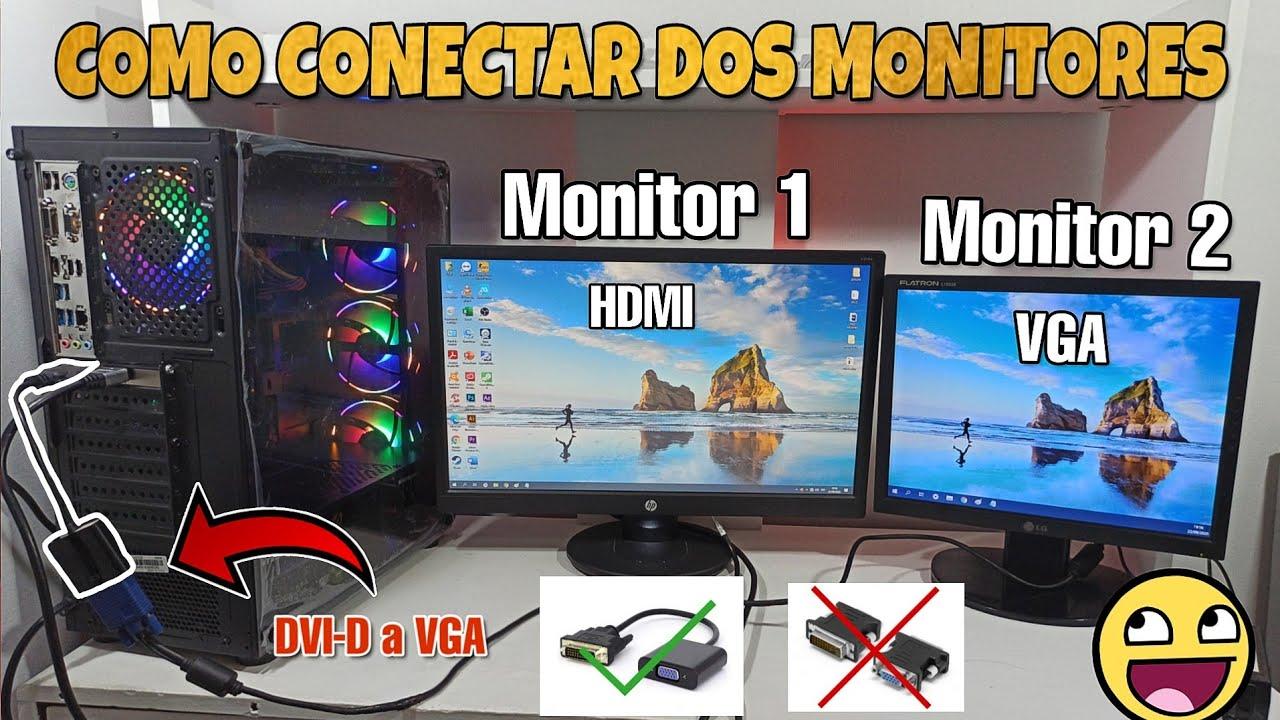
If you work, study, or play games for many hours in front of a computer, sooner or later you'll consider using Two monitors to save space and comfortHaving a single screen falls short when you need to have multiple windows open, follow a video call while taking notes, or review one document while editing another. Setting up a dual-monitor system might seem technical, but it's actually quite simple if you follow a few clear steps.
In this guide you will learn How to connect, configure, and get the most out of two screens On a Windows PC, from the physical aspects of cables and ports to system settings, keyboard shortcuts, and tricks for working or playing better, you'll see that with a few basic checks and tweaking a couple of options, you can create a much more comfortable work environment without going crazy.
Basic requirements for using two monitors on a PC
First of all, it is essential to check that your equipment meets the hardware requirements and necessary connections To move two screens smoothly. A high-end computer isn't necessary, but there are minimum requirements to consider.
The first thing to check is graphics card or integrated graphics of your processorAlmost all modern PCs, both desktops and laptops, allow you to connect at least two monitors, either through a dedicated graphics card or thanks to the integrated GPU in the CPU. If your computer is very old, it may only have one video output or its processing power may be insufficient.
You also need to check the video ports available on the tower or laptopYou'll typically find HDMI, DisplayPort, USB-C with DisplayPort mode, DVI, or, on older computers, VGA. Each output is for connecting a monitor; if you only see one port, you'll need to consider using an adapter, a docking station, or even upgrading your graphics card.
The monitors themselves must have compatible inputs for the cables you will be usingIf your PC only has HDMI and the monitor only supports VGA, you'll need an active adapter or converter that converts the digital signal to analog, something best avoided if you're looking for image quality.
Lastly, make sure that you power supply and your cooling system These are sufficient if you're installing a new graphics card to support two monitors. In most home use, you won't have any problems, but if you're installing a powerful graphics card, you should check the power supply's wattage and the PCIe power connectors.
Recommended types of connections and cables
When you go to physically connect the monitors, you will encounter different cable types and video standardsNot all of them offer the same quality or features, so it's important to choose wisely to avoid limitations in resolution or refresh rate.
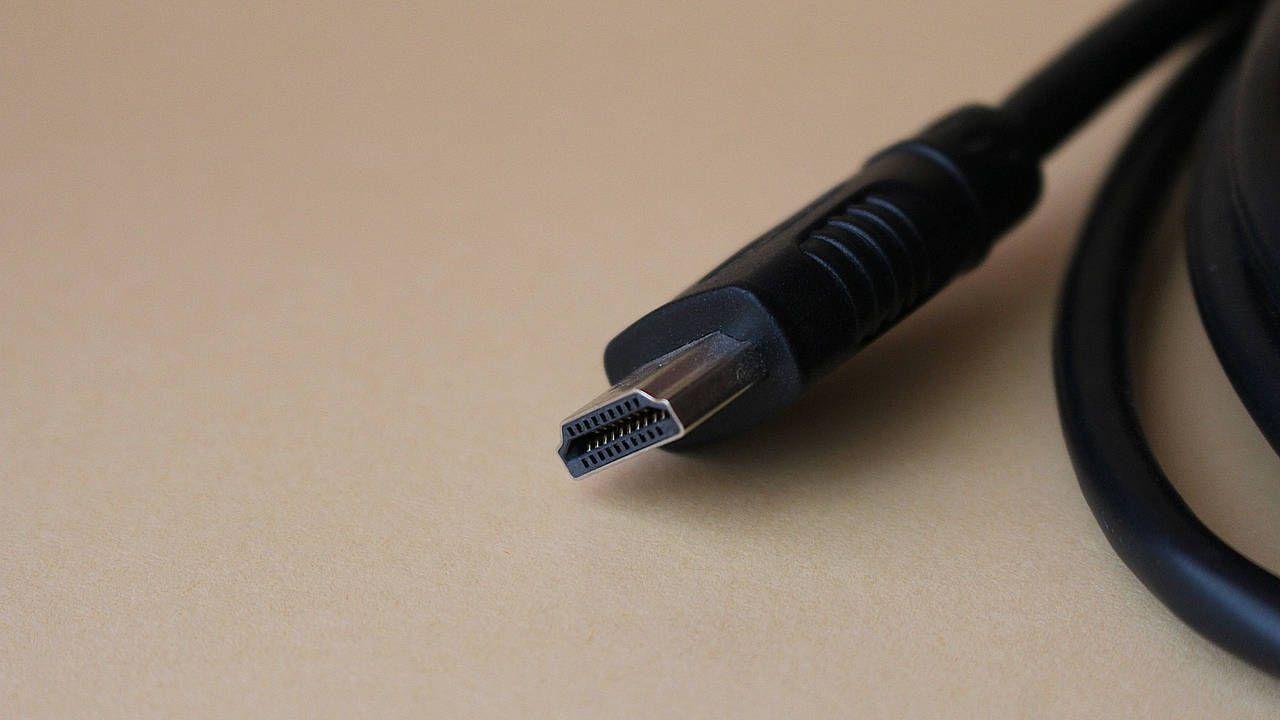
HDMI is the most widespread connector today. With a modern HDMI cable you can achieve high resolutions with good image qualityIdeal for most home and office monitors. For working with 1080p or 1440p, HDMI is more than sufficient, but if you're looking for very high refresh rates for gaming, it's best to ensure you're using a recent version of the standard.
DisplayPort is the other major player in modern desktop PCs and monitors. It stands out for offering More bandwidth and better support for high refresh ratesThis makes it a highly recommended option for gaming or high-resolution displays. If your graphics card and monitors have DisplayPort versionsIt is usually the most complete connection.
Modern laptops often feature USB-C ports with DisplayPort mode. In these cases, with a USB-C to HDMI or USB-C to DisplayPort adapter You can output a high-quality digital video signal to the second monitor. It's important to make sure that the laptop USB-C port It supports video output and is not just for data or charging.
Connectors like DVI and VGA have been left behind older equipment or monitors from past generationsDVI can still offer good 1080p quality, but VGA is analog, looks worse, and isn't recommended if you can avoid it. If this is your only option, a dual-monitor setup will still work, but with clear limitations.
How to physically connect the two monitors
Once you're clear on which cables and ports you're going to use, it's time for the physical assembly. This step is simple, but it's best to follow a specific order. avoid detection problems or damage when connecting the devices.
The most prudent thing is Turn off the PC before plugging in or unplugging monitorsAlthough many devices support hot-plugging, this minimizes the risk of video signal synchronization failures.
Start by connecting the first monitor with the main cable (for example, HDMI) between the output of the graphics card or laptop and the corresponding input of the monitor. Check that the cable is securely attached and that the monitor is powered.
Then do the same with the second monitor using another video port It depends on the graphics card or the computer. You can mix standards, for example, one monitor via HDMI and the other via DisplayPort, without any problem. The important thing is that each screen has its own cable connected to a different output.
On the monitor itself, select the correct input source in the OSD menu (HDMI, DP, DVI, etc.), because many don't automatically detect port changes if multiple inputs are available. If you see a "no signal" message, it's usually due to an input setting issue or a loose cable connection.
How to set up two monitors in Windows step by step
With everything connected, it's time for Windows to recognize the screens and for you to customize everything to your liking. The system itself includes a very simple panel for this. detect, sort and adjust the monitors without the need to install additional programs.
In Windows 10 and Windows 11, right-click on the desktop and enter Screen settings or Advanced screen settingsThere you will see your screens represented with numbered boxes, usually 1 and 2. If only one appears, use the detect option so that the system searches for the second monitor.
It is important that you arrange the screens by dragging the rectangles to match your actual physical position on the tableIf you have one monitor on the left and another on the right, position them that way on the panel. This will prevent the mouse from moving in strange directions when switching between screens.
In the multi-screen options section, you can choose whether you want duplicate or extend the desktopDuplicating means you'll see the same thing on both screens, which is useful for presentations but impractical for working. Most users find Extend mode much more useful, as it allows you to have a large desktop spread across both screens.
In that same section you can select which monitor will be the main screenThis will display the taskbar, Start menu, and most pop-up windows. It's usually the screen directly in front of you or the one with the best quality display. Simply check the corresponding box after selecting the correct screen.
Resolution, orientation, and scale on each screen
Each monitor may have its own settings to adapt to its size and how you position it. The key parameters are the resolution, orientation, and scale of text and elementswhich should be reviewed carefully.
The recommended resolution is usually marked by Windows as native monitor resolutionThis is the best resolution, as it matches the panel's actual pixel count. Lowering the resolution will make everything appear larger but less sharp; increasing it beyond the monitor's maximum resolution will result in malfunctions.
If you use a monitor rotated vertically, typical for reading documents or code, you can adjust the screen orientation to portrait or portrait flipped from the same screen settings. This way the system adapts the image layout and the mouse moves consistently.
The scale is useful for make the texts, icons, and windows easier to readEspecially on small, high-resolution screens (like some 4K monitors). You could have, for example, one monitor at 100% scale and another at 125%, depending on what's easier on your eyes.
If each monitor uses a different resolution, it's normal to notice slight differences at the edge of the screen when moving the mouse or dragging windows. This is completely normal and part of the process. working with screens of different sizes or resolutionsHowever, if you find it very uncomfortable, you can try using resolutions that are as similar as possible. It's also important to know the differences between panels, for example. IPS and VA monitorto choose better according to your use.
How to choose the main monitor and arrange windows
Once the basics are set up, it's time to adapt your desktop to your habits for comfortable work. Choosing the right main monitor and knowing organize windows quickly It makes a big difference in everyday life.
To define the main display, in the Windows settings panel select the monitor you want as your reference and check the option to Make set as home screenThe taskbar and notification area will remain there; normally, it should be placed on the monitor that you have centered.
Window distribution becomes much more efficient using the keyboard shortcuts offered by WindowsThe Windows key + Arrow keys let you dock a window to the left or right half of the screen, or quickly maximize and restore it. In a dual-monitor setup, these shortcuts allow you to rearrange windows without dragging them with the mouse.
You can also drag a window to the top edge to maximize it or to the sides to fit it to half the screen. If you get used to using these features, having two monitors stops being a visual mess and becomes a... structured way of dividing your work.
Another interesting option is to activate or adjust the taskbar to be displayed on both screens or just on the main one, according to your preferences. This is controlled from the taskbar customization settings and helps keep the programs you use most often always visible.
Tips for working better with two monitors
Beyond the technical setup, there are a number of tricks and habits that can help you get the most out of your dual-screen systemIt's about organizing the space logically so that everything flows smoothly.
A common option is to reserve a monitor for the main tasks that require concentrationUse one window for tasks like writing, photo editing, or programming, and the other for supporting tools such as email, chat, a browser, or a video player. This helps you stay focused and reduces time wasted switching between windows.
If you work remotely or make a lot of video calls, it's very convenient to leave the full-screen videoconference on one screen And on the other, have your notes, presentations, or work applications. This way, you can still see people while you work through the content.
For those who create content, edit video, or work with design, having the timeline or editing tools on a screen And the preview or references on the other side greatly streamline the workflow. It's like having a larger physical desktop where you can extend everything.
It is also useful to dedicate one of the screens to monitor information in real timeMetrics, dashboards, social media, or charts. Meanwhile, you can continue working without constantly switching tabs, which is especially useful for traders, content creators, or system administrators.
Improve ergonomics and screen placement
One point that is often overlooked is the Ergonomics and the correct height of monitorsIt's no use having two perfect screens if you end up with neck or back pain after a few hours in front of the PC.
It is recommended that the The top of the screens should be approximately at eye level. when you are sitting with the correct posture. This way you won't have to constantly tilt your head up or down, which reduces neck strain (How to configure the ergonomic height of the monitor).
If both monitors are the same, it's very comfortable to place them side by side, slightly curved towards you, forming a sort of semicircle. This allows you move your gaze with less effort and have all the content under control without turning your neck too much.
When monitors differ in size or resolution, you may have to play around with the adjustable bases or with specific supports to bring them to the same viewing height. An articulated monitor arm is a good investment if you spend many hours in front of your PC.
Don't forget to also adjust the brightness, contrast, and, if your monitor allows it, the low blue light modes. These details help to reduce eye strain and tiredness at the end of the dayThis is even more important when you double the screen area.
Set up two monitors for gaming and entertainment
If you use your PC for gaming or watching multimedia content, a dual-monitor system opens up some interesting possibilities. Although playing on a single screen is still the most common approach, a second monitor is perfect for... have support tools while you play.
For example, you can leave the game in full screen on the main monitor and use the second screen for have the chat open, a browser with guides, or statistics of the game itself. It's very convenient for online games, streaming, or long sessions where you want to do several things at once.
For those who stream live, a second screen is almost mandatory. It allows you to control the streaming software, platform chat, and alerts without having to minimize the game or interrupt what you're doing. This makes the experience much more professional and seamless.
As for playing movies or series, you can dedicate one screen solely to multimedia content and the other for... browse, search for information, or check social media. without interrupting what you're watching. It's very practical for video marathons or live events.
When setting games to full screen, in some cases it will be better to use borderless windowed mode. avoid problems when moving the mouse between screens or when receiving notifications on the second monitor. Each game behaves differently, so it's worth experimenting to see which setting works best for you. If refresh rates are your main concern, compare a a 60Hz monitor and a 144Hz monitor before deciding.
Common problems and how to solve them
When setting up two monitors, minor issues may arise, which are usually resolved with a few basic adjustments. It's helpful to know the common problems and their typical solutions so you don't get frustrated at the first hurdle.
If Windows does not detect the second monitor, the first thing to check is the cables, ports, and the selected input on the monitor itselfNext, in the display settings, use the Detect button. If it still doesn't appear, you should update your graphics card drivers from the manufacturer's website.
When one of the monitors looks blurry, strange, or has black borders, it's usually a matter of Incorrect resolution or poorly adjusted scalingIn the display settings, select the monitor's native resolution and check the scaling until everything looks sharp.
Another common problem is that the cursor jumps or moves to an unexpected place. This is almost always due to the Windows panel... The monitors are not positioned as they are in reality.Align the squares and place them at the same height so that the movement is consistent.
If you notice stuttering, flickering, or performance drops while playing games or watching videos, the graphics load may have increased. use two screens with high resolutionsCheck the game's graphics settings, try disabling the second monitor while playing, or, if it's a persistent problem, consider upgrading your graphics card.
For those using cheap adapters or generic USB hubs, it's not uncommon to encounter crashes or disconnections, especially if the adapter converts signals that aren't fully compatible. In those cases, the most effective solution is usually to opt for... adapters of proven quality or direct connections whenever possible.
Adapters, bases and special configurations
In some situations, simply plugging in two cables isn't enough, especially with very thin laptops or devices with few video outputs. That's where video adapters come in. adapters, connection bases and other solutions that expand the computer's capabilities.
Simple adapters, such as HDMI to DVI or DisplayPort to HDMI, allow you to take advantage of monitors with different inputs without losing quality when the digital signal is maintained. You just need to make sure the adapter is compatible with the resolution and refresh rate you need.
Laptop docks or cradles are very practical because they consolidate several ports into a single connector, usually USB-C. With a good dock, you can have multiple video outputs, USB ports and wired network plugged in at the same time, ideal for turning a laptop into a dual-monitor desktop workstation.
There are also USB graphics adapters that, using a dedicated chip, allow you to add additional video outputs. They aren't as powerful as a dedicated graphics card, but they can be an acceptable solution for Add a second monitor for office tasks or web browsing, without high demands.
In more advanced environments you may find yourself needing to combine monitors of different aspect ratios, resolutions, or even vertical configurationsIn these cases, it's worth spending a few extra minutes adjusting the layout in Windows so that daily use is comfortable and you don't have to struggle with the mouse all the time.
Ultimately, expanding your desktop with two monitors becomes a clear improvement for both productivity and leisure, provided you properly adjust connections, resolution, screen arrangement, and ergonomics. With a careful setup, Your daily experience in front of the computer changes completely. and working, studying or playing becomes much smoother and more enjoyable.
Table of Contents
- Basic requirements for using two monitors on a PC
- Recommended types of connections and cables
- How to physically connect the two monitors
- How to set up two monitors in Windows step by step
- Resolution, orientation, and scale on each screen
- How to choose the main monitor and arrange windows
- Tips for working better with two monitors
- Improve ergonomics and screen placement
- Set up two monitors for gaming and entertainment
- Common problems and how to solve them
- Adapters, bases and special configurations