- PC ports are input/output interfaces that allow you to connect peripherals, displays, network and audio, as well as expand the computer with PCIe slots.
- USB (especially USB-C and Thunderbolt), HDMI/DisplayPort, RJ-45 and audio jacks form the basic set of ports on modern computers.
- It is possible to expand connections with hubs, docks, and PCIe cards, but it is always advisable to choose the optimal port for each device to avoid bottlenecks.
- Opening network ports only when necessary and keeping them under control reduces the risk of malware, scans, and attacks against the system.
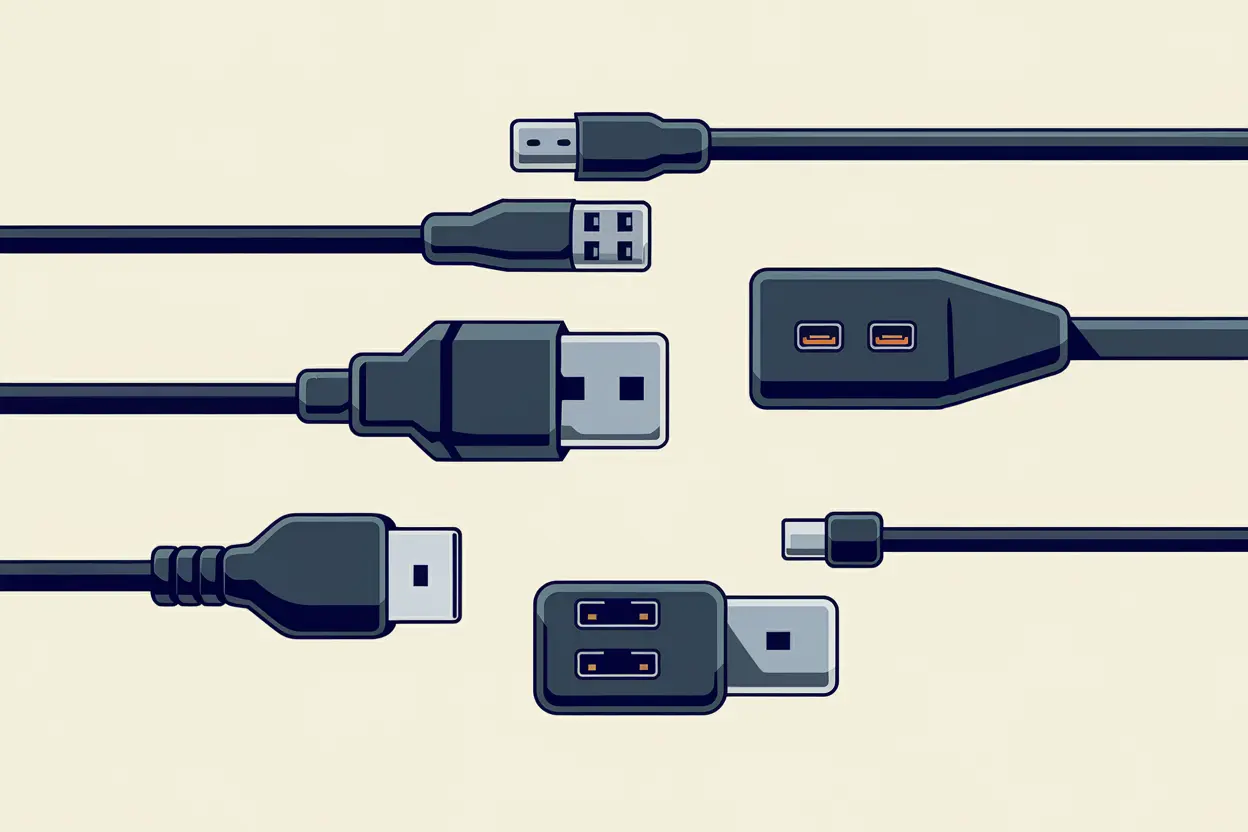
When we think about a computer's power, we usually focus on the processor, RAM, or graphics card, but the PC's ports are just as, if not more, important in everyday use . They determine what you can connect , how fast data moves, the image and sound quality you get, and how much power your devices receive.
If you've ever wondered what types of ports your PC has , how many are really necessary, which ones are obsolete, or how to tell if they're open and properly configured, you've come to the right place. We're going to take a detailed look at all the external and internal ports, including the typical ones for connecting peripherals, video, network, audio, PCI Express expansion, and even the logical network ports that are opened or closed in Windows.
What is a PC port and what is it really used for?
In computing, when we talk about PC ports we usually refer to two different things: on the one hand to the physical connectors (USB, HDMI, RJ-45, audio jacks, etc.) and on the other hand to the logical network ports (such as 80, 443, 21…) that are used for applications to communicate over the Internet or the local network.
In physical terms, a port is simply an input/output (I/O) interface : a connector that allows the computer to send and receive data, signals, and often power as well. You'll find them on the back of the tower, the front, the sides of the laptop, and even integrated into monitors and docks; and here's why it's a good idea to cover empty ports.
At the electrical and logical levels, all these ports share several basic elements: a clock that sets the transmission rate, data lines or pins, and, in many cases, power lines. Some ports operate in parallel (several bits per cycle) and others in serial mode (one bit per cycle), but the modern reality is that high-frequency serial ports have ultimately overtaken the older parallel buses.
It's important not to confuse external ports with the motherboard's internal expansion slots ( PCI Express , M.2, etc.). These slots are also I/O interfaces, but they are designed for installing expansion cards and high-speed storage drives, not for manually connecting and disconnecting peripherals.
How many ports can a computer have today?
A modern desktop PC typically has between 6 and 12 external ports , not counting the internal ports on the motherboard. Laptops have slightly fewer ports due to space limitations, but the variety is usually very similar.
The usual cast looks quite similar to this:
- USB ports (USB-A and USB-C): between 4 and 8 connectors distributed between the front, rear and sides in the case of laptops.
- Video ports: one or more HDMI and/or DisplayPort ports; on older equipment, VGA or DVI ports may still appear.
- Wired network: at least one RJ-45 (Ethernet) with Gigabit or higher support.
- Analog audio ports: from a single 3,5mm combo jack to 5-6 color-coded connectors.
- Card reader: SD or micro-SD slot, especially common in laptops and equipment geared towards content creation.
- Special portsThunderbolt, eSATA or proprietary ports, depending on the range and manufacturer.
In addition to everything visible, the motherboard hides a good number of internal connections: SATA ports for SSDs and hard drives, M.2 slots for NVMe, and PCI Express lanes to which the graphics card, network cards, capture cards, etc. are connected.
USB ports: the universal standard for peripherals
If there's one port that has earned the title of indispensable, it's undoubtedly USB (Universal Serial Bus) . It was created in the late 90s to unify the chaotic array of connectors at the time (serial, parallel, PS/2, SCSI, etc.), and today it's practically impossible to find a PC without several USB ports.
On one hand we have the versions of the standard , which define the maximum transfer speed:
- USB 1.1: up to 12 Mbps, now completely obsolete.
- USB 2.0: 480 Mbps theoretical (about 60 MB/s), still very widespread in simple peripherals.
- USB 3.0 / 3.1 Gen 1: up to 5 Gbps.
- USB 3.1 Gen 2 / 3.2: 10-20 Gbps, already designed for fast storage and displays.
- USB4: integrates Thunderbolt features and takes bandwidth even further.
On the other hand, there are the physical shapes of the connector, which are what you see when you look at the PC case:
- USB-AThe classic rectangular shape. It's still very common on keyboards, mice, USB drives, printers…
- USB-BThe more square shape was very common in printers and some external devices. It's becoming less and less common.
- Micro-USB and Mini-USBThey were used for years in mobile phones and cameras; they have practically been replaced by USB-C.
- USB‑CA reversible, compact, and extremely versatile connector. It can carry data, video, and power simultaneously, and is the one chosen for the latest generations (USB 3.2, USB4, Thunderbolt).
A key advantage of the USB universe is its backward compatibility : as long as the connector type fits, you can connect a USB 2.0 device to a USB 3.2 port or vice versa. However, the effective speed will always be limited by the slower version involved (the "weak link").
Another important point is power: thanks to technologies like USB Power Delivery (USB-PD) , many USB-C ports not only transfer data, but also charge mobile phones, tablets and even laptops , with power levels that can reach 100W.
And, to top it all off, manufacturers often use colors on USB ports to differentiate generations at a glance:
- White: USB 1.1 (now practically extinct).
- Black: Standard USB 2.0.
- Blue or teal: High-speed USB 3.x.
- Red / orange / yellow: ports with charging capability even when the PC is idle.
Thunderbolt and USB-C: when a single port does almost everything
Several technologies rely on the USB-C physical connector, and one of the most powerful is Thunderbolt , originally developed by Intel in collaboration with Apple. Thunderbolt 3 and 4 use the same USB-C connector, but add strict specifications regarding bandwidth, power delivery, and video compatibility.
A Thunderbolt port is capable of combining the following into a single cable:
- High-speed data (up to 40 Gbps).
- Institutional for one or more screens (for example, 4K or even 8K).
- Electrical power supply enough to charge a laptop or a Mini PC.
This makes Thunderbolt the ideal choice for advanced docks, eGPUs (external graphics cards) , NVMe storage enclosures, and portable workstations that connect and disconnect with a single cable on the desktop.
Starting with USB4, the lines between high-end USB and Thunderbolt become blurred, to the point that many laptops now offer USB-C ports compatible with both USB4 and Thunderbolt , greatly simplifying life for the user.
Video ports: HDMI, DisplayPort and the classic ones on the decline
To connect monitors, televisions, or projectors, the PC uses dedicated video ports. For years we had a mix of analog and digital connectors, but today the dominant combination is HDMI and DisplayPort , both digital and capable of carrying audio.
HDMI (High-Definition Multimedia Interface) is ubiquitous in televisions and game consoles, and has also become a de facto standard in many home PCs. It allows the transmission of digital video and audio, supports HDCP copy protection, and, in its most recent versions, can handle 4K and 8K resolutions with high refresh rates.
DisplayPort , on the other hand, was originally designed for the professional PC and gaming world. Its strengths lie in its native support for high refresh rates, multi-monitor setups, and high resolutions . Furthermore, its protocol integrates seamlessly with USB-C and Thunderbolt, which explains why many modern laptops can output 4K video through a single USB-C connector.
On the side of the withdrawing connectors we find:
- VGA: classic analog standard, associated with CRT monitors and early LCDs. It produces a blurry image at high resolutions, so it is clearly obsolete.
- DVIIt was the bridge between VGA and HDMI; it exists in analog, digital, and hybrid variants (DVI-A, DVI-D, DVI-I), which caused considerable confusion. It is rarely seen in new equipment.
- S-Video and composite video: used to connect PCs to older televisions and in capture cards, but virtually extinct in modern PCs.
If you're building or upgrading a new computer, the sensible thing to do is to use HDMI and/or DisplayPort , and if you need compatibility with older monitors, use specific adapters.
Network ports: RJ-45, the good old Ethernet
Although Wi-Fi has gained a lot of ground, wired networks are still key when you're looking for maximum stability and low latency , for example for competitive gaming, home servers, or serious remote work.
The physical connector in question here is the RJ-45 , associated with Ethernet interfaces. These days, your motherboard's port will typically support at least Gigabit Ethernet (1 Gbps), but 2.5 Gbps, 5 Gbps, or even 10 Gbps interfaces are becoming increasingly common in high-end systems.
Something many people overlook is that actual speed depends not only on the port and network card, but also on the Ethernet cable itself (category Cat5e, Cat6, Cat6a, etc.) . If the cable is old and of a lower category, it can become the bottleneck even if the rest of the hardware supports higher speeds.
Audio ports: analog jacks and digital S/PDIF
In terms of audio, most PCs still use the classic 3,5 mm jack for connecting headphones, microphones, and speakers. Desktop computers typically have several color-coded jacks (green for front speakers, pink for microphone, black/orange/gray for rear, center, and subwoofer channels, etc.). For sound issues, you can consult our guide on how to troubleshoot audio problems on your PC.
In modern laptops, however, the use of a single combo jack for headphones and microphone is becoming increasingly common , or the switch directly to USB or wireless headphones.
When we're looking for higher-quality multitrack audio or want to connect our PC to an AV receiver, S/PDIF (Sony/Philips Digital Interface) comes into play. It can be presented as an optical (TOSLINK) or coaxial output and allows us to send multichannel digital audio (Dolby Digital, DTS, etc.) over a single cable, without the losses and noise of analog audio.
“Retro” ports: serial, parallel, PS/2, FireWire…
You might still find RS-232 (serial), Centronics/LPT parallel, or PS/2 keyboard and mouse connectors in some workshops, older offices, or industrial settings. They've almost disappeared from modern equipment, but they still have a place in control machines, instrumentation, and specialized hardware.
The RS-232 serial port (often with a DB9 connector) was widely used for mice, modems, and terminals. Today, USB has taken its place, but it remains relevant in environments where simple and robust communication with older equipment is needed.
The parallel port (Centronics, LPT) was king of printers for years. It was a relatively wide parallel bus, very limited by today's standards and now completely superseded by USB and networking.
PS/2 connectors (one green for the mouse and one purple for the keyboard) were very popular in the pre-USB era. Some modern motherboards still include a combined PS/2 connector for compatibility with older mechanical keyboards or for systems where a separate port from the USB bus is desired.
In the field of video and high-speed external storage, FireWire (IEEE-1394) and eSATA also played a prominent role for a time . Both have since been superseded by the flexibility and power of USB 3.x, USB-C, and Thunderbolt.
PCI Express slots: the other side of PC “ports”
Beyond the external connectors, the motherboard features several PCI Express (PCIe) slots , which are essentially high-speed ports designed for internal expansion cards. PCIe is a modular, point-to-point serial bus composed of lanes grouped into x1, x4, x8, x16, etc. To optimize its use in NAS, gaming, or servers, you can explore advanced PCIe optimization techniques.
Each PCIe slot has a specific bandwidth depending on the number of lanes and the generation (PCIe 3.0, 4.0, 5.0…). That's where we connect:
- Dedicated graphics cards.
- High-speed network cards.
- Professional video capture devices.
- Additional storage controllers.
Furthermore, many M.2 ports for NVMe SSDs are simply compact versions of PCIe, using the same type of power lines, but in a much smaller form factor designed for storage.
How to find out what ports your PC has (physical and network)
Before buying a monitor, an external SSD, or an audio interface, it's a good idea to check which ports are available on your computer . There are several easy ways to find out:
First, the most direct method: look at the PC case or laptop chassis . Many connectors have symbols or small markings indicating whether they are USB 2.0 or 3.x, whether a certain USB-C is Thunderbolt, which port is HDMI and which is DisplayPort, etc.
If you want to be sure, go to the manufacturer's website or consult the manual for your specific model; they usually include a diagram with all available ports, both external and internal.
For the open logical network ports on your system (those used by applications to listen for incoming connections), Windows offers built-in tools. In Windows 10 or 11, you can use PowerShell or Command Prompt with administrator privileges and run the following command:
netstat -ab
This command will display, after a few minutes, a list of listening TCP and UDP ports , along with their associated executables. It's very useful for discovering services you didn't know were active or for debugging connectivity problems.
When is it advisable to open network ports and what risks are involved?
In routers and firewalls, it's quite common to talk about " opening ports " to allow certain applications to receive incoming connections from the internet: web servers, online games, P2P programs, IP cameras, etc. However, each port we open is also a potential entry point for attackers; if you're going to expose services, consider advanced guides on service configuration and security.
Among the risks of having open ports without control, we can find:
- Malware and Trojans that sneak in by exploiting misconfigured services or unpatched vulnerabilities.
- Automated scans that locate open ports and then launch targeted attacks against them.
- DDoS attacks that saturate a specific port with junk traffic until the service becomes inoperative.
Therefore, the general recommendation is to open only the ports that are strictly necessary and only for trusted applications. Some reasonable examples would be:
- Specific online video games that require a specific port.
- Web or FTP servers that you manage and keep up to date yourself.
- Properly configured videoconferencing or remote control applications.
In parallel, it is key to keep the router updated, use strong passwords, and have security software that monitors traffic and detects anomalous behavior on open ports.
Can the ports on a PC or laptop be expanded?
If you're short on connections, you're not doomed: there are several ways to add extra ports without having to change your equipment.
For laptops and desktops, the simplest solution is a USB hub . It plugs into a single port and multiplies the number of available ports. There are basic hubs with only additional USB ports, and more complete ones that add HDMI, a card reader, RJ-45 network connectivity, etc.
One step further are docking stations , which take advantage of the power of USB-C or Thunderbolt to turn a laptop into a small workstation: multiple monitors, wired network, audio, several USB ports, all through a single cable to the computer.
On desktop PCs, if you have free PCIe slots, you can install expansion cards with more USB ports, more video outputs, more network interfaces, or even older ports (serial, parallel) for compatibility with older hardware.
In some very specific laptops, it is still possible to install internal expansion modules , but these cases are increasingly rare and usually require advanced knowledge and official parts from the manufacturer.
Choose the correct port according to the device
To get the most out of your equipment, it's not enough for the plug to "fit": it's best to use the most suitable port for each peripheral and avoid unnecessary bottlenecks.
For example, a monitor will almost always work via both HDMI and DisplayPort, but if you want high refresh rates (144 Hz or more) or multiple displays daisy-chained, you'll usually want DisplayPort, while HDMI is perfect for connecting to a TV or a single monitor.
If we're talking about a fast external SSD , the smart thing to do is to use a modern USB 3 or USB-C port; if you plug it into a USB 2.0 port it will work, but you'll completely waste the drive's performance.
For a keyboard, mouse, printer, or basic webcam , a USB 2.0 port is more than sufficient. Reserving the 3.x ports for storage, docks, or capture cards is a good practice.
For audio, if your headphones are analog, they will go into the corresponding 3,5 mm jack; if they are USB or use their own internal sound card, simply choose a free USB port and let the system detect them as another audio device.
And for internet connectivity , whenever latency or stability matters to you, RJ-45 Ethernet will still be preferable to any Wi-Fi, no matter how fast the wireless standard is.
Understanding your PC's ports, both physical and logical, allows you to choose better hardware, configure your network correctly, and avoid compatibility and security problems . Ultimately, your computer is essentially a large network hub, and the clearer your understanding of what each port does and how to use it effectively, the easier it will be to ensure everything runs smoothly: monitors at their native resolution, external hard drives performing at their best, games without lag, and network services open only where you actually need them.
