- Combining an SSD and more RAM is the most effective upgrade to revitalize an old PC.
- A good cleaning of the software and cooling system prevents bottlenecks and overheating.
- Updating drivers and reusing old disks as external storage extends the life of the equipment.
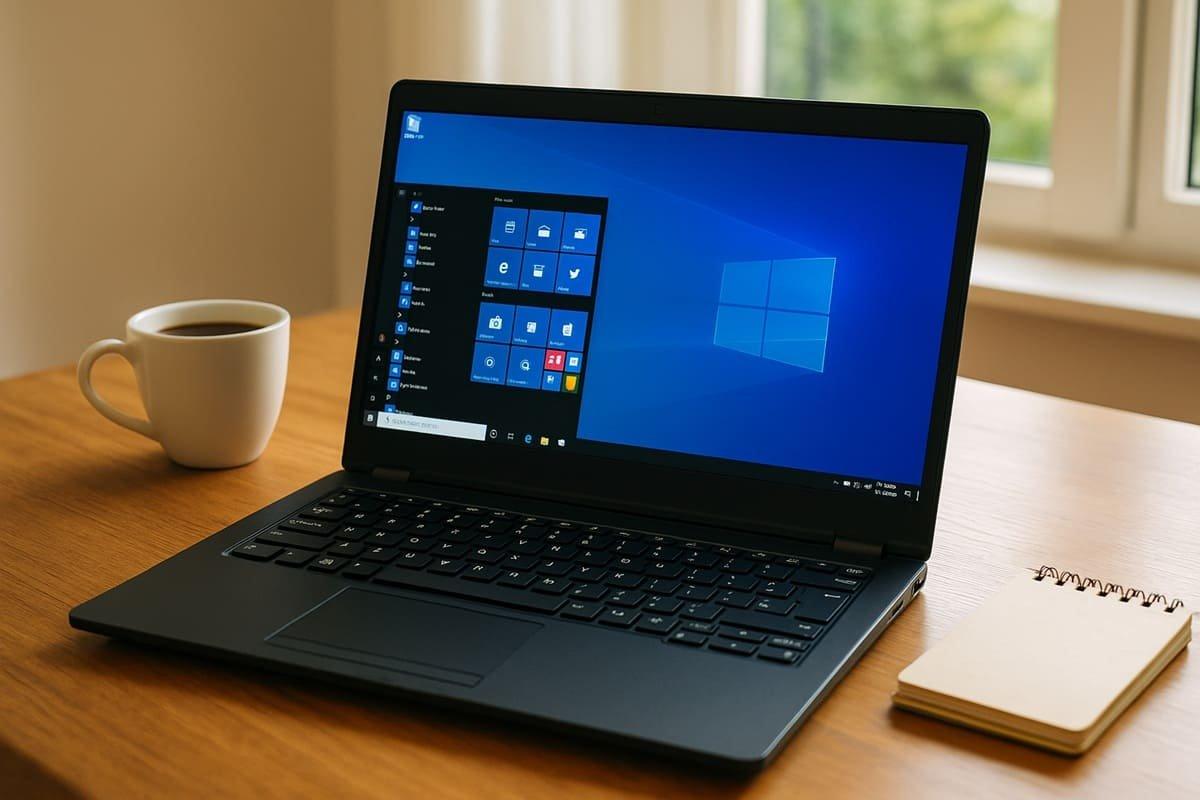
If your computer or laptop takes forever to boot up, freezes when you open a few browser tabs, or you need to make a coffee while a simple web page loads, it's quite likely that you're living with a machine that could perform much better than it does now. You don't always need to buy a new PC to notice a huge improvement in speed and responsivenessOften, it's enough to address the right points, both in software and hardware, and keep going. laptop hardware tutorials.
Before throwing in the towel and digging into your pockets, it's worth reviewing what can be optimized. Hardware considered "old" (2012, 2013, 2016…) is still perfectly valid For office applications, browsing, multimedia, and even certain games, provided you combine it with proper setup and minimal maintenance. Let's look at it calmly and step by step, mixing real-world examples with practical recommendations.
Why is your old hardware so slow (even though it's "theoretically" sufficient)?

Most users reach the same point: Your laptop or desktop starts up, opens Windows 10 without errors, and in principle "everything works"But the experience is frustrating. Switching between browser tabs is choppy, unzipping a file takes minutes, and if you try to play games, the frame rate plummets.
The causes are usually quite repetitive: Very slow mechanical hard drives (HDDs), low RAM, outdated drivers, too much software at startup, and some physical dirt which causes overheating. All of this, along with an operating system that has never been optimized, makes even a good processor seem much worse than it actually is.
A typical example is that of a modern but poorly balanced laptop, such as a notebook with an Intel Core i7, mechanical hard drive and 8 GB of RAM. On paper it's a powerful machine, but in practice it "chokes" when you multitask or run somewhat demanding applications.Even lightweight games get stuck due to a lack of optimization. In some cases, try lightweight operating systems can help.
Another common case is that of towers from a few years ago, like a desktop computer with Third-generation Intel Core i5, 4 GB of RAM and a 250 GB hard driveThis combination, very common in 2012-2013 computers, suffers with Windows 10: it boots in more than a minute, takes more than 10 seconds to open a web page, decompressing a large file can take more than 3 minutes, and recent games run at low fps.
Even so, that type of PC is not lost. With a modest investment, it can be transformed into an agile machine for remote work, multimedia, and even a decent 1080p gaming rig with medium settings.provided you know what to play and in what order, and consult real hardware reviews.
First steps: software optimization before changing parts
Before you rush out to buy components, it's worth exploring all the improvements you can make "with a click". There are a number of software maintenance and cleaning tasks that can significantly improve your PC's performance without spending a single euro..
The first thing to do is check the Windows startup. Many programs automatically configure themselves to start with the system without you noticing.consuming memory and CPU from the very first minute. Disabling what you don't need can shave many seconds off startup time and free up resources for everyday use.
The second step is to run an antivirus scan and a trusted anti-malware tool. A slow laptop often carries adware, browser toolbars, useless extensions, or even malware. It's consuming resources in the background. A good cleaning can make all the difference, especially on equipment that hasn't been maintained for years.
It is also important to make sure that the operating system and drivers are up to dateOutdated graphics card, chipset, or network drivers can cause crashes, blue screens, or simply slow down your experience, especially in games or GPU-intensive applications. Secure Boot and firmware hardening It is recommended when working with older BIOS and firmware.
Finally, thoroughly clean the storage area: Delete programs you don't use, temporary files, old installers, duplicate copies, and anything else that's just taking up space.A nearly full hard drive becomes much slower, and a saturated SSD also loses noticeable performance. And, if you migrate drives, learn how to convert a disk from MBR to GPT to avoid startup problems on modern systems.
If after performing these basic tasks you still find your PC very sluggish, it's time to consider hardware upgrades. The good thing is that many of these components (RAM, SSD, dedicated graphics card) can be added or changed relatively easily and cheaply., especially in desktop towers, but it's also possible in many laptops.
How to max out an old PC: SSD, RAM, and more
If you want to notice a clear performance jump, the two key changes are add an SSD and upgrade RAMThen, if you're interested in gaming, you can consider adding a dedicated graphics card to your desktop computer.
Adding an SSD: the upgrade with the biggest impact
In older computers, it's normal to find only a mechanical HDD. That single hard drive is the main bottleneck of the systemIt slows down startup, program loading, file sharing, and virtually all input/output operations. See how Avoiding mistakes when installing an SSD for a hassle-free process.
The most effective strategy is Install an SSD for the operating system and applicationsand relegate the old hard drive to the role of secondary storage for documents, photos, backups, etc. The SSD can be classic SATA (2,5″) or NVMe if your computer supports it, but even the most basic SATA SSD represents a huge leap forward compared to an HDD; if you have any doubts, consult the differences between SATA cables.
In a 2013 tower without an SSD, the change is incredible: Going from a one-minute startup time to around 20-25 seconds is perfectly realisticAnd opening a web page can drop from 12 seconds to just over 2. The whole system feels much lighter, as if you had changed computers without touching the processor.
The physical process is simple on a desktop PC: The SSD is mounted in a bay or adapter, and the SATA data cable and power cable are connected. From the power supply, it screws in and that's it. In laptops, it's usually a matter of replacing the HDD with the SSD in the same tray or, if you're lucky, adding it in a second bay or M.2 slot.
To avoid losing your data or having to reinstall everything, you can clone the old disk to the SSD. There are dual docking stations that allow cloning of 2,5″ and 3,5″ disks via USB 3.0 with standalone cloning functionalityA very practical accessory if you perform this type of operation several times or want to reuse old discs. You might also consider Convert your PC to Linux from a USB drive if you are looking for a lightweight alternative to the original system.
Expand your RAM: multitasking without lag
The other major limitation of many older PCs is the lack of memory. With 4 GB of RAM, Windows 10 boots up, but as soon as you open a browser, a heavy application, or a light game, the system starts using the page file and everything slows down..
If your motherboard has free slots (as is the case in many towers with 3 empty slots and only one 4GB module installed), the ideal thing to do is Add at least another 4 GB, either the same as or compatible with the existing ones.You can use the motherboard manual or online memory configurators to choose the correct model (DDR3, DDR4, frequency and voltage).
On desktop computers, upgrading RAM is usually a matter of opening the case, locating the free slots, and Insert the new module carefully, aligning the notch and pressing until the side tabs click into place.In laptops, there is often a specific cover on the bottom that allows access to the modules and allows you to change them without too much trouble.
With 8GB of RAM, a computer that previously couldn't handle multiple browser tabs or light multitasking It becomes much more convenient for office use, video calls, browsing, and multimedia consumption.If you work with photo/video editing or virtual machines, the jump to 16 GB is also noticeable, especially on more recent PCs.
Dedicated graphics card: turning a "normal" PC into a gaming machine
For those who want to play games, the next logical step is the GPU. Many computers from ten years ago rely solely on the graphics card integrated into the processor.Sufficient for office applications and video, but very limited for modern games.
Adding a dedicated graphics card, even a current or previous generation mid-range one, can multiply gaming performance. You don't need an enthusiast-level GPU to smoothly play popular titles like Fortnite, Valorant, or other esports games.especially if you adjust the resolution and graphics settings; also consult best games for low-spec PCs for titles that perform well on modest machines.
However, there are several points to check before making a purchase: the physical size of the card (that it fits in your case), compatibility with the motherboard (suitable PCIe slot), and the power of your power supply.An old, low-quality font may not support certain modern graphics.
In a real-world scenario with an upgraded PC, SSD, more RAM, and a budget dedicated graphics card, you can go from around 17 fps in Fortnite with everything on minimum to around 80 fps with more decent settings. It's a radical change in fluidity and immersion, at a cost considerably lower than building a new PC from scratch..
Optimizing older laptops: what you can do without changing your computer
Laptops seem less "modifiable", but in practice Many acknowledge at least two crucial upgrades: SSD and RAM expansionThat, combined with a good software cleanup, can extend their lifespan by a few years.
If your Windows 10 laptop struggles with just a few browser tabs or sluggishly when switching between applications, start with the basics: Disable startup programs, remove bloatware, update drivers, and clean temporary filesMany brands pre-install utilities that add little to the system and only detract from performance; consider this. which operating system to install if the equipment is very limited.
Once you've fine-tuned the software, look at the specifications: An i7 from a few years ago with an HDD and 4-8 GB of RAM can be transformed simply by switching to an SSD and expanding the memory.The processor is usually more than enough in these cases; the problem lies with the rest of the computer. If you're looking for a step-by-step guide, you can see how. Revive a PC with Q4OS.
In laptops, the change from HDD to SSD is probably what you'll notice the most: much faster restarts, near-instant opening of common applications, and less downtime between tasksAdding RAM helps prevent the system from "scratching the disk" at the slightest touch, improving multitasking and stability.
However, there is always a limit. If your laptop has a very weak cooling system or a very old integrated graphics cardDon't expect to turn it into a cutting-edge gaming PC. But for general use, office work, video streaming, and undemanding games, the upgrade might be more than enough to avoid having to buy a new one.
When does it make sense to maintain and upgrade a gaming PC?
The opposite is also common: a relatively modern PC, designed for gaming, that over time feels slower and starts to have problems. For example, a computer with an 11th generation Intel Core i5, an RTX 3060 Ti, 32 GB of RAM, a 250 GB SSD, and a 2 TB HDD., assembled 2-3 years ago.
On paper, it's a very powerful configuration, capable of running current games at high quality. If you notice that The games have started running worse even with low graphics settings, or the PC is crashing more and more oftenThe origin of the problem is not usually a lack of raw power.
In those situations, other factors need to be considered: CPU and GPU temperatures (possible overheating), SSD status, graphics card drivers, BIOS version, and power supply stabilityThe hardware itself is more than decent, so the key is maintenance.
Check that the cooling system (for example, a Corsair AIO liquid cooler) is working properly, that the fans are not full of dust, and that the temperatures under load remain within reasonable limits. Excessive heat can cause thermal throttling, crashes, and sudden drops in FPS..
It's also a good idea to free up space on the SSD, move infrequently used games to the HDD, and update chipset, GPU, and BIOS drivers for the TUF Z590-plus motherboard. Often, with this type of maintenance, the equipment "recovers" its original performance. without needing to change important parts.
Physical maintenance: dust, temperature, and component reuse
Besides the software and key components, there is one factor that many people overlook: the physical cleaning of the equipmentDust and dirt accumulated over years can clog fans, heat sinks, and ventilation grilles, raising temperatures and forcing the system to lower its frequency to avoid overheating.
Ideally, a spring cleaning should be done periodically: Open the tower or laptop lids, use dry compressed air, soft brushes, and appropriate wipes to remove dirt of fans, heat sinks, filters and air intake/outlet areas.
On a desktop, this maintenance is simple and very effective. With laptops you have to be a little more careful, but it's still recommended. provided you don't void the warranty by opening it. Better ventilation not only improves performance, but also extends the lifespan of the components.
On the other hand, when you change hard drives or upgrade storage, don't just throw away the old hardware. An HDD that you no longer want as your main drive can be repurposed as an external drive. using a 2,5″ or 3,5″ enclosure with a USB 3.0 connection. It's a cheap and useful way to have extra space for backups, movies, or large files.
If you also use a dual docking station with cloning function, you can Migrate content from one disk to another with ease and reuse all those old disks for backups or quick data exchange between various teams.
For system security and health, don't forget to continue performing regular software cleanups: Run your antivirus, check for installed programs you no longer use, and make sure your browser isn't full of junk extensions. and keep the entire driver ecosystem up to date.
With all this, even a PC that seemed destined for the scrap heap can continue to provide service for many years: for remote work, multimedia, studies, or as a second computer at home, with a more than acceptable level of response for his age.
When you combine good software optimization, replacing the hard drive with an SSD, a sensible increase in RAM, and some attention to cleaning and ventilation, the feeling changes completely: Startup becomes fast, applications respond almost instantly, browsing is no longer frustrating, and even games become sufficiently smooth. on hardware that, despite being "vintage," still has plenty of life left in it. If you work with very old equipment, you can also see how Revive Windows XP with Linux security.
Table of Contents
- Why is your old hardware so slow (even though it's "theoretically" sufficient)?
- First steps: software optimization before changing parts
- How to max out an old PC: SSD, RAM, and more
- Optimizing older laptops: what you can do without changing your computer
- When does it make sense to maintain and upgrade a gaming PC?
- Physical maintenance: dust, temperature, and component reuse